
Chapter 13
Compare & Sync
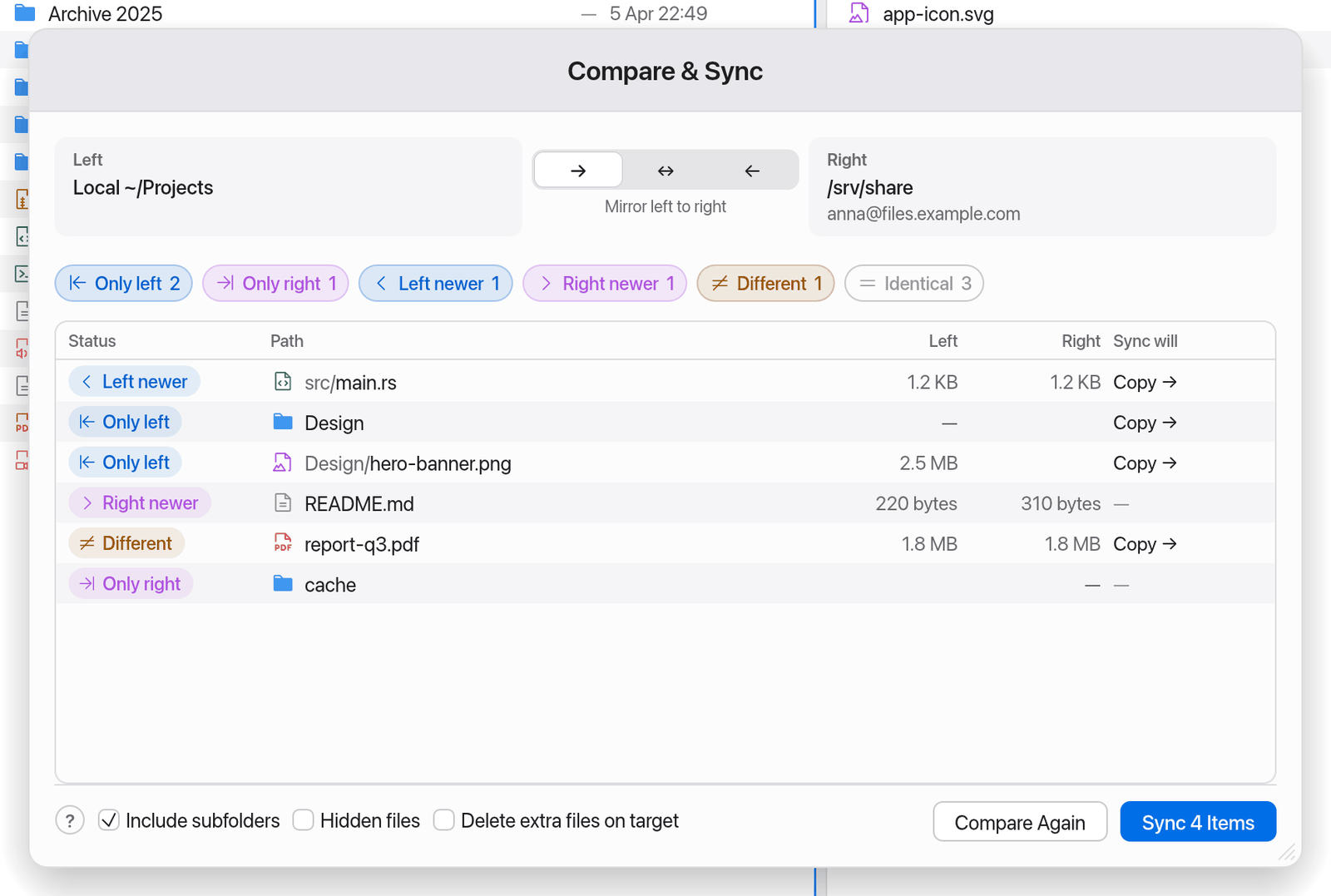
Compare & Sync shows how two folders differ and, if you want, makes them match – on your Mac, between your Mac and a server, or between two servers. The window compares two panes.
Compare two folders
- Open one folder in the left pane and the other in the right pane.
- Press ⇧⌘S (Compare & Sync…) or click its button in the toolbar.
- Choose the options (see below) and click Compare Again.
The list shows each item with its status:
| Status | Meaning |
|---|---|
| Only left / Only right | Exists on one side only. |
| Left newer / Right newer | On both sides, but one is newer (modification date). |
| Different | Same date, but a different size. |
| Identical | Same date and same size. |
Manta compares modification date and size, not the contents byte by byte.
The status legend above the list is also a filter: click a status to hide it ("Click to hide"), click again to show it.
With three or more panes
With more than two panes you choose which two to compare:
- Instead of "Left" and "Right" the two sides of the window are called Pane A and Pane B. In the top-right corner of each card a pop-up menu picks which pane that is ("Choose which pane to compare"). Panes are numbered from left to right, such as "2 · Downloads"; the other side's pane is marked "(A)" or "(B)". Choosing it swaps A and B.
- The active pane and its target pane are preselected.
- While the window is open, small A/B buttons appear in each pane's path bar ("Compare this pane as A"). The chosen role is filled in colour.
The statuses are then called Only in A, Only in B, A newer and B newer; the size columns Pane A and Pane B.
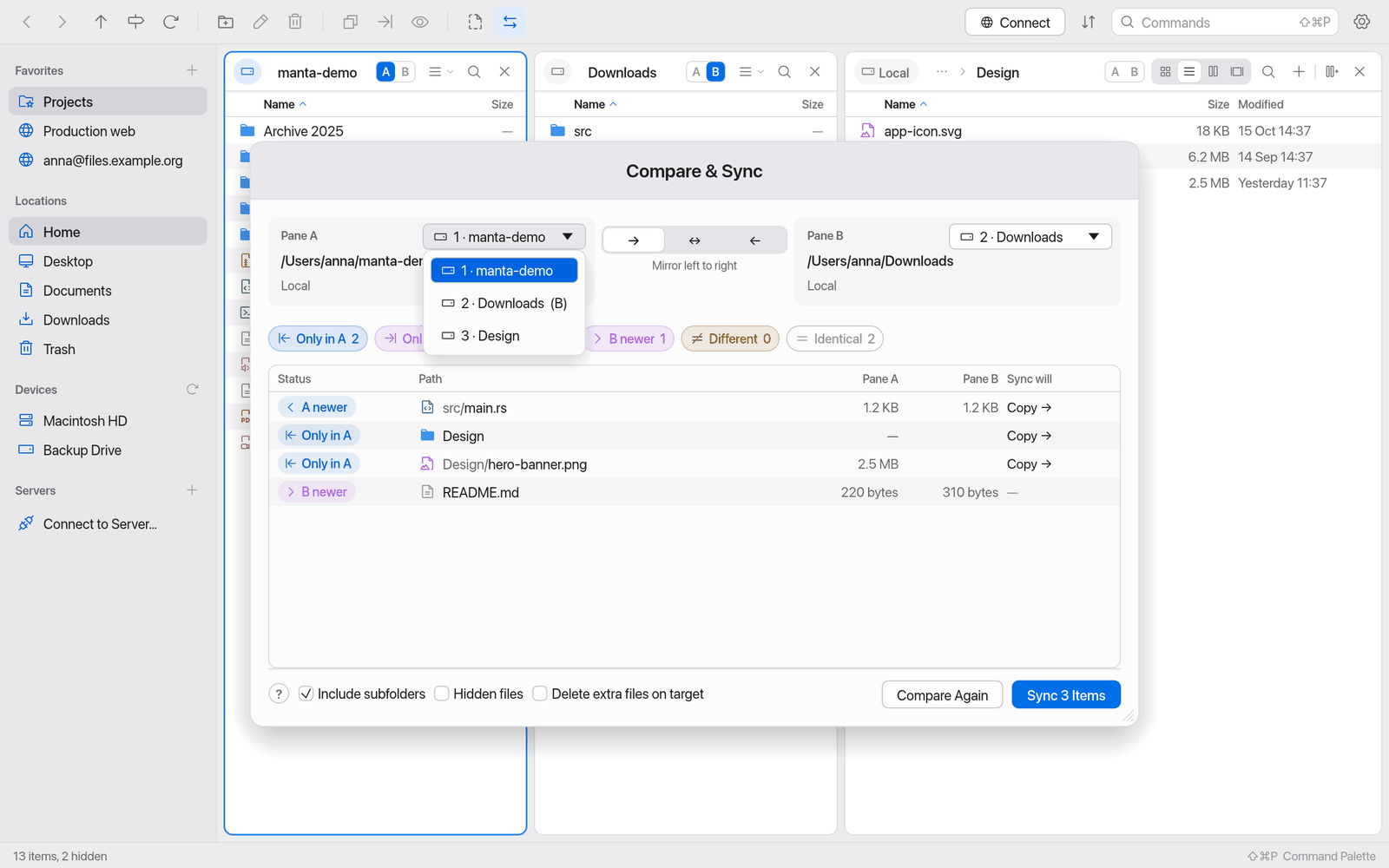
A is always on the left of the window, B on the right. So direction and actions keep their names: Mirror left to right means "A to B", "Copy →" copies from A to B, "Delete right" deletes in B.
Options
- Include subfolders – also compares the contents of all subfolders.
- Hidden files – includes files such as
.envor.DS_Store. - Direction (the three buttons → ↔ ←):
- → Mirror left to right: the right side becomes like the left.
- ↔ Newer file wins: both ways; the newer file is transferred.
- ← Mirror right to left: the left side becomes like the right.
- Delete extra files on target – only for one-way sync. Deletes on the target what doesn't exist in the source.
Before you start, the Sync will column shows what will happen: "Copy →", "← Copy", "Delete right" or "Delete left".
Sync
- Compare the folders as above.
- Choose the direction and check the Sync will column.
- Click Sync N Items.
The transfers run in the background ("Sync started: 12 transfers queued"). Follow the progress under Transfers (⌥⌘L).
If the folders match, the window says "Both folders are in sync".
Warning
Syncing overwrites files on the target without asking again, and Delete extra files on target deletes permanently (see Delete). Check the Sync will column before you start.
Rules that protect you:
- When mirroring, a newer file on the target is never overwritten.
- With Newer file wins, files with the same date but a different size are skipped, because it's unclear which one is right. Delete extra files on target doesn't apply here.
- If a name is a folder on one side and a file on the other, it's skipped.
- If a folder can't be read, the comparison stops rather than deleting the wrong things based on incomplete data.
The window
Compare & Sync is a macOS window of its own. Close it with the red window button or ⌘W (not esc). Manta remembers its position while the app runs.
With a single pane the command is off ("Needs two panes – ⌘D splits the pane").