
Chapter 15
Your Own Plugins
You can extend Manta with plugins of your own – in any programming language. This chapter explains what a plugin can do, how to install, update and find one and what to watch out for. The technical guide is in the developer documentation.
On this page
What plugins can do
- Show badges next to file names (like the Git badges).
- Show chips in the path bar (like the branch or the project).
- Offer commands for the command palette and the context menu, with a shortcut if you like.
- Show panels below a pane, in the right sidebar or as a dialog.
- Show items in the status bar, with an icon, a small meter and a warning colour (like System Load).
- Show notices.
A plugin is a folder with a plugin.toml file and a program (a Python script, for example). Manta starts the program and exchanges messages with it (JSON lines over stdin/stdout). A .mantaplugin file is simply that folder as a zip archive.
Install a plugin
- Open Settings (⌘,) → Plugins.
- Click Install Plugin… and choose From a File (.mantaplugin, .zip)… or From a Folder… (the folder with
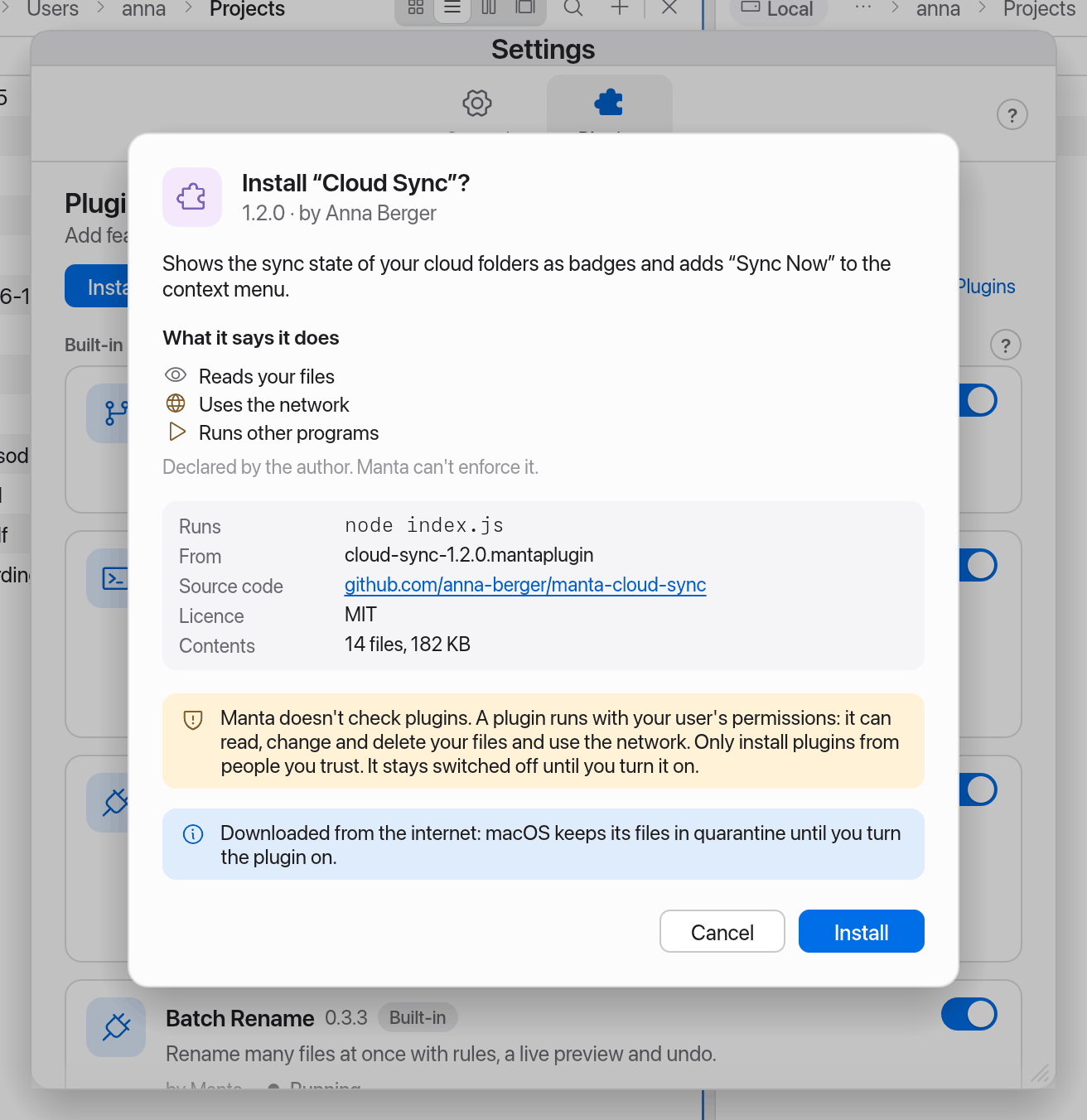
plugin.toml). Faster: double-click a.mantapluginfile in the Finder, or drag it onto the Plugins page. Plugins from the community directory install from Discover. - Before anything is installed, Manta shows an overview: name, version, author, description, What it may do (for example "Reads your files", "Changes or deletes files", "Uses the network", "Runs other programs", "Runs commands in the Terminal"), the command it Runs, where it comes From, a link to the Source code, the Licence and the size. Below that, a warning that Manta doesn't check plugins.
- Click Install. The plugin is then listed under Installed – still switched off.
Note
The permissions are declared by the plugin's author, and Manta enforces them: the plugin runs in a macOS sandbox and can't do anything else (see Security).
Turn it on
Click Turn On on the plugin's card. The first time, Manta asks you to confirm and shows the author, version, permissions, the command and the folder it runs in once more.
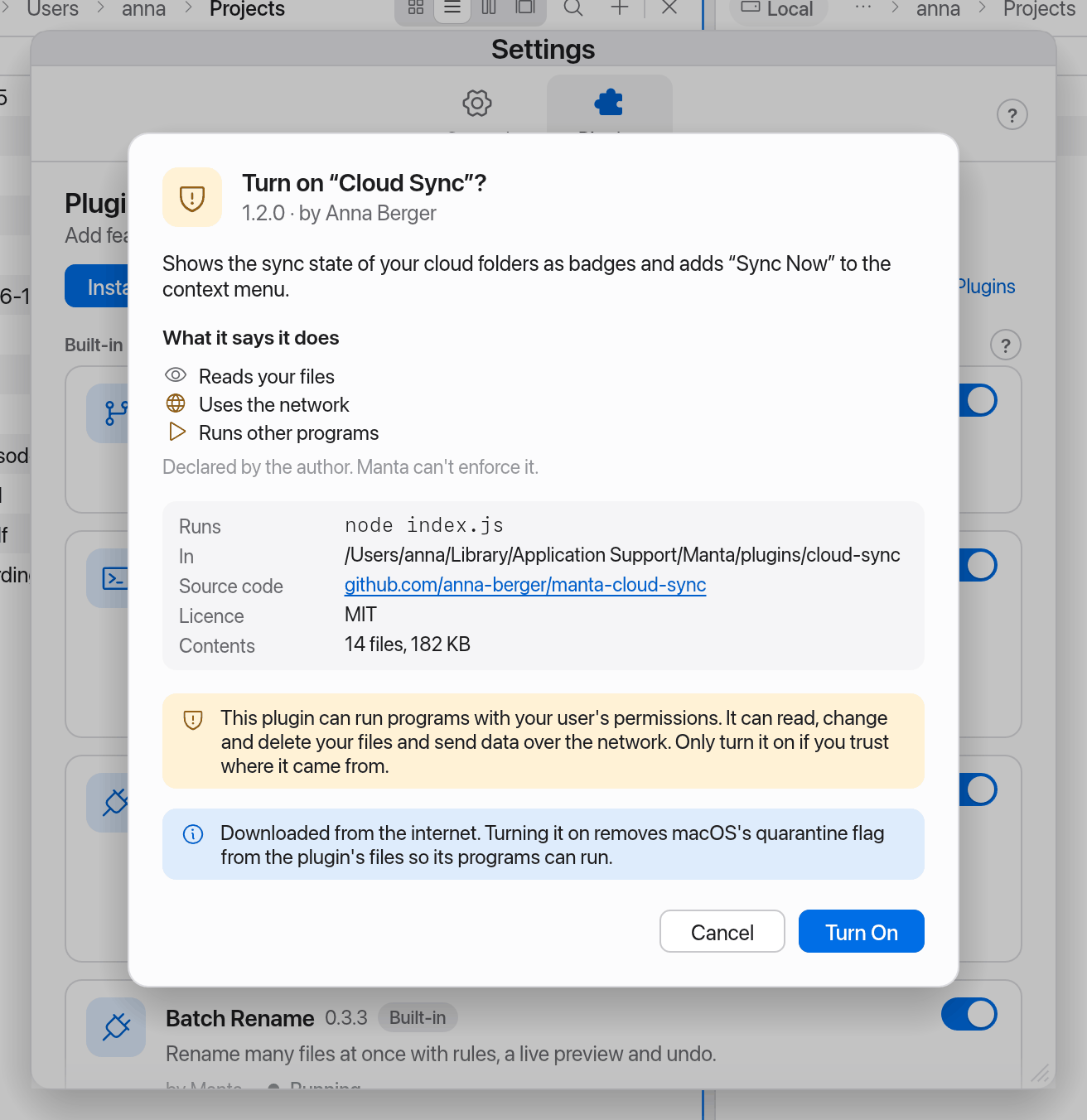
If you downloaded the plugin from the internet, macOS keeps its files in quarantine, and Gatekeeper would block programs inside it. The confirmation says so: only when you turn the plugin on does Manta remove the quarantine flag from its files so its programs can run – never silently.
More buttons on a plugin's card: Reload, Show Log, Show Folder, Uninstall. At the top: Open Plugins Folder and Reload (looks for added, changed or removed plugins).
Update and uninstall
- Update: when the plugin directory has a newer version, the plugin's card shows "Version … is available in the plugin directory" with an Update button. Or install the new version the same way, from a file or a folder. If it has the same id as an installed plugin, the overview says "Update …?" and shows the version that will be replaced under Installed. After you confirm, Manta replaces the plugin; whether it was on or off is kept.
- Uninstall: click Uninstall on the plugin's card. Manta deletes the plugin's folder; its data folder is kept.
Find plugins
In Settings → Plugins, click Discover (or choose Browse Plugins… in the command palette). Manta shows the plugins of the community directory: name and description in your language, author, licence, the Manta version it needs, its permissions and a link to its source code.
- Click Install (or Update for a newer version of an installed plugin).
- Manta downloads the plugin and compares its SHA-256 checksum with the directory. If they differ, nothing is installed.
- The usual overview appears ("SHA-256 matches the plugin directory"); continue as above.
Plugins that need a newer Manta or don't run on your Mac are shown but can't be installed. On the Web opens the directory at manta-filemanager.com/plugins.
Note
Privacy: Manta loads the list from GitHub only when you open Discover (once per session) or click Refresh – never in the background. It keeps the last list, so Discover works offline too and installed plugins can offer updates without going online.
Security
External plugins run in a macOS sandbox: they can only do what their permissions allow. Without permissions a plugin can only read its own folder and the system and write to its own data folder.
| Permission | Lets the plugin |
|---|---|
| Reads your files | read every file |
| Changes or deletes files | write, create and delete files anywhere |
| Uses the network | connect to the internet and your network |
| Runs other programs | start other programs (they stay in the sandbox) |
| Runs commands in the Terminal | type commands into Manta's Terminal |
The same rules apply to what a plugin asks Manta to do for it (read a file, list a folder, rename files). The plugin's card shows Sandboxed; its tooltip lists the permissions. Built-in plugins are part of Manta and aren't sandboxed.
If the sandbox doesn't work on your Mac, the card shows Not sandboxed and the reason, and the overview says the permissions can't be enforced. The plugin then runs with your user's permissions.
Warning
The sandbox doesn't make a plugin harmless: a plugin that may read your files and use the network can send your files elsewhere. Manta doesn't check plugins – not even those from the plugin directory. Only install plugins you trust, and read the code of plugins from the internet before you turn them on.
That's why Manta shows an overview before installing, new plugins start switched off, and Manta asks the first time you turn one on.
When a plugin doesn't run
- The card shows Error and the reason, for example when
python3is missing. - Show Log shows the plugin's last messages.
- If a plugin crashes, Manta restarts it – at most three times a minute. After that it stays in the error state until you click Reload.
- If the plugins folder contains two folders with the same plugin id, the second shows Can't load and a message. Remove one of them.
Where plugins live
| What | Where |
|---|---|
| Installed plugins | ~/Library/Application Support/Manta/plugins/<id>/ |
| A plugin's data and log | ~/Library/Application Support/Manta/plugin-data/<id>/ (log: plugin.log) |
| On/off state | ~/Library/Application Support/Manta/plugins.json |
| Last plugin directory list | ~/Library/Application Support/Manta/plugin-registry.json |
| A plugin's sandbox rules | ~/Library/Application Support/Manta/plugin-data/<id>/sandbox.sb |
Uninstalling deletes the plugin's folder; its data folder is kept.
Write a plugin yourself
The quickest start is the Hello Python example (examples/plugins/hello-python in the source code, commented line by line, Python standard library only). You can also install it from Settings → Plugins → Available. There are templates for Node.js, shell (bash + jq) and Rust too (examples/plugins/); for Rust there is also the manta-plugin-protocol crate.
Guide, protocol reference and examples: Writing Manta plugins (docs/plugins.md).
Plugins can speak all of Manta's languages: Manta tells them the current language, and plugin.toml can carry a translated name and description ([localized.de], [localized.fr] and so on).
Develop and test
- Reload Plugins (command palette) restarts all running external plugins and scans the plugins folder again.
- Developer mode: start Manta from Terminal with
/Applications/Manta.app/Contents/MacOS/manta --plugin-dev ~/code/my-plugin(repeatable, or setMANTA_PLUGIN_DEV=dir1:dir2). For this session the plugin runs straight from that folder – trusted, switched on and tagged Development. An installed copy with the same id steps aside meanwhile; nothing is saved. - Test without Manta:
python3 scripts/plugin-test.py path/to/plugin. - Package:
python3 scripts/plugin-pack.py path/to/pluginmakes the.mantapluginfile and prints its SHA-256 checksum for the directory. - Sandbox: declare the permissions your plugin needs – without them it can't do it. If something is refused, the log says so (
refused …). - Log: Show Log on the card, or the file
~/Library/Application Support/Manta/plugin-data/<id>/plugin.log.
More: Develop and debug (docs/plugins.md).
Publish a plugin
Put the plugin in a public repository with an OSI-approved licence, attach a .mantaplugin file to a release and open a pull request that adds it to plugins/registry.json. It then shows up under Discover. Details: Publishing a plugin (docs/plugins.md).