
Chapter 2
Panes & Tabs
Manta shows your files in panes side by side – two, three or as many as fit in your window. Each pane has its own tabs, path bar and history.
On this page
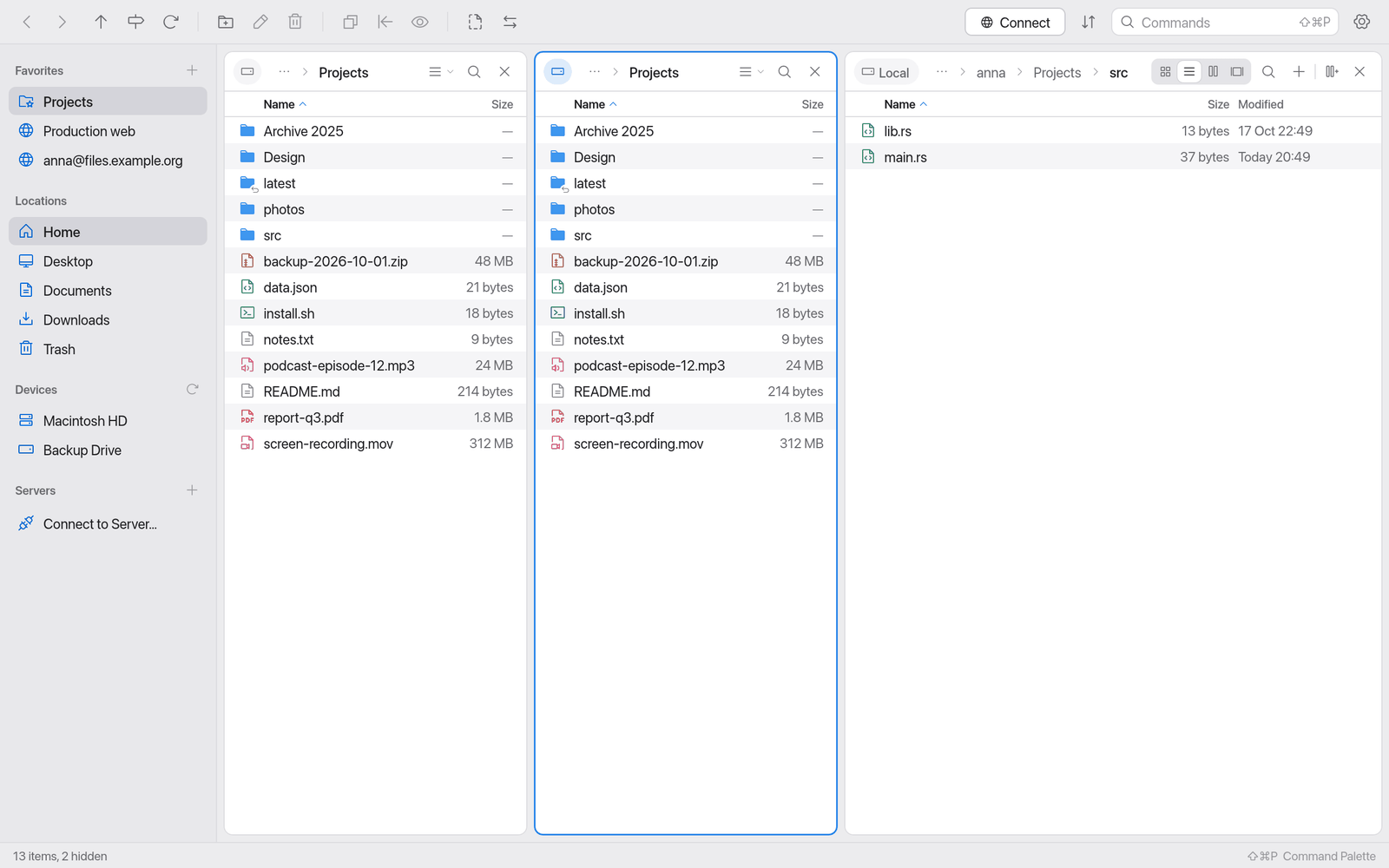
The active pane
Exactly one pane is active: it has a strong outline in the accent colour. Shortcuts and commands act on the active pane.
- Click anywhere in a pane to make it active.
- ⇥ (Tab) moves to the next pane (after the last one, back to the first).
- ⌥⌘← and ⌥⌘→ focus the pane on the left or right.
Split a pane
- Make the pane active that the new one should appear next to.
- Press ⌘D (Split Pane).
The new pane appears to the right of the active one, showing the same folder. You can also click the split button on the right of the last pane's path bar, or choose Split Pane in the command palette.
Each pane needs about 280 points of width. If the window is too narrow, Manta says "No room for another pane". Make the window wider or close a pane.
Close a pane
- Press ⇧⌘D (Close Pane), or
- click the × on the right of the pane's path bar.
The last pane can't be closed.
Note
With a single pane, Copy and Move to Other Pane, Compare & Sync and switching panes are off. The tooltip says why: "Needs two panes – ⌘D splits the pane".
Change pane widths
- Drag the divider between two panes left or right.
- Double-click a divider to make all panes equally wide again.
The target pane: "the other pane"
Copy (F5) and Move (F6) always go to the target pane.
- With two panes it is simply the other one.
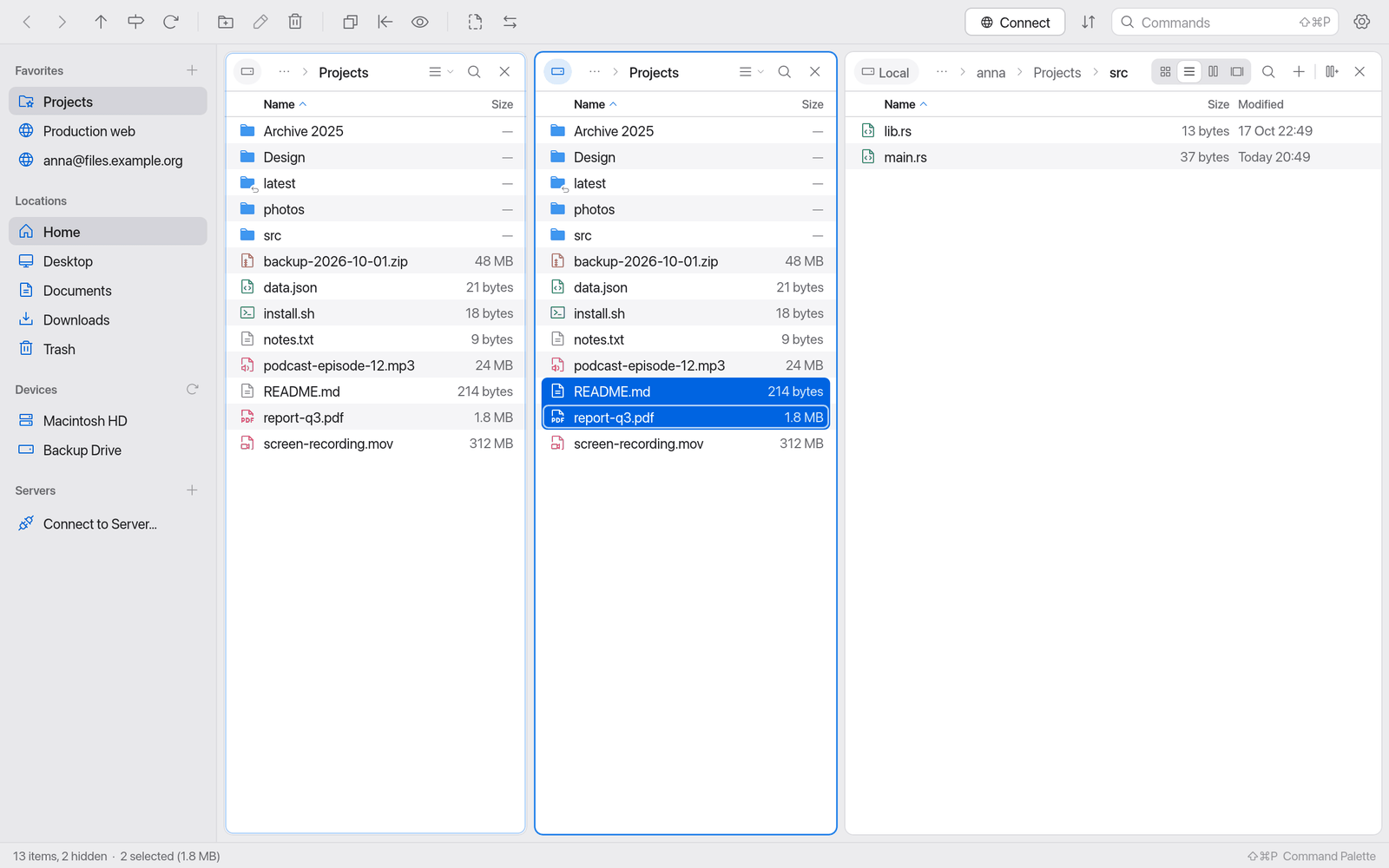
- With three or more it is the pane that was active most recently. While the active pane has a selection, the target pane has a faint outline and a → badge in its path bar ("Copy and Move (F5 / F6) go to this pane").
In the copy dialog you can pick another pane under To. See Managing Files.
Tabs
Each pane can have several tabs. A tab shows one folder – on your Mac, on a server, in a container or in an archive.
| Action | How |
|---|---|
| New tab | ⌘T or the + button in the path bar |
| Close tab | ⌘W or the × on the tab (appears on hover) |
| Switch tab | Click the tab |
The new tab shows the same folder as the current one. Go to Path… (⇧⌘G) opens a folder straight in a new tab (see Navigation).
Note
As in Finder, ⌘T opens a new tab. Before this version it was ⇧⌘T, and ⌘T showed the transfers – that is ⌥⌘L now.
In very narrow panes the + button leaves the path bar; ⌘T still works.
Sessions: everything comes back
When you quit Manta and start it again, these come back:
- the panes in their order and width,
- the tabs showing local folders,
- which pane was active and which is the target.
Tabs with server, container or archive folders aren't restored, because they would need a new connection. Open them from your Favorites.
If a saved folder no longer exists at the next launch (because its drive was ejected, for example), the tab still comes back. It shows an error with Try Again – reconnect the drive and click it, or close the tab or open another folder.
See also
- Views: Icons, List, Columns, Gallery.
- Compare & Sync: reconcile two panes.