
Chapter 3
Views
As in Finder, each pane can show its items as Icons, as a List, in Columns or as a Gallery. Switch views with ⌘1 to ⌘4 or with the switcher in the path bar.
On this page
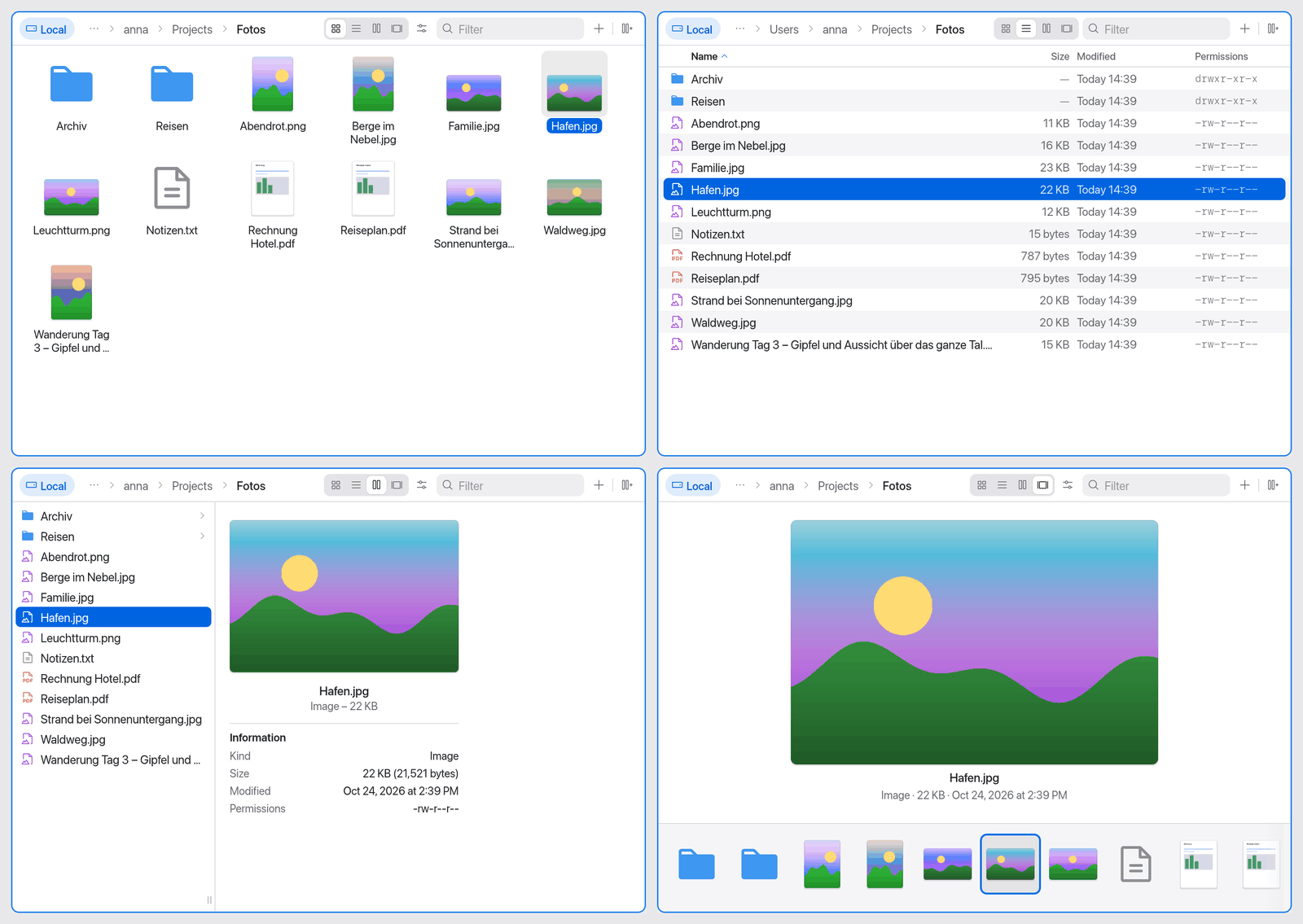
Switch the view
| View | Shortcut | Command | Good for … |
|---|---|---|---|
| Icons | ⌘1 | View as Icons | Images and folders with few items at a glance |
| List | ⌘2 | View as List | Sorting by size, date, permissions |
| Columns | ⌘3 | View as Columns | Clicking through deep folder trees while seeing the path |
| Gallery | ⌘4 | View as Gallery | Looking at images, videos and documents in a large preview |
There are three ways:
- Keyboard: ⌘1 to ⌘4 act on the active pane.
- Path bar: on the right of each pane's path bar sits the View switcher with four icons. When the pane is narrow it turns into a single button with a menu.
- Command palette (⇧⌘P): type "columns" or "gallery", for example. The commands are in the View group.
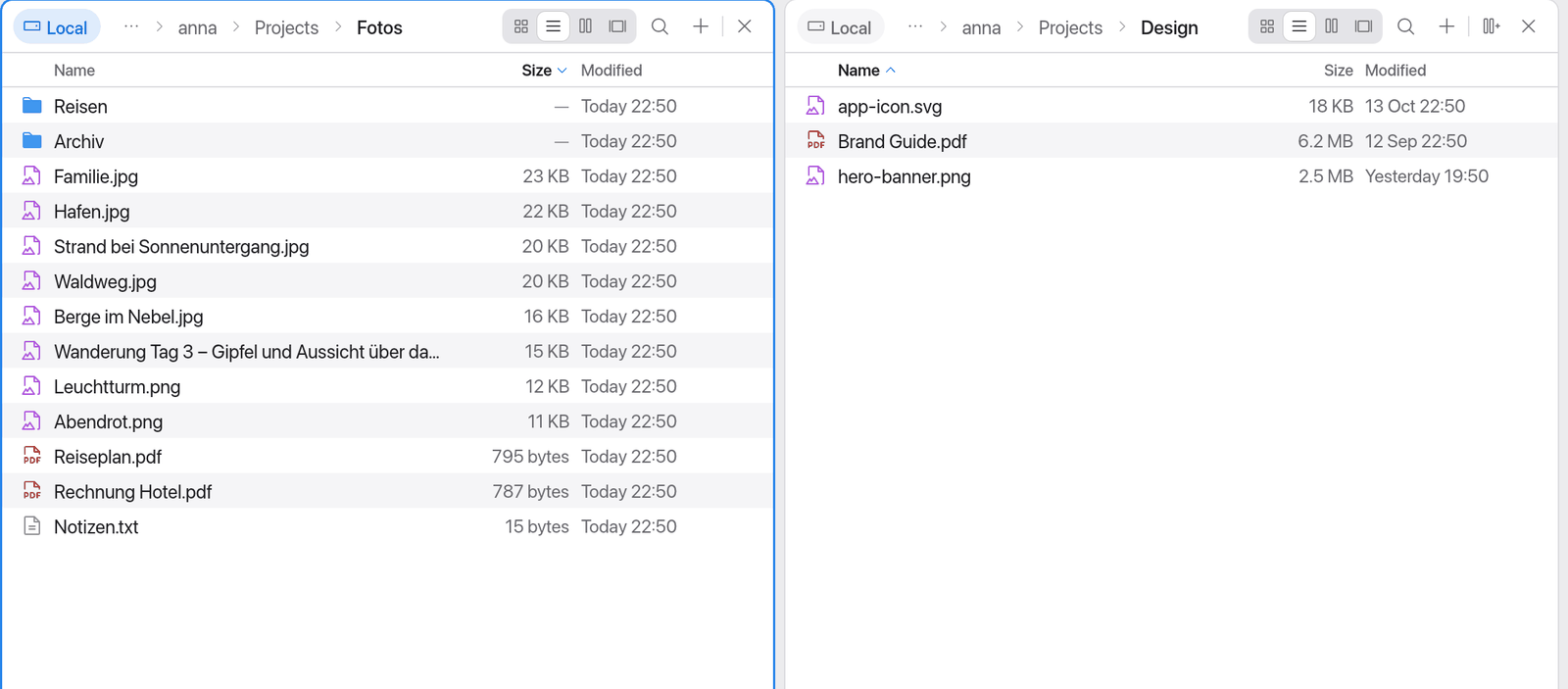
The view belongs to the pane: all tabs of a pane share it, and Manta remembers it until the next launch. Two panes can show different views, such as Columns on the left and List on the right.
Selecting (click, ⌘-click, ⇧-click, ⌘A), type to select, Quick Look, rename, the context menu, drag and drop and plugin badges work the same in every view.
View options
In Icons, Columns and Gallery view the View Options button (slider icon) sits next to the switcher. It opens a small menu:
- Sort By: Name, Size, Modified or Permissions, plus Ascending or Descending.
- Icon Size (Icons view only): a slider from 48 to 256 points.
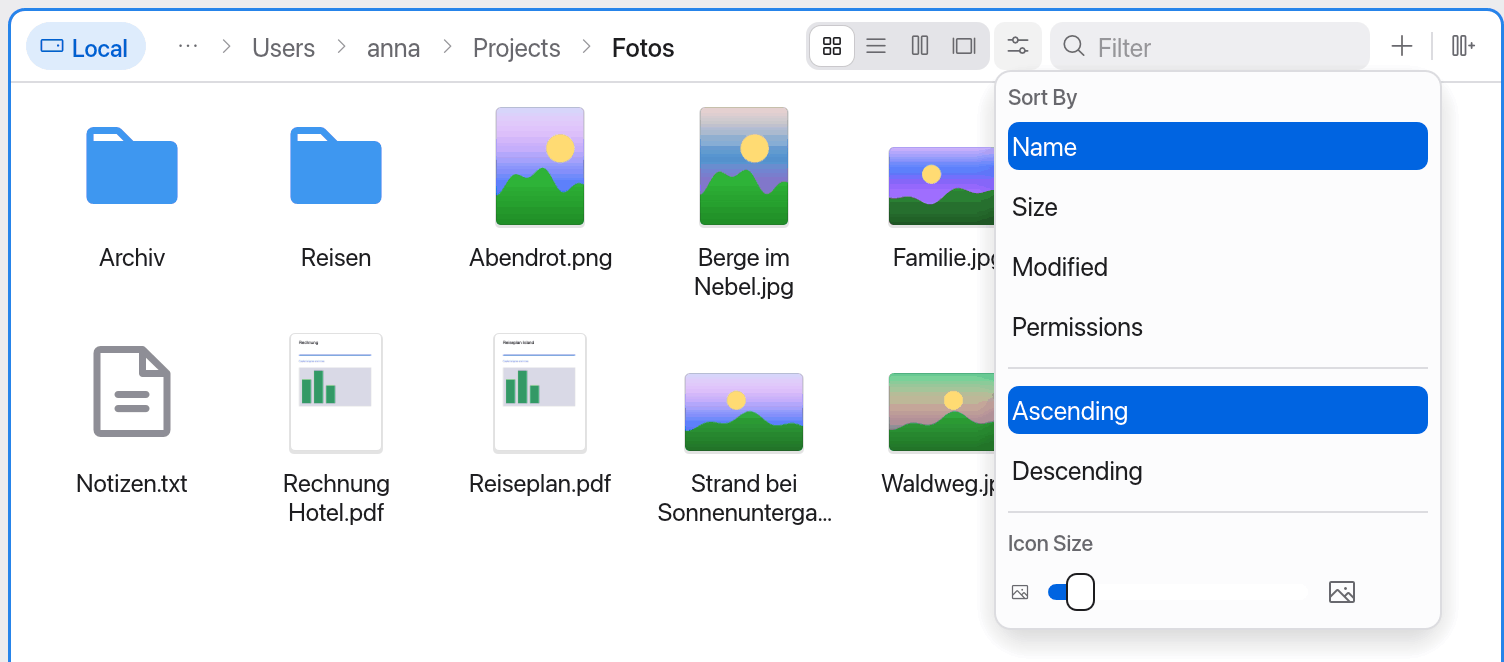
List view has no such button – you sort there with the column headers. In a narrow pane the options are in the switcher's menu.
List view
The list shows the columns Name, Size, Modified and Permissions.
- Sort: click a column header. A second click reverses the order.
- Column width: drag a column's left edge.
- Folder sizes: with the Folder Sizes plugin the Size column shows real sizes for folders too.
Icons view
Icons view shows a grid of large icons and thumbnails with the name below.
- Change the size: with the slider in View Options, or hold ⌘ and scroll, or pinch on the trackpad. Each pane has its own icon size.
- Select several: drag a selection rectangle starting on an empty spot. With ⌘ or ⇧ the previous selection stays.
- Keyboard: ← → ↑ ↓ move through the grid, Page Up/Page Down by a page.
Column view
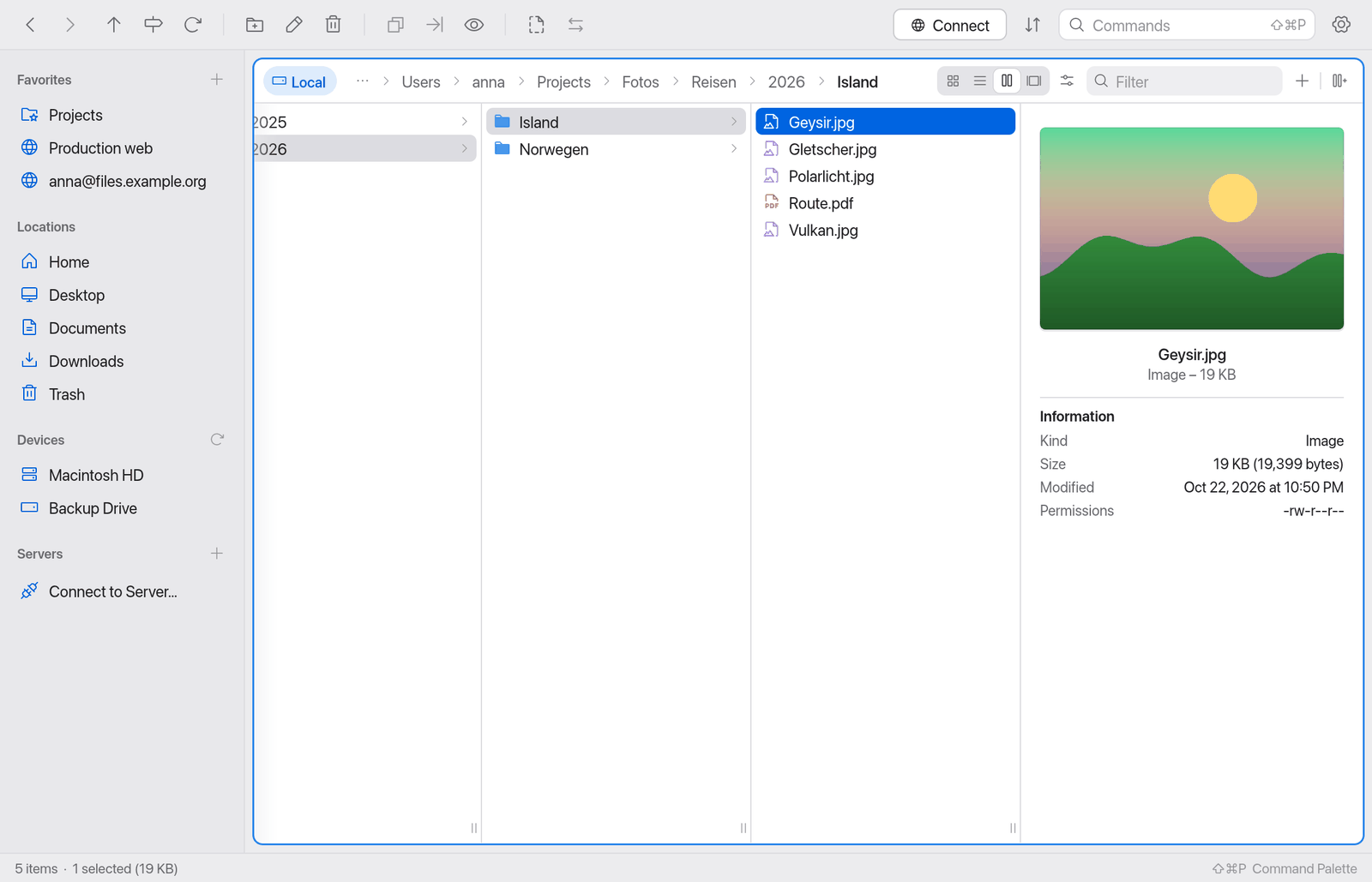
In Column view each folder of the path is a column of its own. When you select a folder, the column to its right shows its contents.
- Keyboard: ↑ ↓ select in the current column, → opens the selected folder as the next column, ← goes back to the column on the left.
- Preview column: when you select a file, the last column shows a preview with its thumbnail or icon and the Information: Kind, Size, Modified, Permissions and, for aliases, the Original. With several items selected it says "3 items selected", for example.
- Column width: drag a column's right edge (at the grip at the bottom). Double-click the edge to reset the width.
- Empty folders show "No items". When the columns are wider than the pane, the view scrolls sideways and keeps the active column visible.
If you go past the first column with ⌘↑, or jump to a folder outside the columns shown via the sidebar or the path bar, the columns start over at that folder.
Gallery view
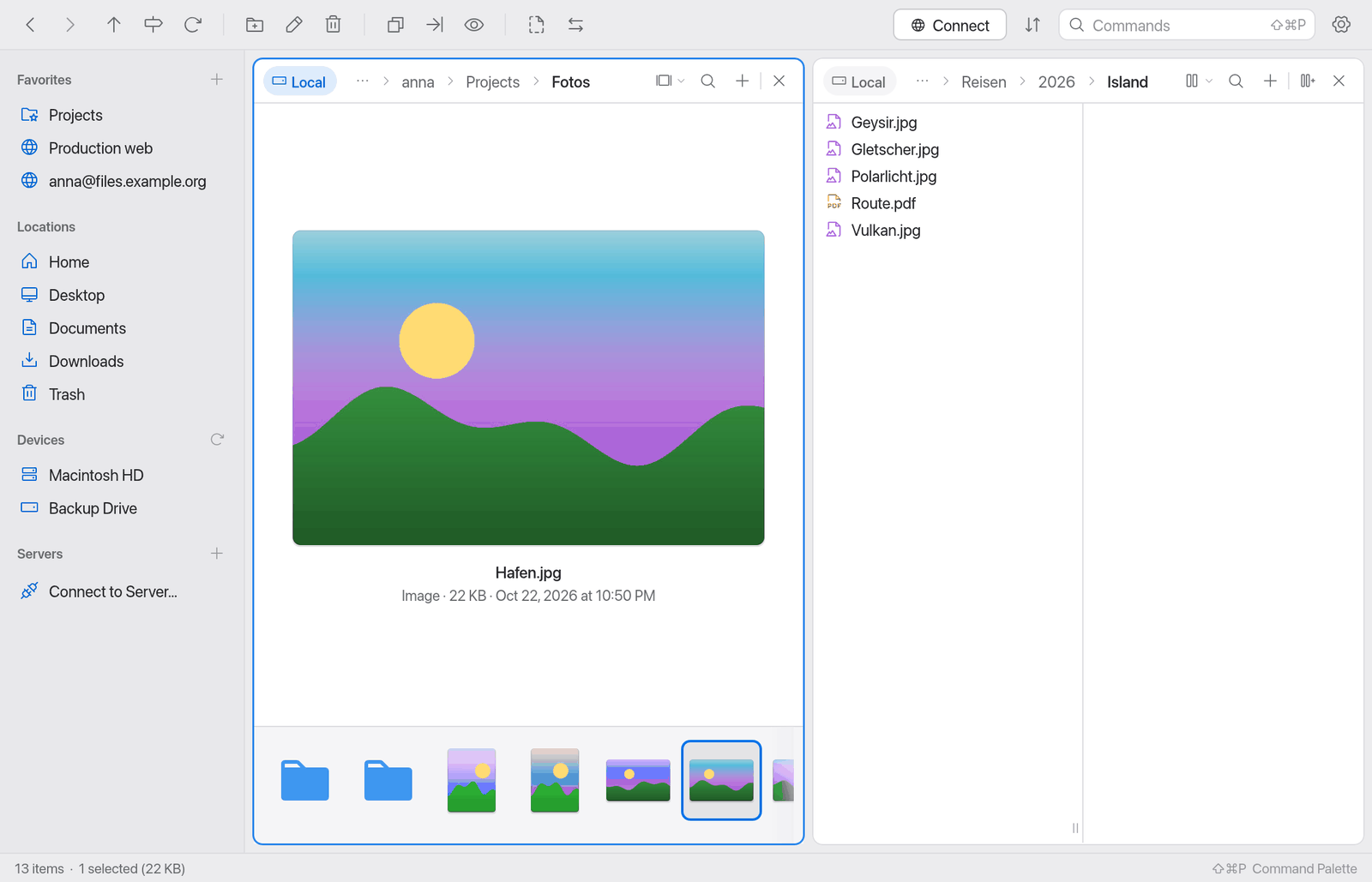
The gallery shows the selected item large, with its name and a line with kind, size and modification date below it. Along the bottom runs a filmstrip with every item of the folder.
- Click an item in the filmstrip or step through with ← → to see it large. Page Up/Page Down jump by one strip width.
- With nothing selected the gallery shows the first item.
- Small images are enlarged to at most twice their size so they don't turn blocky.
Thumbnails
In Icons, Columns and Gallery view Manta shows thumbnails. They are made in the background, so the view stays responsive; until a thumbnail is ready you see the file type icon.
- Images (PNG, JPEG, GIF, BMP, WebP) are read by Manta itself and rotated according to the camera orientation (EXIF).
- PDFs, videos, HEIC, documents and so on come from macOS (as in Quick Look). Files without a preview keep their type icon.
- Finished thumbnails are stored in
~/Library/Caches/Manta/thumbs. When a file changes, a new thumbnail is made. You can delete the folder at any time.
Thumbnails for server files
For files on servers (SFTP, FTP, S3, containers) Manta shows only the file type icon by default. If you want thumbnails there too, turn on Load thumbnails for server files in Settings → General → Files. Manta then downloads small images (under 5 MB) in the background. Larger files keep their icon.
Note
Server thumbnails cost data and a little time. On slow or metered connections, leave the option off.
Remember the view per folder
By default the view belongs to the pane: when you change folders, the view stays the same.
If you turn on Remember view per folder in Settings → General → Files (default: off), each folder opens in the view it was last shown in – your photos always as a gallery, your project as a list. This works for folders on servers and in archives too. Folders you haven't chosen a view for keep the pane's current view.
Manta remembers the last 2000 folders in ~/Library/Application Support/Manta/folder-views.json.