
Chapter 1
Getting Started
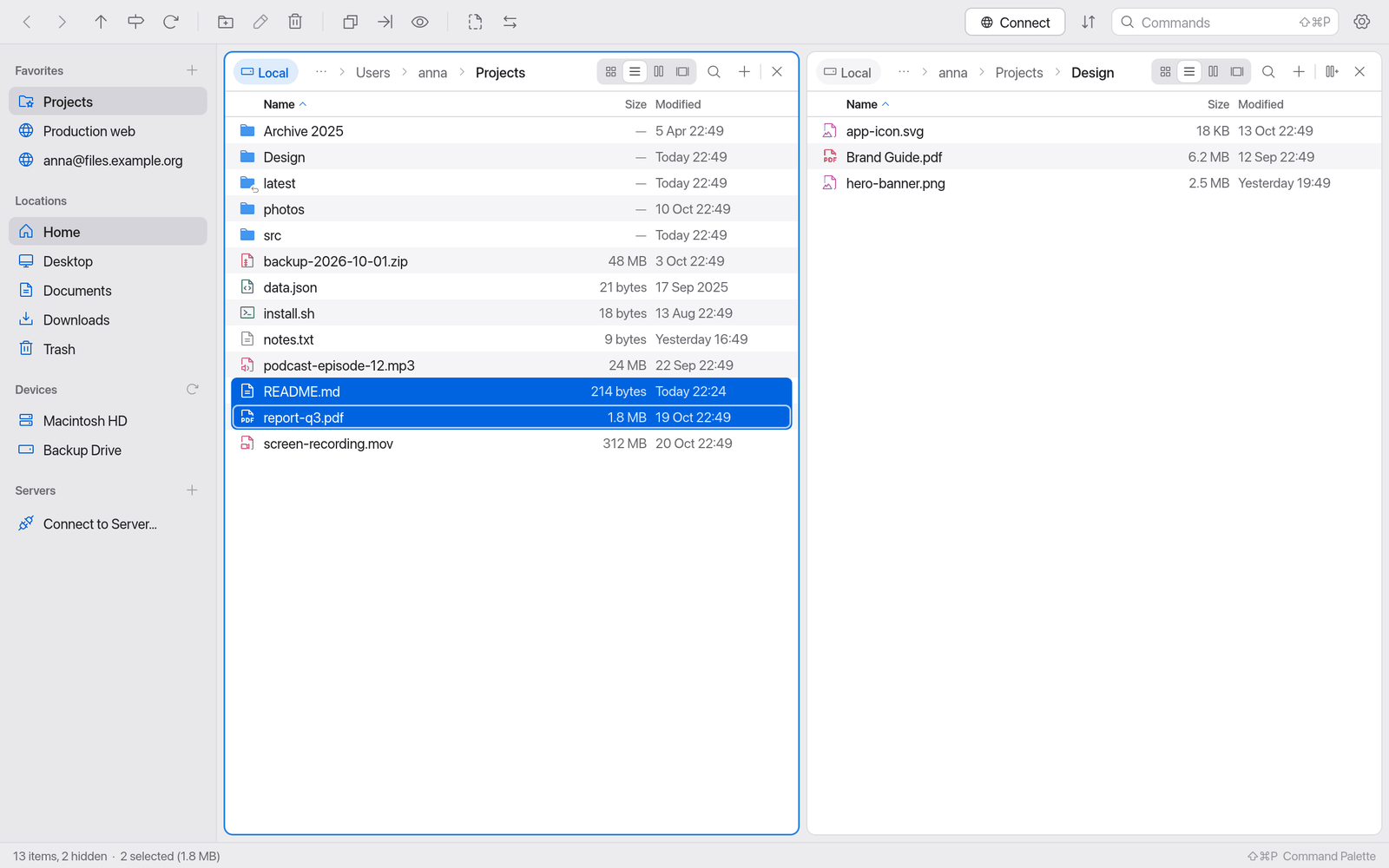
Manta is a file manager for the Mac with several panes side by side. This chapter shows how to install Manta, what happens at the first launch and why macOS asks you for permission.
On this page
System requirements
- macOS 11 (Big Sur) or later.
- A Mac with Apple silicon (M1 or later).
Install Manta
Double-click
Manta-<version>.dmg.In the window that opens, drag Manta onto the Applications folder.
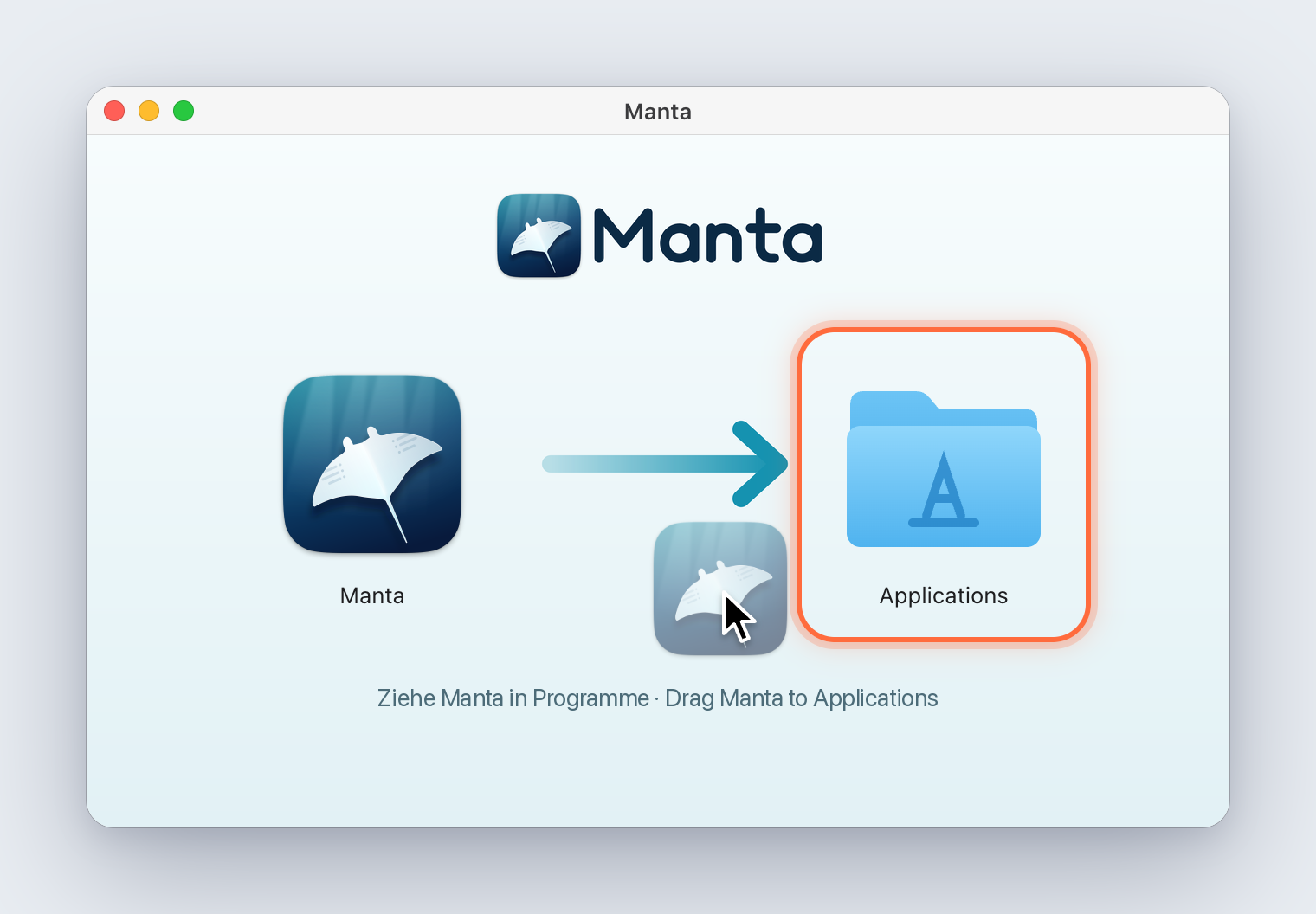
The disk image window: Manta being dragged onto the Applications folder, which is highlighted Eject the disk image (click the eject icon in Finder).
Start Manta from the Applications folder, for example with Launchpad or Spotlight.
Important
Always start Manta from the Applications folder, not straight from the disk image. Only then can Manta update itself (Updates) and become your default file manager.
The first launch: Gatekeeper
Manta isn't notarized by Apple, so macOS blocks the first launch with the message "“Manta” Not Opened". This is a macOS safety feature (Gatekeeper), not a bug in Manta. To open Manta anyway – you only need to do this once:
Start Manta. macOS shows "“Manta” Not Opened". Click Done – not Move to Trash, or you'll have to download Manta again.
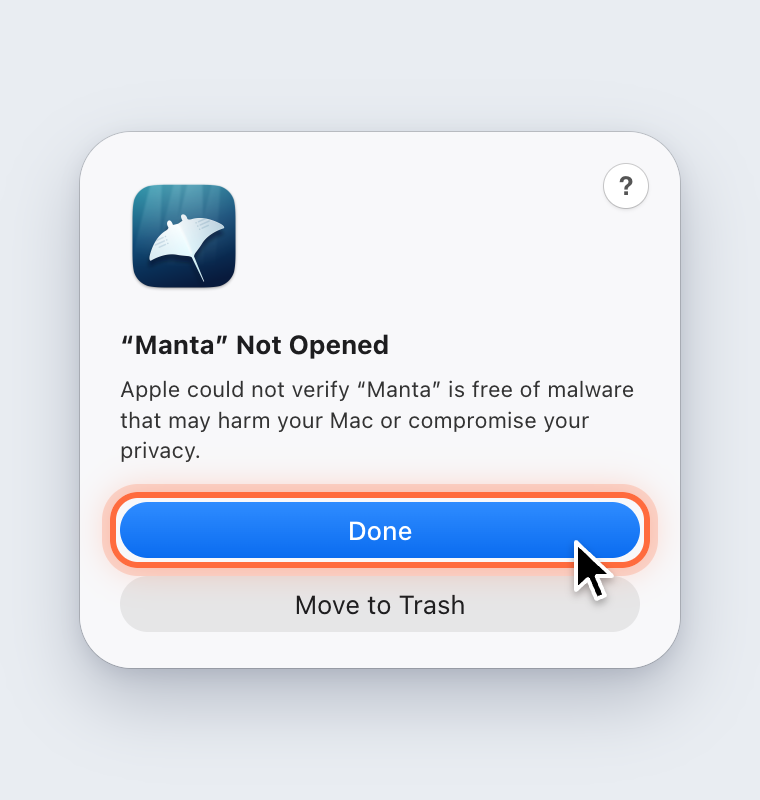
The message “Manta” Not Opened with the buttons Done and Move to Trash; Done is highlighted Open System Settings → Privacy & Security and scroll down to the Security section. It says "“Manta” was blocked to protect your Mac." Click Open Anyway next to it.
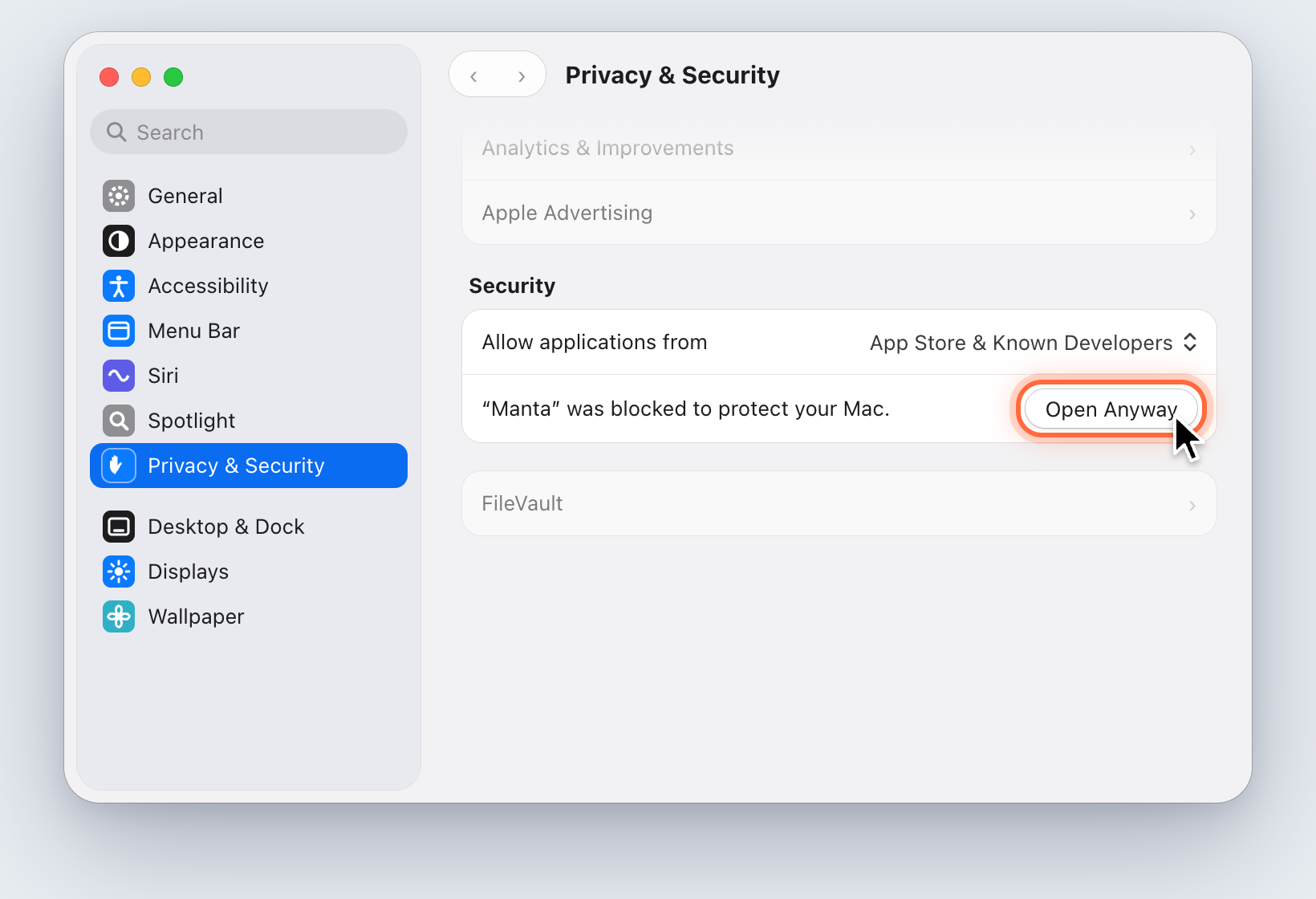
System Settings, Privacy & Security, Security section: the Open Anyway button next to the note about Manta is highlighted macOS asks once more: "Open “Manta”?". Click Open Anyway and confirm with your password or Touch ID. Manta starts.
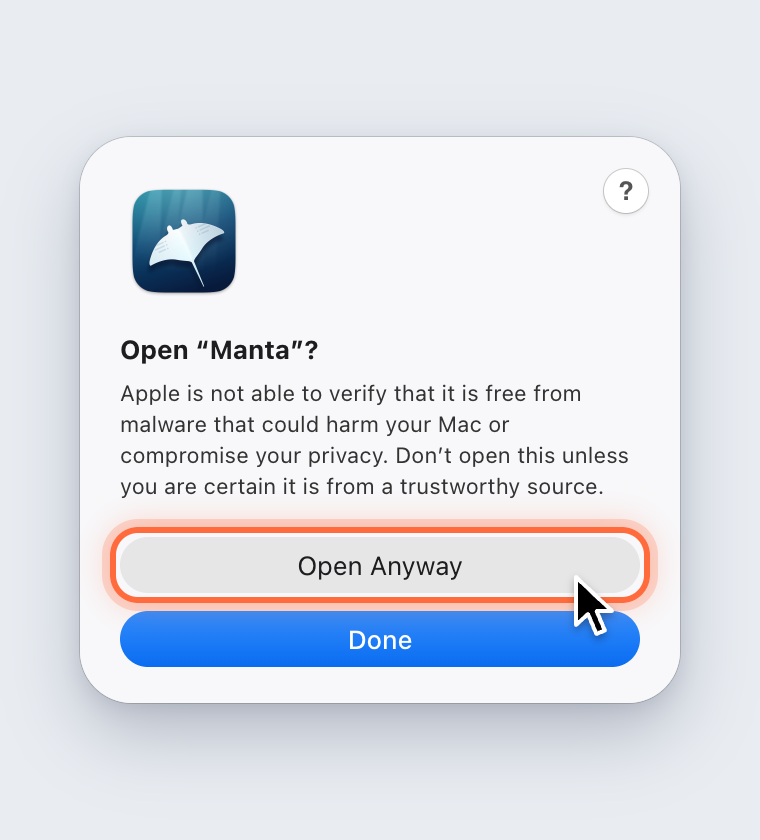
The question Open “Manta”? with the buttons Open Anyway and Done; Open Anyway is highlighted
From now on Manta starts like any other app. Updates that Manta installs itself (Updates) don't need this again.
No Open Anyway button? It only appears after a launch attempt and stays for about an hour. Start Manta again, click Done and look in Privacy & Security right away.
On macOS versions before macOS 15 it's enough to Control-click Manta in Finder and choose Open.
Tip
For advanced users: Instead of System Settings you can lift the block in Terminal: xattr -dr com.apple.quarantine /Applications/Manta.app. The command removes the download flag (quarantine) from Manta; after that Manta starts without asking. Only do this with a copy of Manta you downloaded yourself from manta-filemanager.com or GitHub.
See also Troubleshooting.
Why macOS asks for permission
macOS protects certain folders and features. Every app has to ask once before it uses them – a file manager too. The questions don't all come at launch; each comes the first time you open that folder or use that feature.
| macOS asks about … | When | Why Manta needs it |
|---|---|---|
| The Desktop, Documents and Downloads folders | When you first open the folder | To show and manage the files in it. |
| Removable volumes, network volumes | When you first open a USB drive or a network share | The same for external drives and server shares. |
| Local network | When you first connect to a server on your network | For SFTP, FTP and S3 servers on your local network (a NAS, for example). |
| Automation (Finder, Terminal) | When a feature controls Finder or Terminal | For example to move items to the Trash (Duplicates), reveal files in Finder or run Quick Actions such as "Open in Terminal.app". |
If you click "Don't Allow", Manta shows a note when you open the folder. You can grant access later: System Settings → Privacy & Security → Files and Folders (or Automation, Local Network).
Tip
Some folders (such as ~/Library/Mail or Time Machine data) only open with Full Disk Access. Grant it in System Settings → Privacy & Security → Full Disk Access. It's optional; most people don't need it.
Note
Manta collects no usage data. It only goes online for the connections you open yourself and to check for updates (see Updates and privacy).
Default file manager
At the first launches Manta asks: Use Manta as your default file manager?
- Set as Default: "Show in Finder" in other apps then opens Manta, and so do folders that other apps or the Terminal open (for example
open ~/Downloads). - Not Now: Manta asks again at a later launch (at most three times).
- Don't Ask Again: Manta never asks again.
You can change it any time in Settings → General → Default file manager, or with Default File Manager… in the command palette.
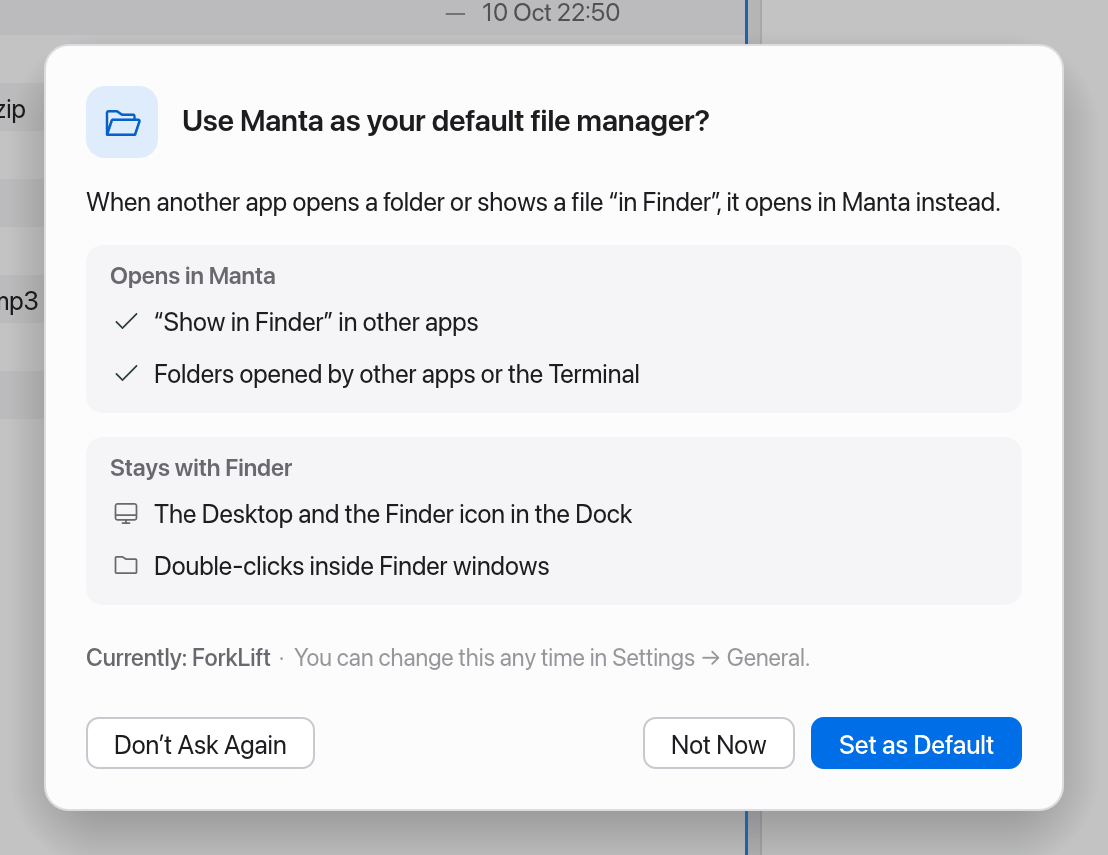
What macOS allows – and what it doesn't:
- The Desktop, the Finder icon in the Dock and double-clicks inside Finder windows always stay with Finder. macOS doesn't let any app replace Finder completely.
- From macOS 26 on, macOS gives folders opened by other apps to no app but Finder. Manta then only takes over "Show in Finder"; Settings tells you so.
- Turning it off gives the role back to the previous app (another file manager, for example) or to Finder.
- It's only available when Manta runs from Applications (or
~/Applications).
The window at a glance
- Toolbar at the top: New Folder, Rename, Delete, Copy/Move to the other pane, hidden files, Compare & Sync, Transfers, Connect, Commands and Settings.
- Sidebar on the left: Favorites, Locations, Devices, Servers and Containers (see Favorites & Sidebar).
- Panes: one or more file lists side by side, each with tabs and a path bar (see Panes & Tabs).
- Status bar at the bottom: the number of items, the selection, running transfers, the system load (CPU, GPU, RAM; see System Load) and a hint for the command palette.
The command palette
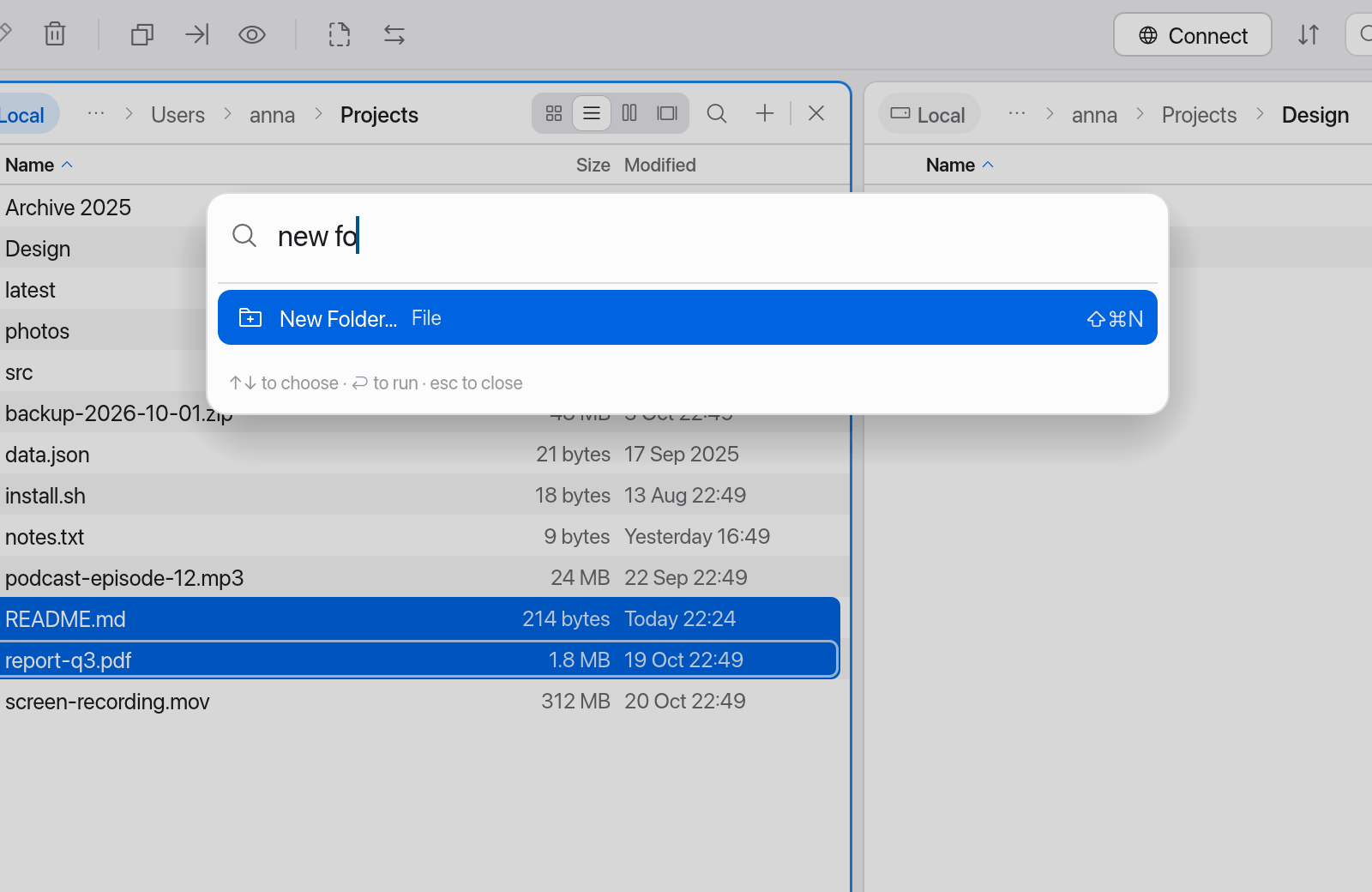
Every command in Manta is in the command palette – plugin commands too.
- Press ⇧⌘P (or ⌘P).
- Type a few letters, for example
new foorsftp. - Choose with ↑ and ↓ and press ↩.
The palette shows each command's shortcut next to it, so you pick up the shortcuts as you go.
Note
Manta has only the Manta menu in the menu bar (About Manta, Check for Updates…, Settings…, Quit). Every other command is in the toolbar, the context menu (right-click) and the command palette.
Next steps
- Panes & Tabs: working with several panes.
- Managing Files: copy, move, rename, delete.
- Keyboard Shortcuts: every shortcut at a glance.