
Chapter 9
Cloud Storage
Manta shows iCloud Drive, Google Drive, OneDrive, Dropbox and other cloud storage that your Mac already syncs. You can see which files are only in the cloud, download them, or remove the local download again.
On this page
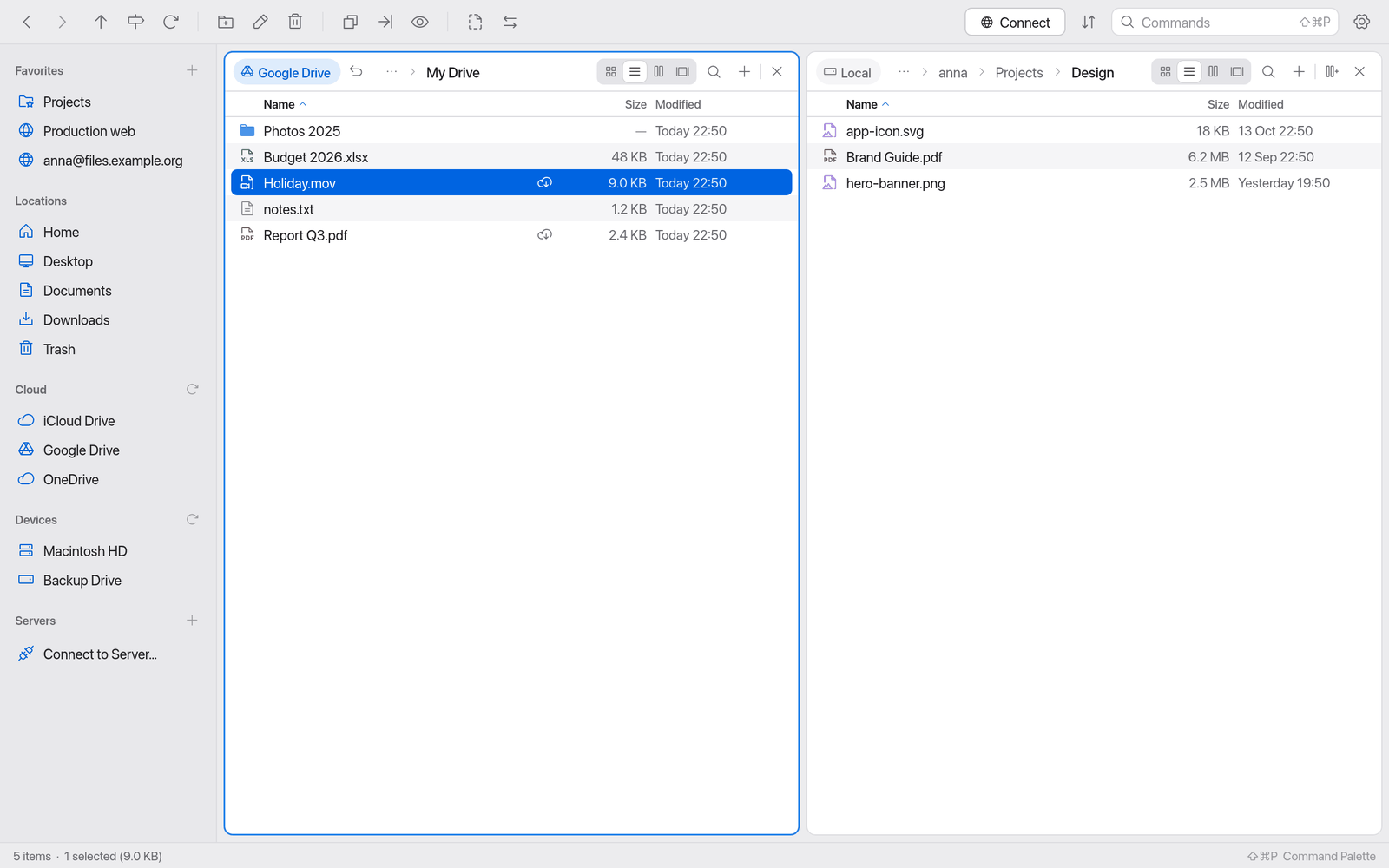
How Manta reaches cloud storage
Manta does not sign in to Google, Microsoft or Dropbox itself. It uses the folders that the providers' official apps create on your Mac:
- iCloud Drive is built into macOS.
- Google Drive, OneDrive, Dropbox, Box and others create their folders in
~/Library/CloudStorageonce you've installed their app and signed in there.
To Manta these are normal folders on your Mac. Whatever you do in Manta – copy, rename, delete – the provider's app then syncs with the cloud.
Set up Google Drive
- Download Google Drive for desktop from Google and install it.
- Sign in to the Google Drive app with your Google account.
- Google Drive appears under Cloud in the sidebar by itself – Manta notices new folders in
~/Library/CloudStorage. If it doesn't, click the circular arrow next to Cloud.
Set up OneDrive and Dropbox the same way: install the provider's app, sign in, done.
Note
Manta has no Google sign-in of its own. Without Google Drive for desktop you won't see Google Drive in Manta.
As long as there's no Google Drive folder, Cloud shows a Connect Google Drive… row. Click it for the setup steps and the link Get Google Drive for desktop (https://www.google.com/drive/download/). Don't Show Again hides the hint; Settings › General › Cloud brings it back.
The Cloud section in the sidebar
The Cloud section sits between Locations and Devices. Each cloud storage found gets its own row with the provider's icon. If a provider appears more than once (two Google accounts, your company's OneDrive and shared libraries), the account follows in grey; otherwise the tooltip shows it with the path:
- iCloud Drive (always first when it's turned on)
- Google Drive (with several accounts: Google Drive name@gmail.com)
- OneDrive Personal or OneDrive your company's name, OneDrive Shared Libraries
- Dropbox, Box and more (Nextcloud, Proton Drive, Synology Drive, for example)
A click opens the storage in the active pane.
What the badges mean
In cloud folders Manta shows the sync state: in the list as an icon at the right end of the Name column, in the Icons view as a round badge at the icon's top right. The tooltip says it in words (e.g. "Only in the cloud – not downloaded").
| Badge | Meaning | Possible actions |
|---|---|---|
| (none) | Downloaded and up to date | Remove Download |
| Cloud with a down arrow | Only in the cloud, not on this Mac | Download Now |
| Cloud with an exclamation mark | Downloaded, but there's a newer version in the cloud | Download Now, Remove Download |
| Circle with a down arrow | Downloading | – |
| Cloud with an up arrow (blue, pulsing) | Uploading, or waiting to be uploaded – e.g. right after copying into Google Drive | – |
| Red exclamation mark in a circle | Upload error: the provider couldn't upload the item; the tooltip gives its reason (e.g. "Upload error: storage full") | – |
After you copy into a cloud folder, the provider's app uploads in the background. While it does, the status bar also says "Google Drive is uploading 2 items" (red on errors). iCloud Drive may also report the progress ("Uploading… 42%" in the tooltip); Google Drive, OneDrive and Dropbox only report "uploading". Files that providers never upload (.DS_Store, Office lock files ~$…) get no badge.
Reading the state doesn't download anything, so you can browse large cloud folders without your Mac fetching everything.
Manta reads the state from file attributes (the SF_DATALESS flag and macOS's NSURLUbiquitousItem… values, which iCloud Drive and the File Provider apps report) and refreshes it every few seconds while the folder is visible.
Download files from the cloud
- Select files or folders that are only in the cloud.
- Right-click → Download Now.
Folders are downloaded with everything inside. The badge changes to "downloading" and disappears when everything is there.
If you open or copy a file that's only in the cloud, macOS downloads it automatically anyway.
Free up space
- Select downloaded files or folders.
- Right-click → Remove Download.
The files stay in the cloud and visible in Manta, but no longer take up space on your Mac.
Important
Remove Download works reliably for iCloud Drive. For Google Drive, OneDrive, Dropbox and others the provider's app decides whether to allow it. If it refuses, Manta tells you. Then use Finder: right-click → Remove Download – Finder is allowed to do this, other apps aren't.
Google Drive for experts: your own OAuth client
Manta also contains a Google Drive connection of its own (Drive API) that is hidden: Manta doesn't ship an OAuth client for it. Only if you can't use Google Drive for desktop and have a client of your own:
- In the Google Cloud Console, create an OAuth client of type Desktop app and enable the Google Drive API.
- Open Settings › General › Cloud › Expert: Your Own Google OAuth Client, enter the client ID and client secret and click Save.
- The Connect dialog now has a Google Drive type. If you leave Account empty, Manta opens the browser to sign in when you connect.
Remove takes Google Drive out of the Connect dialog again. The client is kept in ~/Library/Application Support/Manta/gdrive-client.json.
Deleting in cloud folders
Important
Cloud folders are folders on your Mac. ⌘⌫ moves items in them to the Trash, as everywhere else (see Delete and Trash); ⌥⌘⌫ deletes permanently after asking. The provider's app then syncs the deletion to the cloud and to all your devices. Depending on the provider, the file stays in the trash on its website for a while.
If you only want to save space, use Remove Download instead of deleting.
Limitations
- Manta only shows cloud storage your Mac already syncs. It doesn't work without the provider's app.
- Remove Download for third-party providers only where their app allows it (otherwise in Finder).
- How fast changes reach the cloud is up to the provider's app, not Manta.