
Chapter 10
Archives
Manta opens ZIP and TAR archives like folders: you see the contents right away, without extracting first. This chapter also covers extracting archives and creating new ones.
On this page
Supported formats
.zip.tar,.tar.gz/.tgz,.tar.bz2,.tar.xz,.tar.zst- single compressed files:
.gz,.bz2,.xz,.zst
Open an archive as a folder
- Select the archive.
- Press ↩ or double-click it.
The path bar shows the archive like a folder, for example Downloads › backup.zip › docs. A chip with a lock marks the pane as a read-only archive.
- ⌫ or ⌘↑ in the archive's top folder goes back to the folder the archive is in, with the archive selected.
- Back and Forward work across the archive.
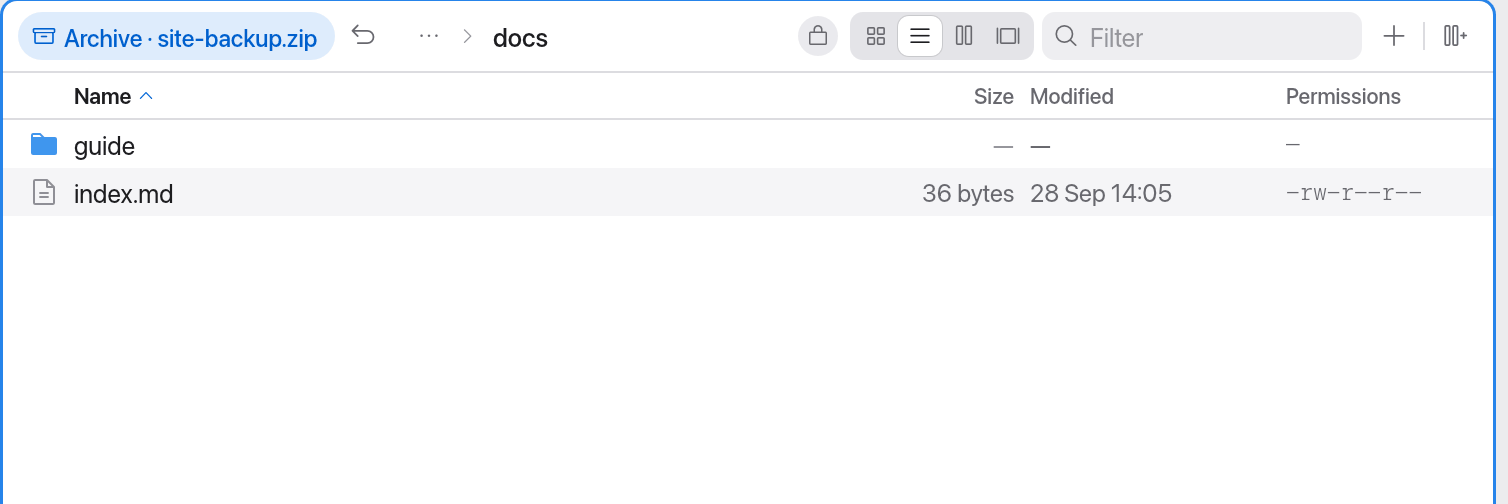
Other ways:
- ⌥↩ (Open With Default App) opens the archive with its default app (macOS's Archive Utility, for example).
- Documents that are ZIP files inside (
.docx,.xlsx,.jar,.apk…) still open in their app. Right-click → Browse Archive shows their contents. - If you never want archives to open as folders, turn off Settings → General → Open archives as folders.
Archives on servers and archives inside archives are first downloaded to a temporary file (with progress and Cancel in the pane). Big archives are read in the background.
What works in an archive – and what doesn't
Archives are read-only. Manta refuses new folders, renaming, deleting, moving and dropping files into the archive, with a hint.
Copying out always works:
- with F5 to the other pane,
- by dragging to another pane,
- with Extract Here or Extract to Other Pane.
Extract an archive
A whole archive:
- Select the archive file.
- Press ⌥⌘E (Extract Here) – or right-click → Extract Here or Extract to Other Pane.
Extract Here unpacks next to the archive: into a folder named after the archive, or directly if the archive holds a single item.
Single items from an open archive:
- Open the archive as a folder and select the items.
- ⌥⌘E extracts them into the folder that contains the archive. F5 or right-click → Extract to Other Pane… extracts them to the other pane.
Extracting runs as a background transfer (see Transfers).
Create an archive
- Select files and folders.
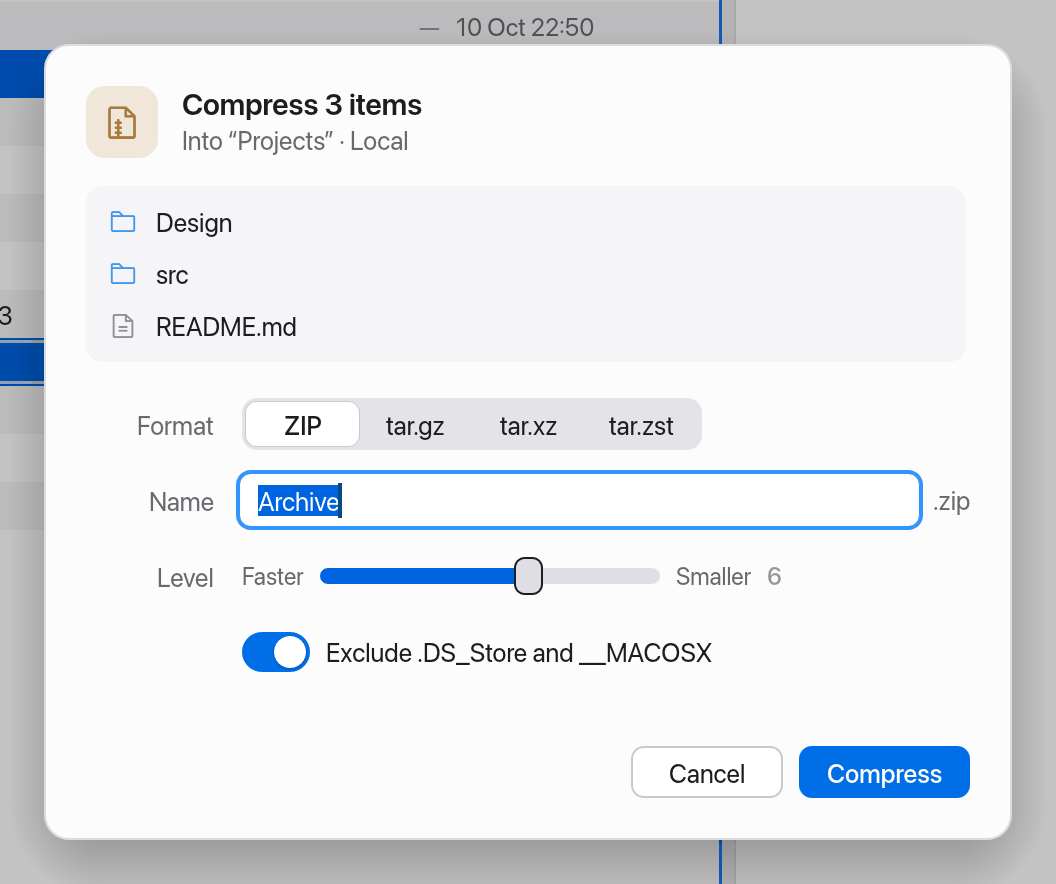
- Press ⌥⌘C (Compress…) or choose it in the context menu.
- Choose the Format: zip, tar.gz, tar.xz or tar.zst.
- Check the Name. Manta suggests one, such as "site.zip" or "Archive 2.zip".
- Use the Level slider to choose between Faster and Smaller.
- Exclude .DS_Store and __MACOSX is on, so no Mac helper files end up in the archive.
- Click Compress.
The archive is created in the current folder. This works on servers too: Manta builds the archive in a local temporary file and uploads it.
Tip
For people on a Mac, zip is the most convenient. tar.zst is very fast and small but needs a matching tool on the other end.
Safety
- Entries with
..or absolute paths could write outside the target folder when extracted. Manta never shows or extracts them and reports "Skipped N unsafe entries". - Encrypted ZIP entries have a lock badge. Manta can't open or extract them and doesn't ask for a password.
Limitations
- No changes inside archives (adding, deleting, renaming).
- No password-protected ZIP entries.
- Symbolic links are shown as links; extracting copies the target file, and links to folders are skipped.
- Compressed TARs over 2 GB get slower, because Manta re-reads them from the start for every file.
- Split ZIP archives and TAR sparse files aren't supported.