
Chapter 17
Updates
Manta quietly checks for a new version at every launch and only installs it when you agree. This chapter explains how it works, what goes over the network, and what to do when an update fails.
On this page
How you hear about an update
When there's a new version you see:
- a notice "Update available: 0.2.0" with a Show button,
- a small hint in the status bar ("Update 0.2.0").
Nothing pops up over your work. If Manta is offline you won't notice; the failure only goes to the log.
Check for updates yourself
- Manta → Check for Updates… in the menu bar, or
- Check for Updates… in the command palette, or
- Settings → General → Updates → Check Now.
If everything is current, Manta says "Manta is up to date".
Install an update
- Click Show in the notice (or the hint in the status bar). The Software Update window opens.
- Read What's new. Size and release date are above it.
- Choose:
- Install and Relaunch – downloads the update, verifies it, replaces the app and restarts Manta.
- Later – reminds you again at the next launch.
- Skip This Version – this version and older ones are no longer offered.
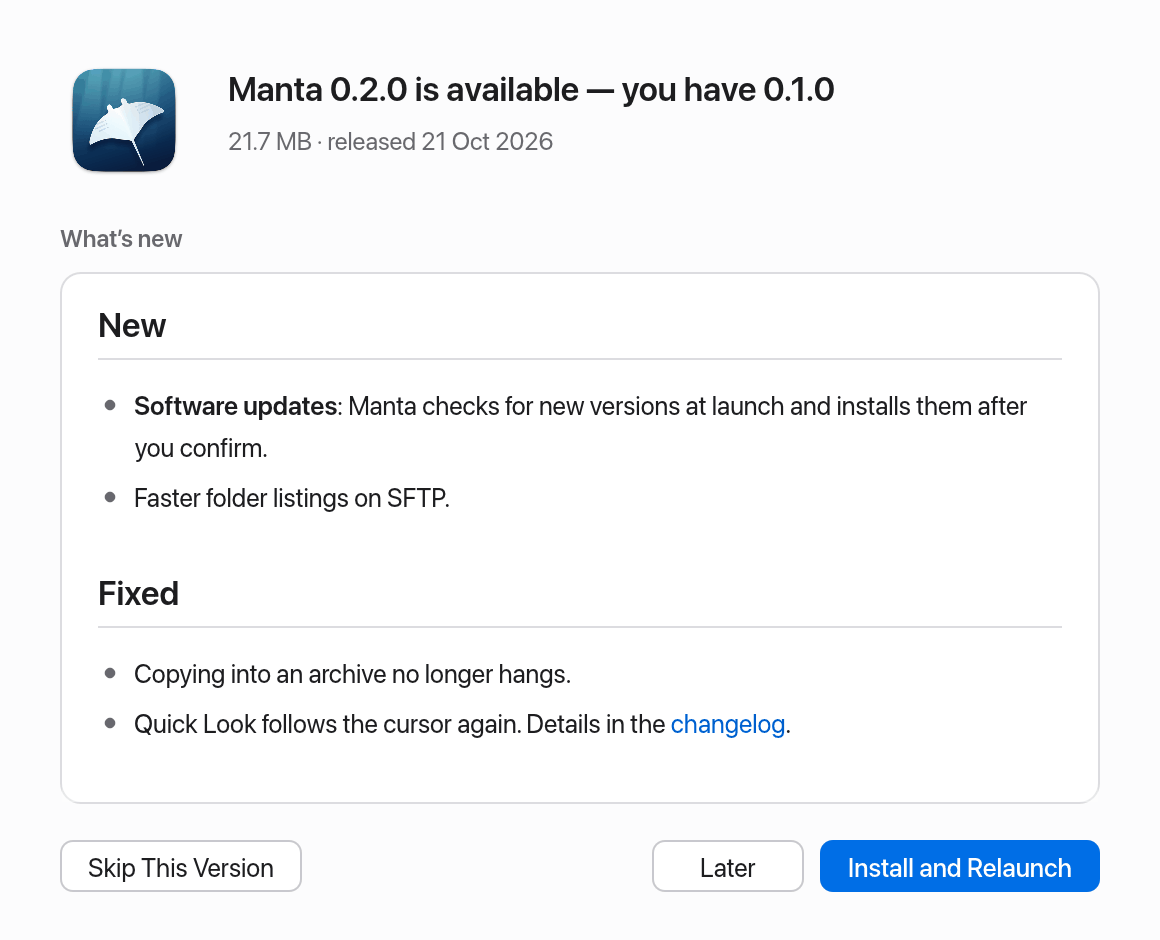
While it downloads you see the progress and can cancel. If transfers are still running, Manta waits for them before it relaunches. macOS may ask for your password if Manta can't write to the Applications folder.
If something goes wrong, the window shows why, with Try Again. Your current version stays unchanged.
When Manta can't update itself
| Message | Fix |
|---|---|
| "Manta runs from a disk image" | Drag Manta to the Applications folder and open it from there. |
| "Manta runs from a temporary location" | macOS started Manta from a read-only copy (app translocation). Move Manta to the Applications folder with Finder and open it from there. |
| "Updates aren't set up in this build" | Your build can't verify updates. Download new versions from the website. |
Channels: Stable and Beta
In Settings → General → Updates → Channel choose:
- Stable (default): finished releases only.
- Beta: pre-releases as well. They bring new features earlier but may contain bugs.
Manta never offers a version older than the one installed.
Security
Every update is digitally signed. Manta only installs what is signed with the Manta team's key and matches exactly the announced version. A tampered download is refused ("The update isn't signed correctly, so nothing was installed."). Updates only come over HTTPS.
Privacy: what the update check sends
To check, Manta downloads two small files from the update server (manta-filemanager.com): the list of versions and its signature. What goes over the network:
- your IP address (as with any web request),
- the identifier
Manta-Updater/<version>– that is, which version of Manta you use.
Manta sends no user ID, no device identifier, no file names and no usage data. Which version suits you (channel, macOS version, skipped version) is decided by Manta on your Mac, not by the server.
If you don't want this, turn off Check for updates at launch. Manta then only goes online for updates when you choose Check for Updates… yourself.
Like almost every website, the web server logs these requests with the IP address. The hosting provider does this under its own retention rules; Manta itself doesn't analyse the requests or link them to anything.