
Chapter 19
Troubleshooting
Solutions for common problems, and where Manta logs errors. If you report a bug, the log file helps a lot.
On this page
- The log file
- Report a bug
- When Manta quits unexpectedly
- Manta won't open (Gatekeeper)
- "macOS blocked access"
- Features that control Finder or Terminal
- FTP: folders don't load, "TLS" errors
- A container without a shell
- Docker or Kubernetes don't show up
- Server connections
- A transfer doesn't move on
- An update fails
- Cloud: "Remove Download" doesn't work
- A folder shows outdated contents
- Reset Manta
The log file
Manta writes errors and important events to:
~/Library/Logs/Manta/manta.log
To find it:
- Choose Help → Show Log File in Finder in the menu bar – or open the command palette with ⇧⌘P and choose Show Log File in Finder there.
- Finder opens the log folder (
~/Library/Logs/Manta) with the filemanta.log– in Finder itself, even when Manta is your default file viewer.
Every error message Manta shows you is in there with the technical error, the path and the location (local, server …). The file rotates at 5 MB; one older copy is kept.
Tip
For more detailed logs, start Manta from the Terminal with MANTA_LOG=debug /Applications/Manta.app/Contents/MacOS/manta.
Note
The log file may contain file and server names. Check it before you share it. Passwords, passphrases and secret keys aren't in it – for SFTP, FTP and S3 neither.
Plugins have logs of their own: Settings → Plugins → Show Log on the plugin's card.
Report a bug
Found a bug? Report it on GitHub – the easiest way is Help → Report an Issue… (also in the command palette – type "bug" – and in Settings → General → About Manta → Feedback). Manta opens the bug report form in your browser with the Manta version, the macOS version and the chip (Apple silicon or Intel) already filled in. Manta itself sends nothing: you see the form and decide what to submit. You need a free GitHub account.
What helps to find the bug:
- Manta and macOS version – filled in by Manta; otherwise under Manta → About Manta and Apple menu → "About This Mac".
- Steps to reproduce – what did you do, step by step?
- Expected and actual behaviour – what should have happened, and what happened instead? The exact error message helps.
- A screenshot (⇧⌘4) or a short screen recording (⇧⌘5).
- The relevant lines from the log file
~/Library/Logs/Manta/manta.log– open it with Help → Show Log File in Finder, see The log file.
Important
Bug reports on GitHub are public. Before you paste a log or a screenshot, remove or replace private data: user names and paths such as /Users/anna/…, server and host names, IP addresses, bucket names.
Caution
Never report security vulnerabilities in a public issue. Report them privately via Report a vulnerability on GitHub, as described in the security policy.
Have an idea or a suggestion? Help → Suggest an Idea… opens the form for ideas. All options are also at github.com/web-workers-com/manta/issues/new/choose.
When Manta quits unexpectedly
If Manta crashes, it saves a crash report in ~/Library/Logs/Manta – a file named crash- followed by the date and time (UTC). The report contains only what is needed to find the bug: the Manta and macOS version, the chip, the error message and the program addresses at the moment of the crash (the "backtrace"). Your home folder appears as ~, and user, server and host names are replaced by placeholders such as <user> and <redacted>.
The next time you start Manta, a notice appears once in the bottom right corner: Manta quit unexpectedly last time.
- Report on GitHub opens the bug report form with the versions and a short summary of the report already filled in. Attach the report file to the form (drag it into the text field) – a link can't carry a file. Nothing is submitted until you submit the form on GitHub yourself.
- Show Report opens the report in your text editor, so you can see exactly what it contains.
- Ignore closes the notice. The report stays in the folder; Manta keeps the 10 newest.
Note
Manta never sends crash reports by itself and contains no tracking. If you don't want to report a crash, ignore the notice – or delete the crash-… files in ~/Library/Logs/Manta.
Manta won't open (Gatekeeper)
Problem: At the first launch macOS says "“Manta” Not Opened" ("Apple could not verify “Manta” is free of malware …") or, on older macOS versions, "… can't be opened because Apple cannot check it for malicious software".
Cause: Manta isn't notarized by Apple. macOS blocks such apps at the first launch.
Fix:
- Click Done in the message (not Move to Trash).
- Open System Settings → Privacy & Security and scroll to the Security section.
- Click Open Anyway next to "“Manta” was blocked …", click Open Anyway again when macOS asks, and confirm with your password or Touch ID.
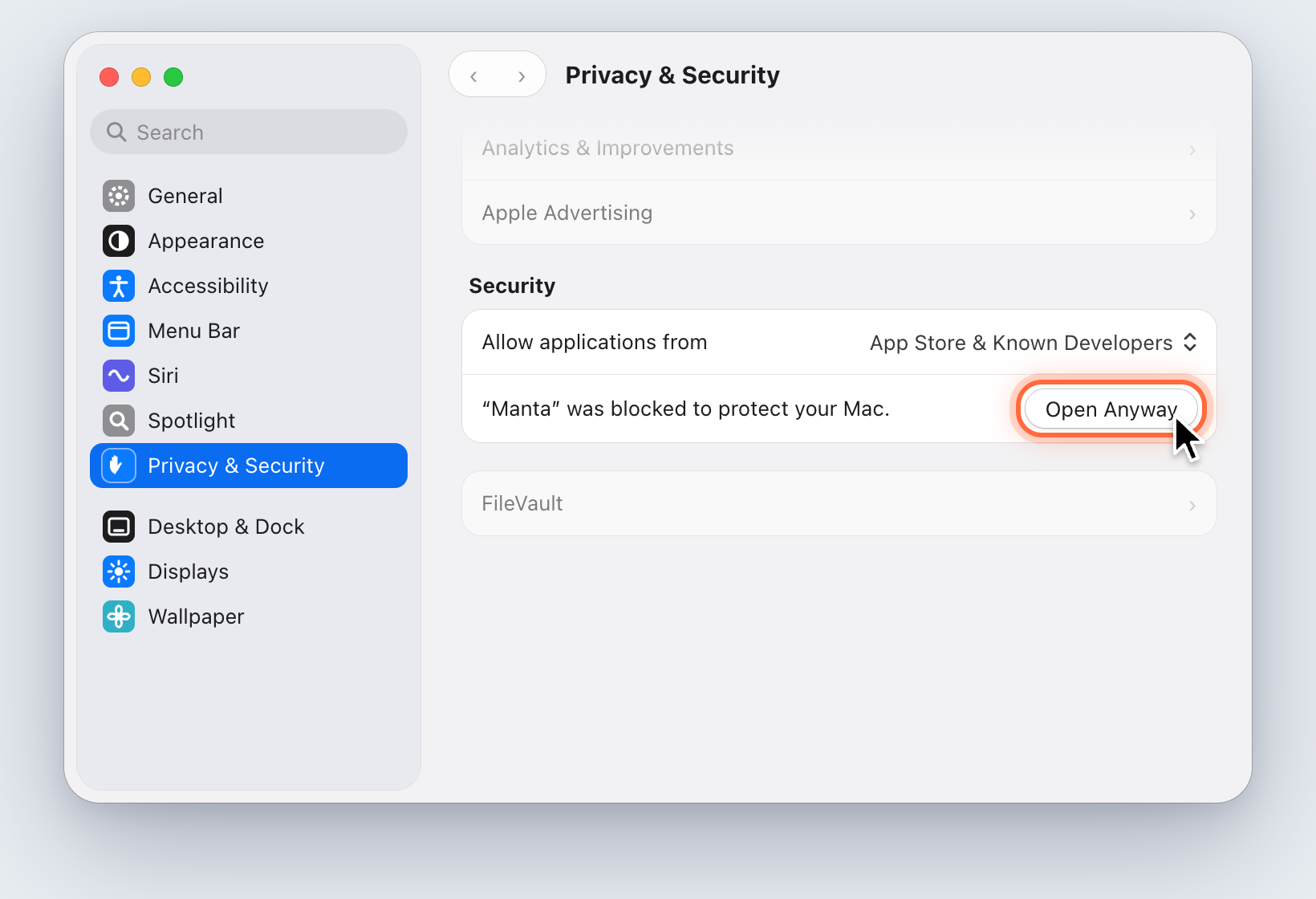
If there's no Open Anyway, start Manta again and look right after – the button only stays for about an hour. Every step with pictures, and the Terminal way, is in The first launch: Gatekeeper.
Before macOS 15: right-click (or Control-click) Manta in the Applications folder → Open → Open.
"macOS blocked access"
Problem: A folder won't open, or Manta says "macOS blocked access to “…” (Operation not permitted)".
Cause: You haven't allowed Manta to access this folder (or clicked "Don't Allow" by accident), or the folder needs Full Disk Access.
Fix:
- Open System Settings → Privacy & Security → Files and Folders.
- Find Manta and turn on the folder (Desktop, Documents, Downloads, removable volumes, network volumes).
- For folders such as
~/Library/Mail: Full Disk Access → turn on Manta. - Quit Manta and start it again.
If Manta isn't in the list, macOS hasn't asked yet. Open the folder once in Manta and the question appears.
"You don't have permission to open this folder" is something else: the normal Unix permissions are missing. Ask the folder's owner or change the permissions in Finder (Get Info).
Features that control Finder or Terminal
Problem: "Reveal in Finder", "Open in Terminal.app" or moving duplicates to the Trash doesn't work.
Fix: System Settings → Privacy & Security → Automation → under Manta, turn on Finder and Terminal.
FTP: folders don't load, "TLS" errors
Problem: Signing in to an FTPS server works, but folders stay empty or load forever, or Manta says "the network blocks encrypted FTP data connections".
Cause: Some company networks and firewalls reset encrypted FTP data connections.
Fix:
- Right-click the favorite → Edit Connection… (or ⌘K for a new connection).
- Set Data channel to Automatic.
- Connect again.
Manta then sends listings and files unencrypted; the login stays encrypted. A warning shield on the location chip shows this.
Warning
That's not a good solution for confidential data. Use SFTP, another network or a VPN instead, and set the data channel to Required.
More FTP hints:
- "A secure connection couldn't be set up": the server can't do FTPS on this port (try FTP if that's acceptable on your network), or its certificate isn't trusted.
- Manta doesn't support implicit FTPS (port 990).
A container without a shell
Problem: A container opens read-only, or Manta says "The container has no shell".
Cause: Manta needs sh in the container to list and change files. Distroless and scratch images have no shell.
Fix:
- Reading and copying out (F5, dragging) still works – through
docker cp. - To make changes you need an image with a shell (a debug variant of the image, for example).
- Kubernetes pods need
sheven for reading. - Stopped containers are read-only too: start them to make changes.
Docker or Kubernetes don't show up
- "Docker isn't running": start Docker Desktop.
- "Docker isn't installed": install Docker Desktop, or make sure the
dockercommand is on your PATH. Manta also looks in/opt/homebrew/bin,/usr/local/binand inside the Docker Desktop app. - "kubectl isn't installed":
brew install kubectl. - "The Kubernetes cluster isn't reachable": check the context and your VPN, or start your local cluster.
Server connections
| Message | Fix |
|---|---|
| "The server's key has changed" | The key doesn't match ~/.ssh/known_hosts; Manta doesn't connect (possible man-in-the-middle attack). Ask the administrator for the fingerprint. If the server really was reinstalled, remove the old entry with the command from the dialog (ssh-keygen -R host). |
| "Unknown server" | First connection to this server. Compare the fingerprint and click Connect and Remember, see Connections. |
| "The saved password wasn't found in the Keychain" | The item was deleted, in Keychain Access for example. Enter the password and keep Remember password on. |
| "No usable key in ssh-agent" | ssh-add ~/.ssh/id_ed25519 |
| "Your Mac's clock is off" | System Settings → General → Date & Time → set automatically. |
| "The bucket is in another region" | Set the region in the dialog to the one named. |
| "The connection to the server was lost" | Check your network, then Try Again. |
A transfer doesn't move on
| What you see | Fix |
|---|---|
| "Waiting for connection … (attempt 5, next in 16 s)" | The network or the server is gone. Manta keeps trying and continues at the same point. Check Wi-Fi/VPN; Try Again Now starts the next attempt right away. |
| No internet connection at the top of Transfers | Your Mac is offline. As soon as it's back online, transfers continue by themselves. |
| "Needs a connection to …" | After a restart the server connection is missing. Click Reconnect and enter the password. |
| "Paused · …" | You (or Pause All) paused the job. Click Resume. |
Hidden .NAME.manta-part files in the target | Partial files of an interrupted job. Leave them while the job is to be resumed; otherwise you can delete them. |
See Pause and resume transfers.
An update fails
See Updates. Usually Manta isn't running from the Applications folder.
Cloud: "Remove Download" doesn't work
For Google Drive, OneDrive, Dropbox and others the provider's app decides. Use Finder: right-click → Remove Download. See Cloud Storage.
A folder shows outdated contents
Press ⌘R. Manta only sees changes made by other apps or the server after a refresh.
Reset Manta
As a last resort:
- Quit Manta.
- Rename
~/Library/Application Support/Manta(toManta old, for example). - Start Manta. It starts as if for the first time.
Your favorites and Quick Actions are still in the renamed folder.