
Chapter 4
Navigation
This chapter shows how to move around folders: with the path bar, with Go to Path…, with the history and with the keyboard. At the end it covers filtering, type to select and hidden files.
On this page
Open folders and files
- Double-click or ↩ opens a folder in the pane, or a file with its default app.
- ⌘↓ does the same as ↩.
- ⌥↩ (Open With Default App) always opens with the default app, archives too, which Manta otherwise opens as folders (see Archives).
- ⌘↑ or ⌫ (Delete/Backspace) goes to the enclosing folder.
To open a file on a server, Manta downloads it to a temporary folder and opens that copy ("Downloading “name” to open it…").
Warning
Changes to a server file opened this way only end up in the temporary copy, not on the server. To edit a file, copy it to a local folder, edit it there and copy it back.
The path bar
The path bar at the top of each pane shows where you are, for example Home › Projects › manta.

- Click a folder name to go there.
- Click "…" at the start to see the enclosing folders ("Show enclosing folders") when the path is shortened.
- Double-click an empty spot in the path bar (or press ⌘L, Edit Path) to turn it into a text field. Type a path and press ↩. esc cancels.
- Location chip: the chip at the far left shows where you are: Local on your Mac, or for example Docker · shop-web, Kubernetes · pod, SFTP · deploy@web-01, S3 · bucket, FTP · host, Archive · backup.zip – and in cloud folders the provider (Google Drive, iCloud Drive, OneDrive, Dropbox; the account is in the tooltip). Long names are cut with "…", narrow panes show only the icon; the full text is in the tooltip. Clicking it goes to the top folder of that location.
- View: on the right, before the filter field, you switch between Icons, List, Columns and Gallery; next to it is View Options. See Views.
- Plugin chips on the right show, for example, the Git branch or the detected project. When the pane gets narrow they shorten and finally become an icon; the full text is in the tooltip.
Back to Local
When you are not in an ordinary folder on your Mac (a server, container, bucket, archive or cloud folder), an arrow Back to Local sits next to the location chip. It takes you to the last folder on your Mac in the tab's history – skipping cloud folders and archives – or else to your home folder. The connection stays open.
Go to Path
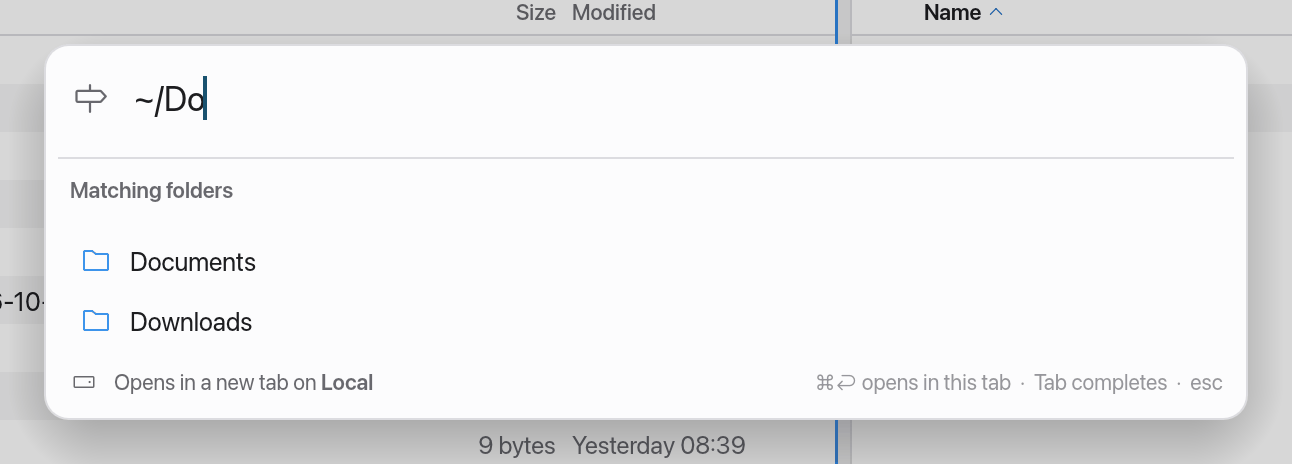
Go to Path… (⇧⌘G) opens a folder whose path you know or have on the clipboard.
- Press ⇧⌘G.
- Type or paste a path. Manta understands
~/Downloads, relative paths, quoted paths andfile://URLs. - ⇥ completes folder names. Below the field you see Matching folders and Recent.
- Press ↩ to open the folder in a new tab, or ⌘↩ to open it in the current tab.
Manta checks the path in the background and reports, for example, "Folder not found" or "Permission denied". If the path is a file, Manta opens its folder and selects the file.
If the active pane shows a server, the path refers to that server ("Opens in a new tab on …").
⇧⌘G works everywhere, even while you're typing in a text field.
Back and forward
Each tab has its own history.
- ⌘[ or ⌘←: Back
- ⌘] or ⌘→: Forward
The history reaches into archives and out again.
Select with the keyboard
| Key | Effect |
|---|---|
| ↑ / ↓ | Previous / next item |
| ⇧↑ / ⇧↓ | Extend the selection |
| Page Up / Page Down | 20 rows further |
| Home / End | First / last item |
| ⌘A | Select All |
| esc | Clear the selection |
With the mouse: click selects an item, ⌘-click adds or removes one, ⇧-click selects a range. A click on an empty spot clears the selection.
Type to select
As in Finder: type the first letters of a name and Manta jumps to the first matching item. Case doesn't matter. If no name starts with those letters, Manta jumps to the next name in the sort order.
After about a second without typing, the search starts over. While you're typing, Space belongs to the name ("my fo") and doesn't open Quick Look.
Filter files
The filter shows only items whose name contains some text.
- Press ⌘F (Filter Files) or click the Filter field in the path bar.
- Type part of the name, for example
.pdforinvoice.
The filter applies to the current folder and this tab only. The status bar shows "matching “…”". If nothing matches you see "No items match “…”" with a Clear Filter button. esc in the field clears the filter. In narrower panes (such as two panes in a small window) the field is a magnifier: click it or press ⌘F to open it; it stays open while it has text and folds again when it is empty and you click elsewhere or press esc. That leaves room for the location chip and the path; while the field is open, the view buttons fold into a single menu button.
To filter by tag, type tag: and the tag's name, for example tag:Red or tag:"Very important"; the colour's name works too (tag:red also finds a red tag called "Urgent"). It combines with a name: tag:Red invoice.
Search across folders
The filter only looks at the folder you see. To search below it, or the whole Mac, use the scope bar that appears under the path bar while the field is in use:
- This Folder – the filter described above.
- Subfolders – the folder and everything inside it. On this Mac several folders are read at once; hidden items are only searched when hidden files are shown, and the contents of packages (apps, photo libraries) are skipped. On servers, in containers and in archives Manta lists the folders one by one, at most 12 levels deep and 5,000 folders.
- This Mac – Spotlight: names and file contents, everywhere Spotlight indexes (local folders only).
- Press ⌘F and type what you're looking for.
- Click Subfolders or This Mac. The search starts a moment after you stop typing (or right away with ↩).
Names match when they contain the text (upper and lower case don't matter). With * or ? the text is a pattern for the whole name: *.pdf, report-202?.xlsx. tag: terms work here too.
The results fill the pane as a list while the search is running: the path bar says Search: “…” and where, the scope bar shows how many items were found, and a Path column shows the folder each one is in. You can open, Quick Look, copy, move, rename, tag and delete results as usual. Show in Enclosing Folder in the context menu (or ⌘↑) opens the item's folder with the item selected. The stop button in the scope bar stops a long search (the results found so far stay); ⌘R runs it again. At most 10,000 results are shown.
esc in the search field, ⌘[ or clearing the text closes the search and shows the folder again; opening another folder does too.
If Subfolders finds nothing, the empty pane offers Search This Mac.
Hidden files
Files whose name starts with a dot (such as .git, .env) and files marked as hidden are normally hidden.
- ⇧⌘. (Show Hidden Files) shows or hides them in the current tab. The toolbar button with the dashed file does the same (it is highlighted while hidden files are shown). The eye next to it is Quick Look.
- Settings → General → Show hidden files decides whether new tabs and Manta at launch show them.
If a folder looks empty but has hidden items, Manta says so: "3 hidden items — press ⇧⌘. to show."
Refresh
Local folders stay up to date by themselves – like in Finder: when another app creates, deletes, renames or changes a file, the change shows up in the pane after a moment. The selection, cursor, scroll position and type-to-select stay as they are. Manta watches the folders of all open tabs (in the Columns view also the columns to the left). A tab in the background is read again as soon as you switch to it – right away, without ⌘R. Many changes at once – copying thousands of files, say – are combined; the folder is read again about once a second at most. While you type a name (Rename, New Folder), the refresh waits until you're done.
Folders on servers, in containers, in S3 and in archives aren't watched. If someone else changes something there, press ⌘R (Refresh) to read the folder again. ⌘R works locally too, of course.