
SFTP
With password, key or ssh-agent. Host keys are checked against your known_hosts.
File manager for macOS · free
Manta brings your Mac, servers, containers and cloud folders into one window – with as many panes as you need. Fast, because it’s written in Rust. Free, with no ads and no tracking.

SFTP, FTP, FTPS, Amazon S3 and S3-compatible storage, Docker, Kubernetes, iCloud Drive, Google Drive, OneDrive, Dropbox, Box
Panes & tabs
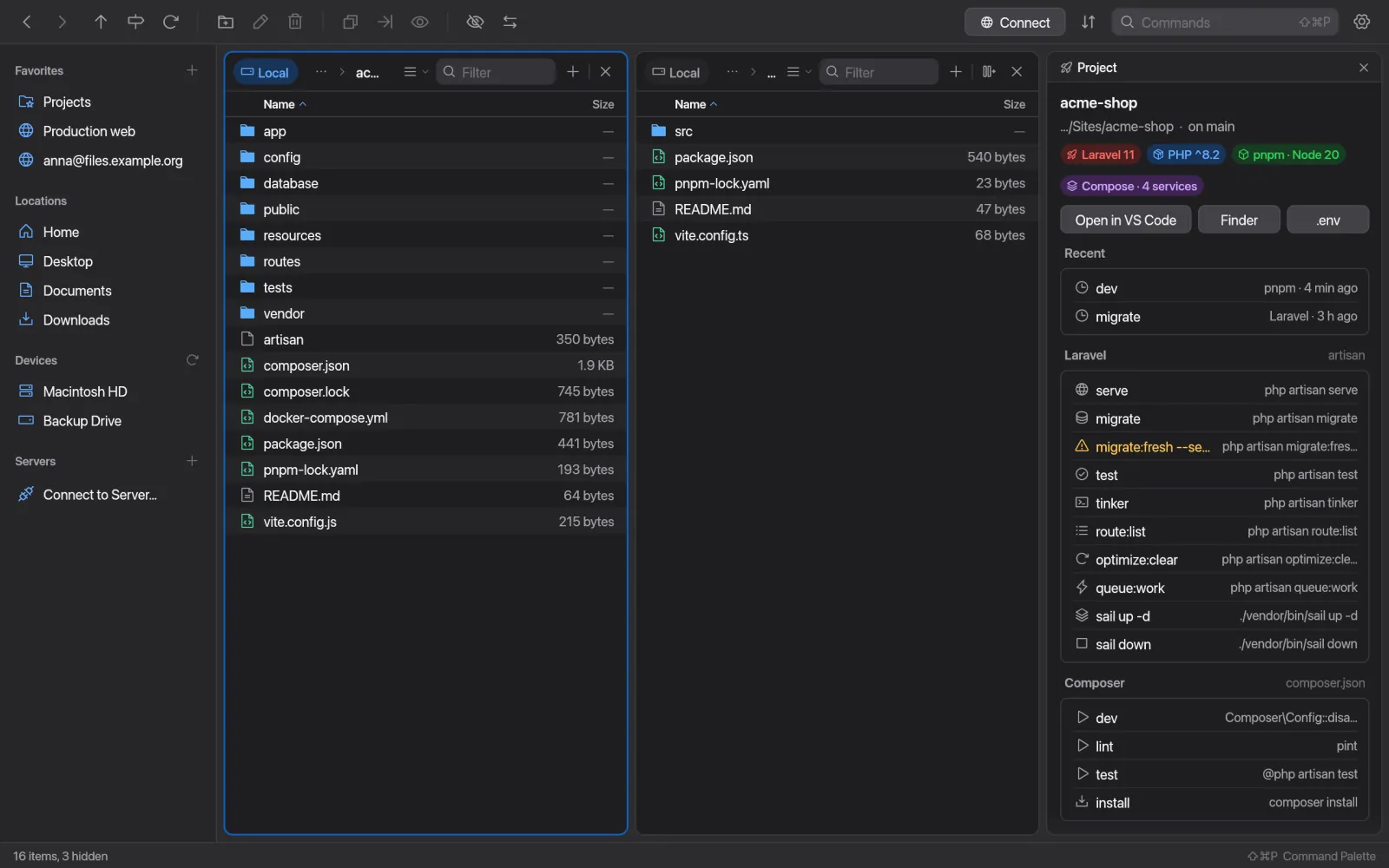
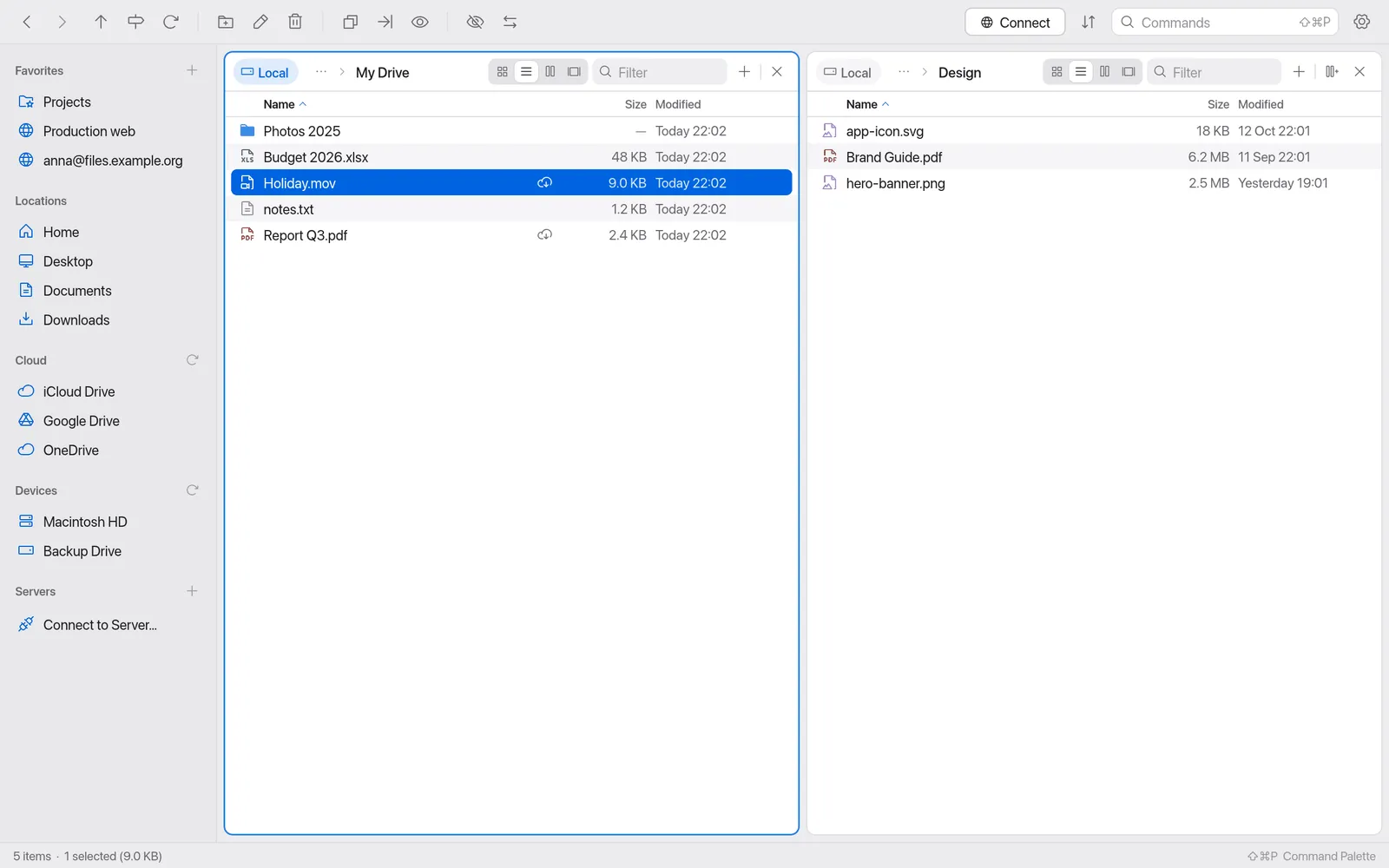
Every pane has tabs, history, a path bar, a filter and its own view.
A new pane opens to the right, showing the same folder. Drag the dividers – a double-click makes them all equal.
F5 copies, F6 moves – into the most recently active other pane. Next launch, your panes, tabs and widths are back.
Views
Name, size, date – sortable, with real folder sizes measured in the background.
Large icons and thumbnails for photos, PDFs, videos and documents. ⌘ + scroll zooms.
A folder opens in the next column; the last one previews the file with kind, size and permissions.
One item large, a filmstrip below. Step through with ← and →.
Command palette
⇧⌘P opens the command palette with every action and its shortcut. Just start typing – Manta finds it.
Connections
Copying between your Mac, SFTP, FTP, S3 and containers runs through one queue – with progress, speed and time left.
With password, key or ssh-agent. Host keys are checked against your known_hosts.
With explicit TLS. If a company network blocks encrypted data connections, the login stays encrypted – and Manta tells you.
Amazon S3 and compatible storage: Cloudflare R2, MinIO, Backblaze B2, Wasabi, DigitalOcean Spaces, Hetzner. Buckets and prefixes are folders.
Containers and pods in the sidebar; one click opens them as folders – through docker and kubectl, no daemon API.
Terminal
A terminal waits below every pane (⌃`). Change the folder and the shell follows. Type cd and the pane follows.
And it runs wherever the pane is: on your Mac, over ssh on the server, inside the Docker container or Kubernetes pod. Nothing gets installed there.
Transfers
When the connection drops, the transfer waits and retries – right away when macOS reports the network is back. Then it continues at the exact byte where it stopped. And after a restart Manta asks: “Resume interrupted transfers?”
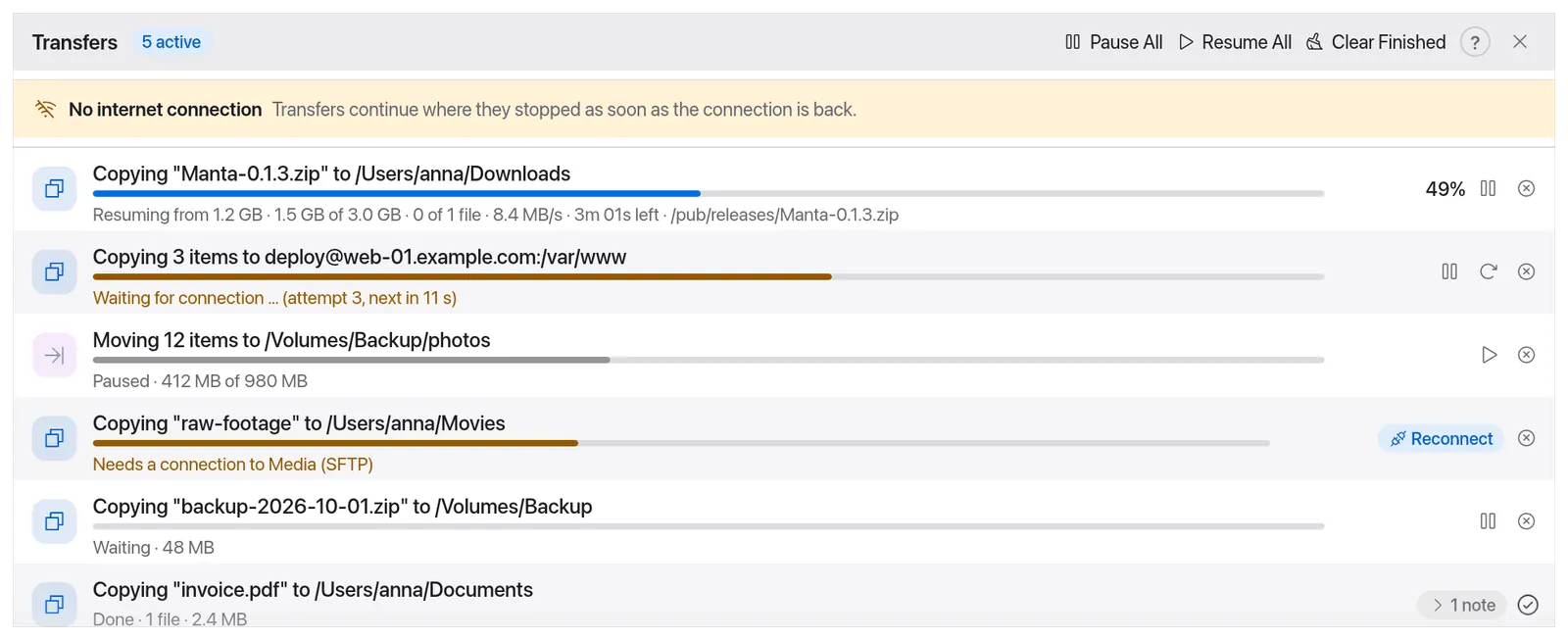
.NAME.manta-part until they’re complete.Drag & drop
Drag files from Manta to the desktop, into Finder, Mail or a browser upload – and from there back into any pane.
Features
Status badges on every file, the branch in the path bar, a panel to stage and commit (⇧⌘B).
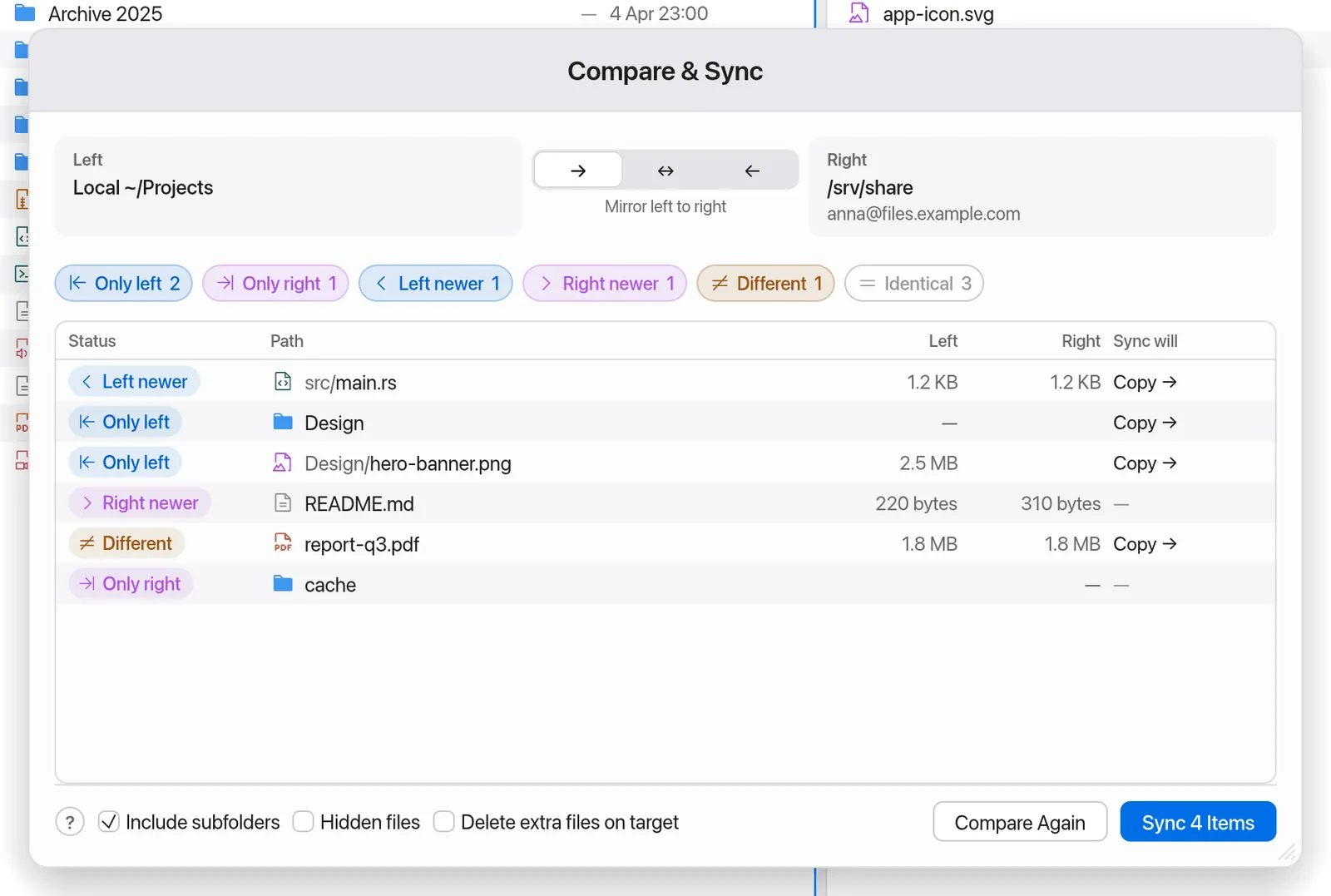
Two folders side by side, even local against a server: only left, only right, newer, different. Then mirror → ↔ ←.
iCloud Drive, Google Drive, OneDrive, Dropbox and Box through the providers’ apps – with sync badges and “Download Now”.
Real sizes in the list, measured in the background. ⌥⌘U shows what’s eating your space.
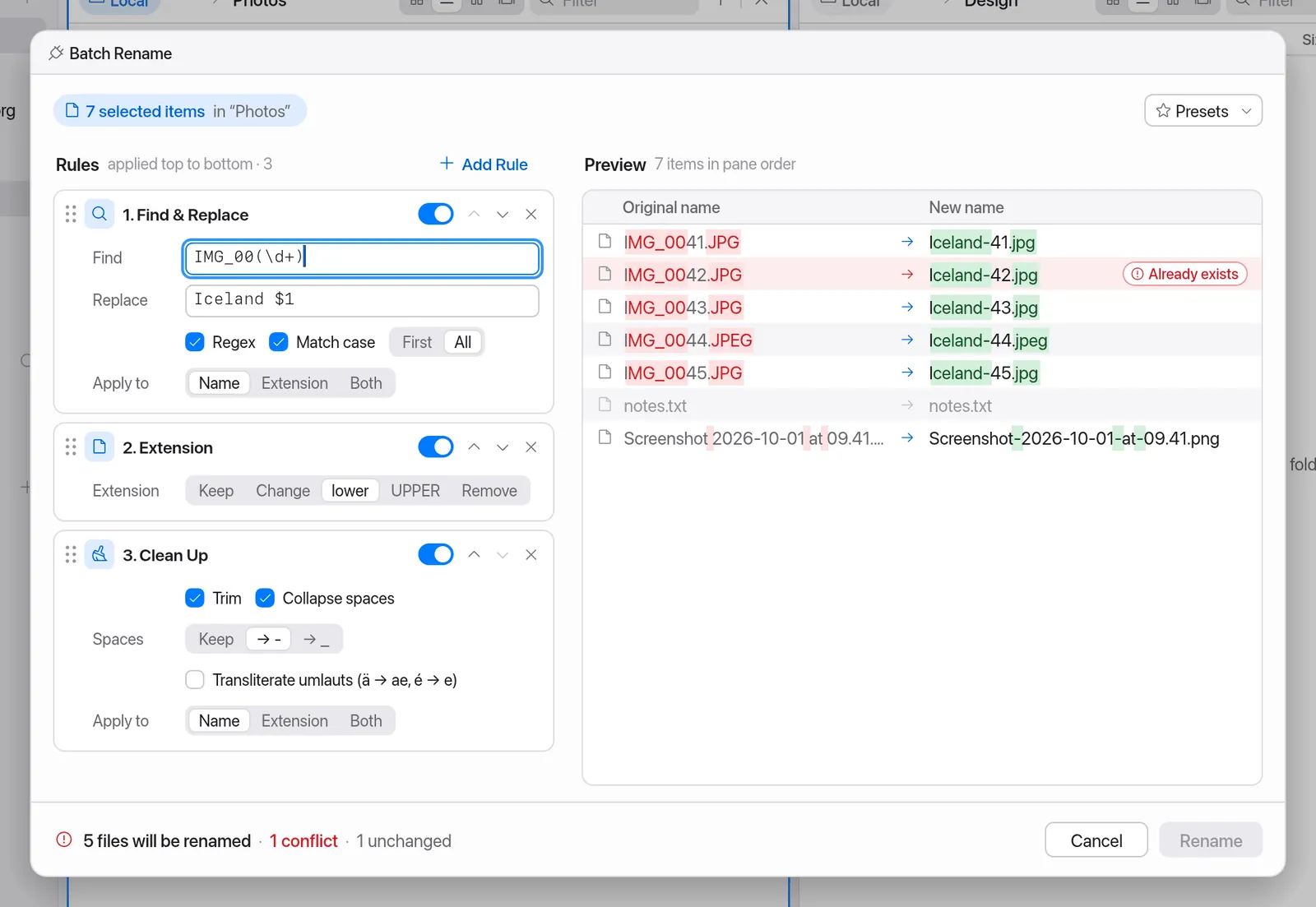
Rules with regex, numbering, dates and umlauts – with a live preview, conflict checks and Undo.
Space opens Apple’s Quick Look – for several files, too. On servers, the built-in preview shows text and images.
⌘⌫ moves to the macOS Trash. On servers Manta asks first, because there is none.
zip, tar.gz, tar.xz, tar.zst and more open like folders – read-only, to look inside and copy out.
GitHub Markdown with tables, task lists and code – re-rendered live when the file changes. ⌥⌘M
“lo” and “XL” for images unfit for the web, EXIF, a GPS warning. Resize, convert, strip metadata.
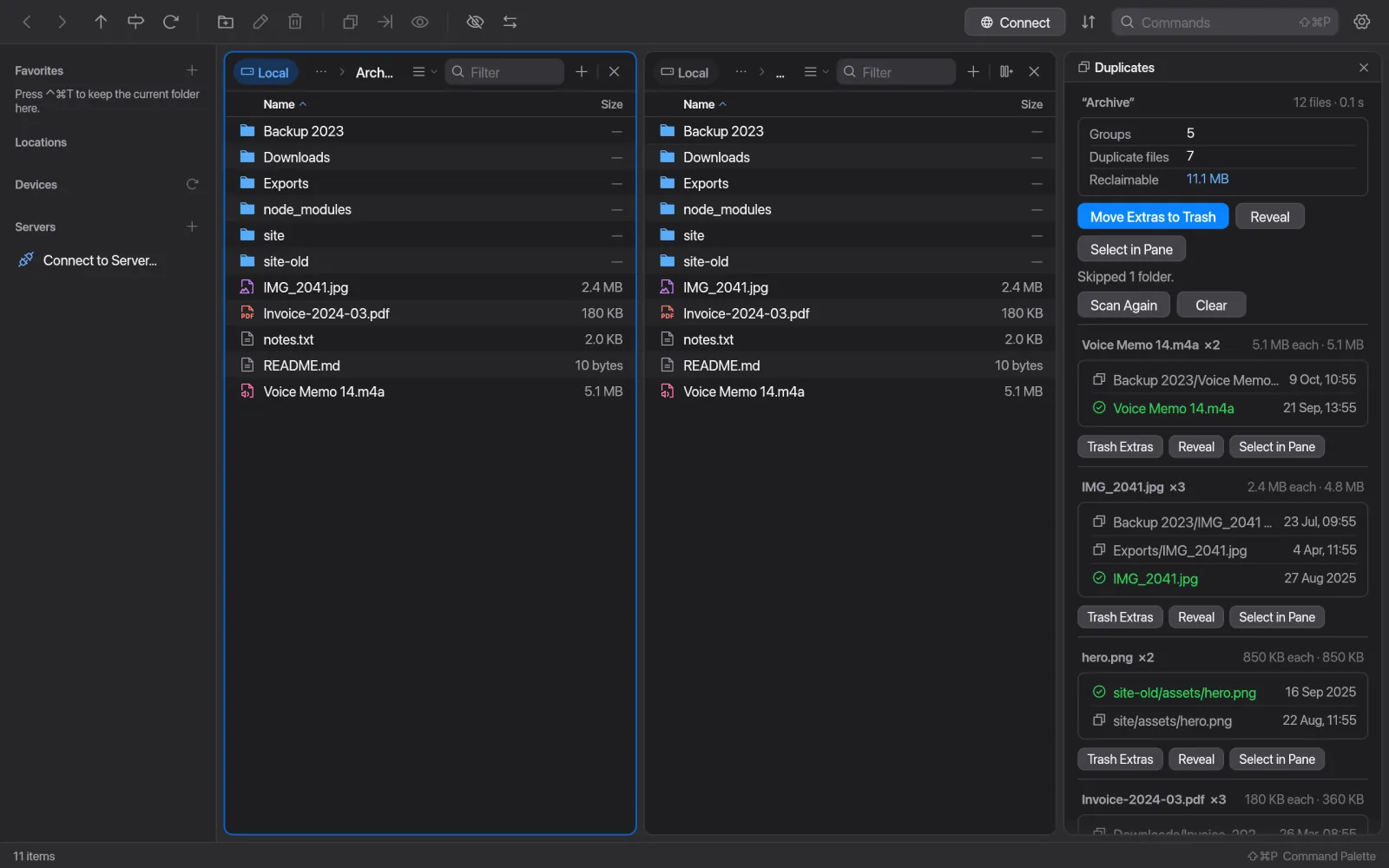
Compares size, start and end, then SHA-256. Extra copies go to the Trash – never deleted for good.
Detects Laravel, npm, Composer, Cargo, Docker Compose, Make and more – every script one click away.
Your own shell commands for the selection: resize images, zip, open in VS Code, checksums, rsync.
Badges, chips, commands and panels – a program that speaks JSON lines over stdin/stdout is all it takes. New plugins start switched off.
⌘? opens the manual with search – right inside the app.
Deutsch, English, 简体中文, Español, Français, Italiano, Русский – in Finder’s own terms. Switch live in Settings → Language, or let Manta follow your Mac’s language.
A closer look
Security & privacy
No tracking, no ads, no accounts. Manta only goes online for your connections and the update check – which sends nothing but your IP address and the Manta version.
Server passwords, passphrases and S3 secrets live in the macOS Keychain, not in a file.
Unknown SSH servers show their fingerprint. A changed key is refused with a clear warning – there is no “connect anyway”.
Every update is signed with Ed25519 and comes over HTTPS only. Manta installs only when you agree – and never a tampered download.
Free
No subscription, no ads, no tracking, no pro version. Manta is open source under the MIT licence: use it for free, privately and at work, change it and share it. If it saves you time, the developer would love a coffee.
Buy me a coffee
For macOS 11 or later. For Macs with Apple silicon (M1 or later).
Download for macOSThe current version will be linked here at release.
Manta isn’t notarized by Apple, so macOS blocks the first launch – these steps open it anyway. You only need them once.
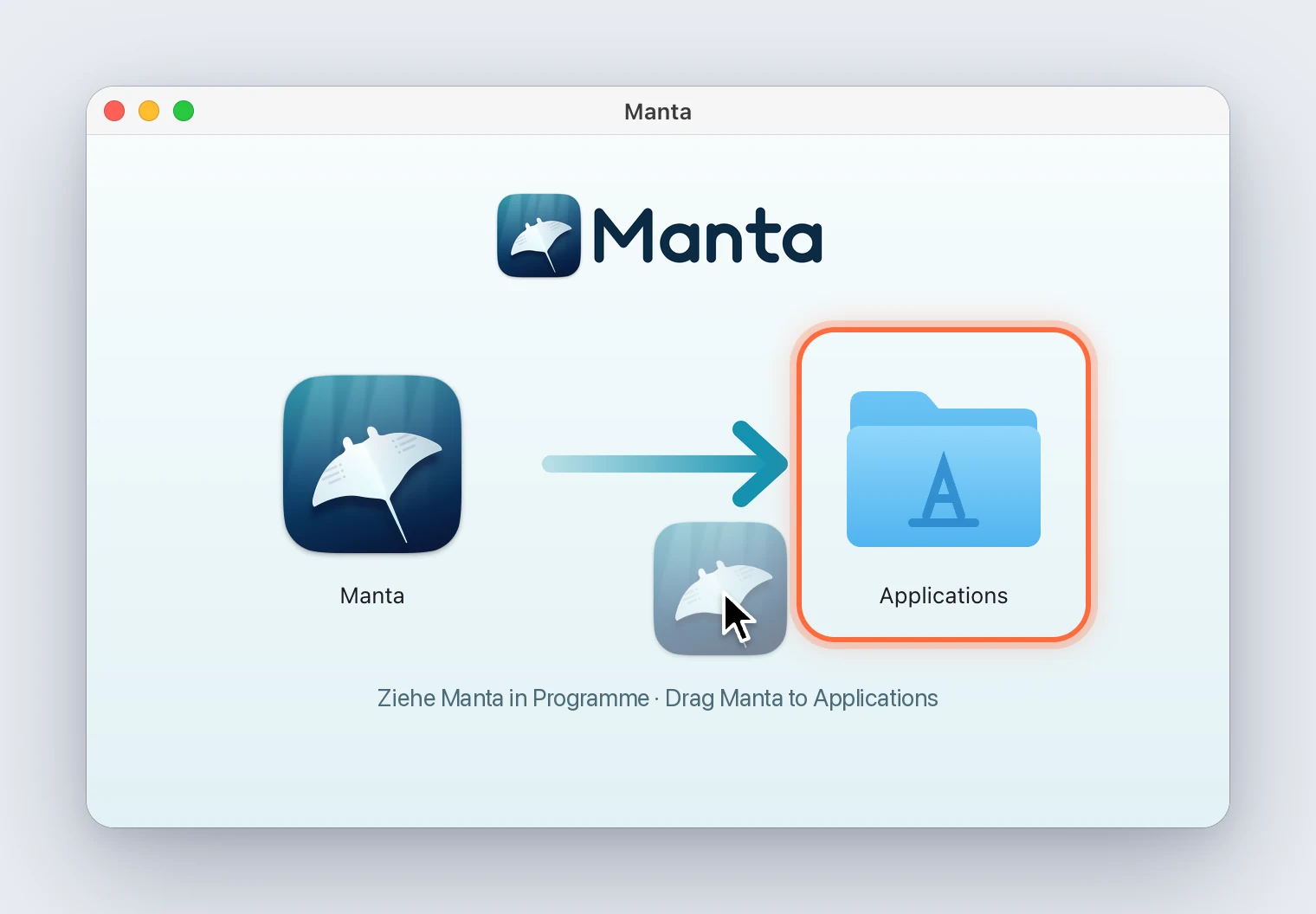
Open Manta.dmg and drag Manta onto the “Applications” folder.
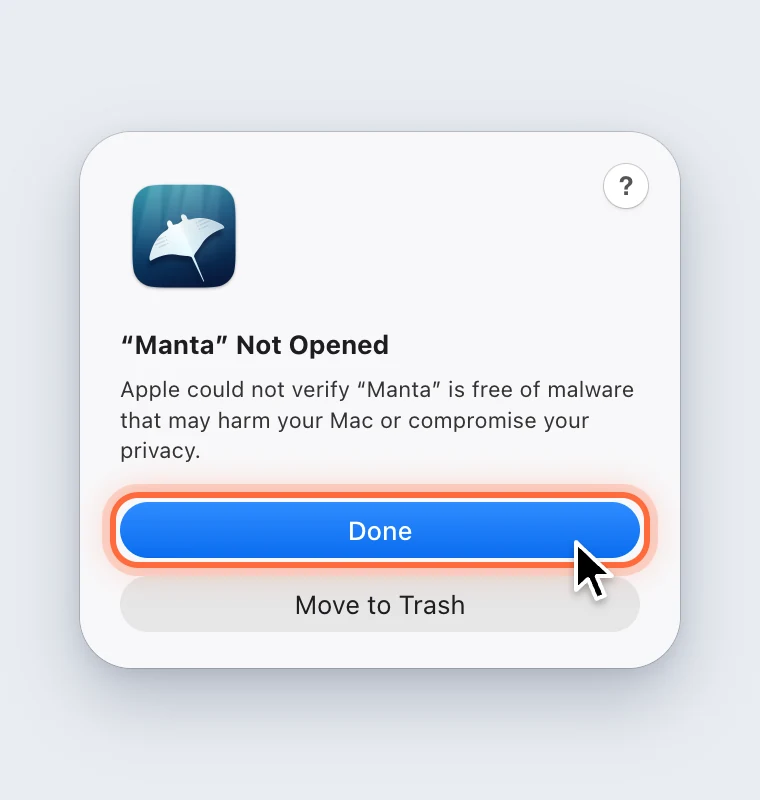
macOS says “Manta” Not Opened. Click Done – not “Move to Trash”.
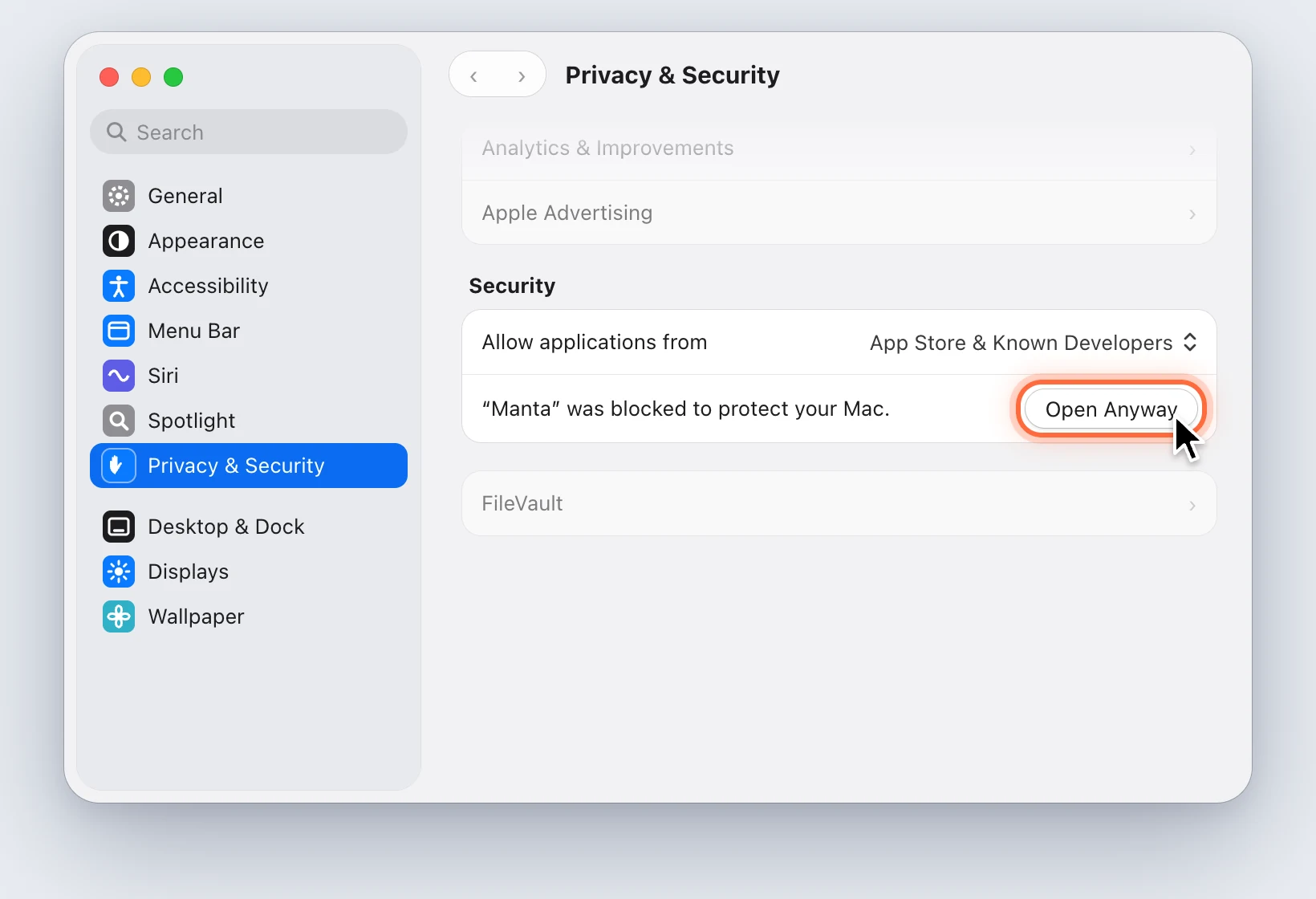
System Settings → Privacy & Security, scroll down to “Security” and click Open Anyway next to Manta.
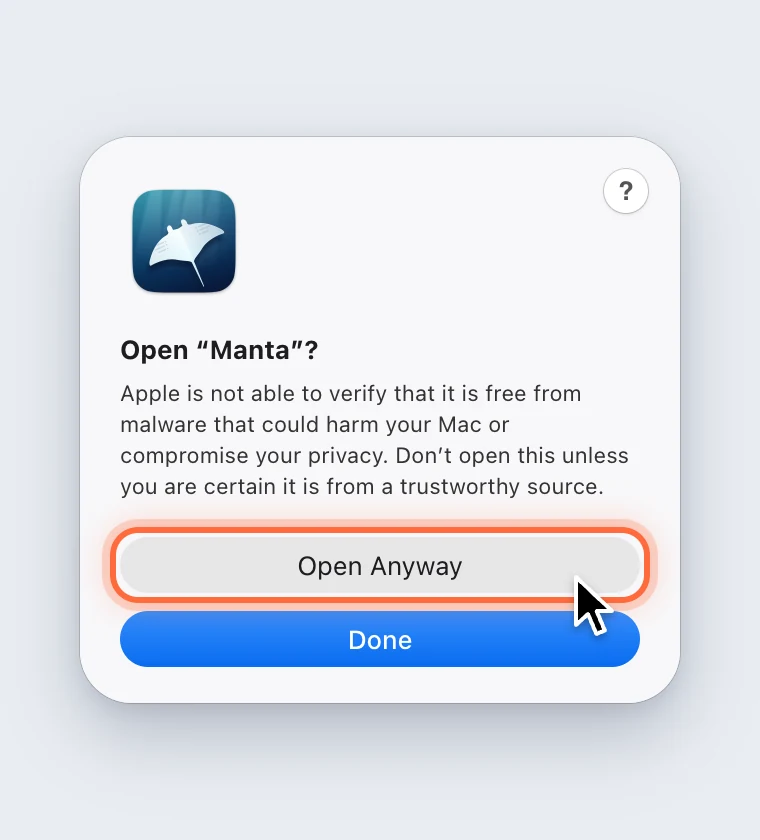
When macOS asks again, click Open Anyway once more and confirm with your password or Touch ID. Manta starts.
From then on Manta starts like any other app, and updates install without these steps – you decide when.
The button only appears after a launch attempt and stays for about an hour. Start Manta again, click Done and look in Privacy & Security right away. Before macOS 15, Control-click Manta in Finder and choose Open.
For advanced users: in Terminal, this command removes the download flag (quarantine), and Manta then starts without asking. Only for a copy of Manta you downloaded yourself from here or from GitHub:
xattr -dr com.apple.quarantine /Applications/Manta.appManta isn’t notarized by Apple, so macOS blocks the first launch with “Manta” Not Opened. It’s not a bug: click “Done”, open System Settings → Privacy & Security and click “Open Anyway” next to Manta at the bottom. Confirm the question with “Open Anyway” and your password or Touch ID. You only need to do this once – see the steps with pictures.
Not entirely. You can make Manta your default file manager; “Show in Finder” in other apps then opens Manta. The desktop, the Finder icon in the Dock and double-clicks in Finder windows stay with Finder, though – macOS doesn’t allow any app to take those over.
Yes, both. Manta is free and open source under the MIT licence: you may use, change and share it freely. The source code is on GitHub – bug reports, ideas and contributions are welcome. If you like, support development with a coffee.
No. The update check downloads the version list and its signature; only your IP address and the Manta version go over the network – no user ID, no file names, no usage data. You can turn the automatic check off.
No, and you don’t have to: install the provider’s desktop app and Manta shows its folder in the sidebar under “Cloud” – with sync badges and “Download Now”.
Yes, since version 0.4. WebDAV (Nextcloud, ownCloud, NAS) and SMB shares (Windows PCs, NAS, other Macs) connect directly with ⌘K (“Connect to Server…”). Shares mounted in Finder also appear under “Devices”.
No. Manta shows and changes files in containers and opens a shell inside them. Start and stop them with Docker Desktop or in the terminal. Stopped containers open read-only.
Nothing is lost. At the next launch Manta asks “Resume interrupted transfers?” and continues at the same spot. No passwords are stored for this.
On GitHub: open an issue – there are forms for bug reports and ideas. In Manta it’s even quicker: Help → Report an Issue… opens the form with the Manta and macOS versions already filled in. Please don’t report security vulnerabilities publicly; report them privately on GitHub. Code, translations and plugins are welcome – see Contributing.