
Chapter 5
Managing Files
Copy, move, rename, delete and create folders – on your Mac, on servers, in containers and between all of them. Read the section on deleting in particular: on your Mac, deleted items go to the Trash; on servers, deleting is permanent.
On this page
Copy files to another pane
- In the target pane, open the folder the files should go to.
- In the active pane, select the files and folders.
- Press F5 (Copy to Other Pane…).
- Check in the dialog what goes where, and choose what happens with matching names (see Name conflicts).
- Click Copy.
The copy runs in the background. You can keep working right away.
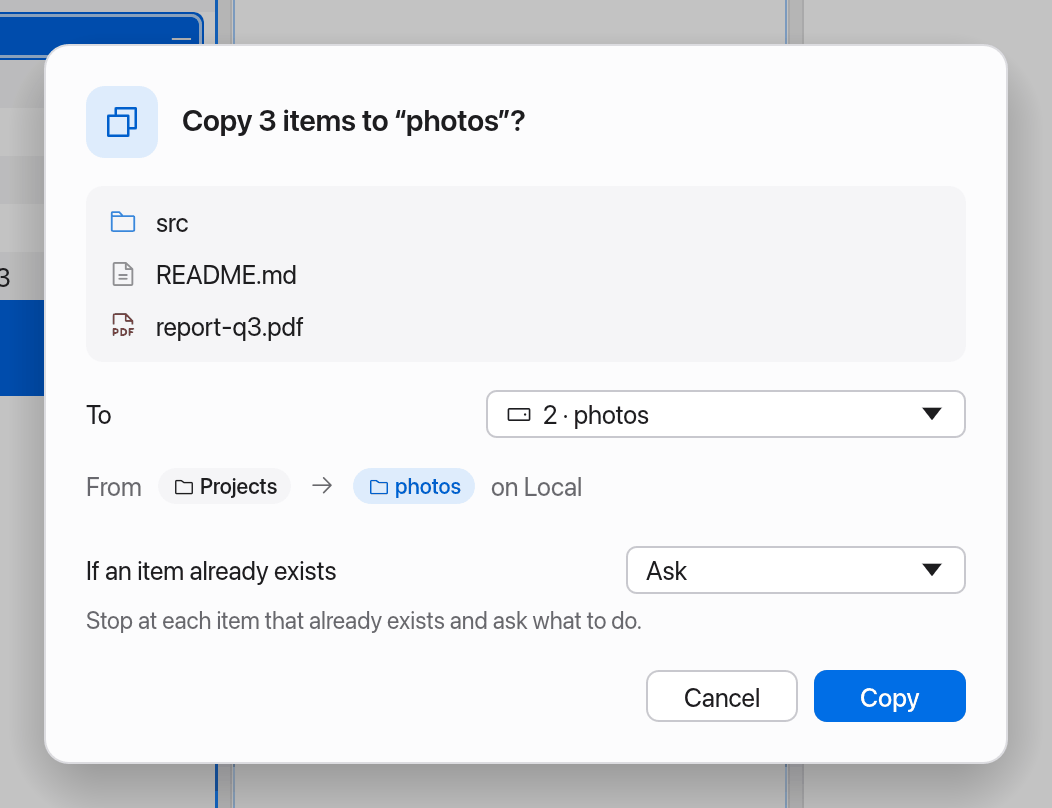
Move works the same way with F6 (Move to Other Pane…). Moved items disappear from their old place.
Both commands are also in the toolbar ("Copy to Right Pane", "Move to Left Pane" …) and the context menu (right-click).
Which pane is the target?
With two panes it's the other one. With three or more it's the most recently active other pane (with a → badge, see Target pane). Under To in the dialog you can choose any other pane.
Manta prevents typical mistakes:
- "Both panes show the same folder — open a different folder in the other pane"
- "A folder can't be copied into itself"
Between different places
Copying and moving work between all places: from your Mac to an SFTP server, from an S3 bucket into a Docker container, from an archive to the Desktop. Manta does this itself; you need no extra tools.
From read-only places (archives, stopped containers) a move only copies. Manta tells you, for example "Archives are read-only: the items are extracted (copied), not moved".
Name conflicts
If an item with the same name already exists at the destination, the If an item already exists setting in the dialog decides:
| Option | What happens |
|---|---|
| Ask | Manta stops at each item that already exists and asks you (the default). |
| Replace | Always overwrite the existing item. |
| Skip | Leave existing items untouched. |
| Replace if newer | Overwrite only if the source is newer or a different size. |
| Keep both | The copy gets a new name ("name 2"). |
The other options apply to the whole job without asking. Set the default in Settings → General → Copy and move.
Ask
With Ask, the job stops at the first item that already exists at the destination. Manta shows "“name” already exists in “folder”" with both items – size, modification date and a Newer label on the more recent one – and you choose:
| Button | What happens |
|---|---|
| Keep both | The copy gets a new name ("name 2"). This is the default: ↩ picks it. |
| Replace | The existing item is overwritten. |
| Replace if newer | Overwrite only if the source is newer; otherwise the existing one stays. |
| Skip | The existing item stays and this one isn't transferred (a move leaves it where it was). |
| Cancel (esc) | The job stops. What was transferred already stays at the destination. |
If a folder with that name already exists, Manta offers Merge (as Finder does): the contents go into the existing folder, and files that are already there are asked about one by one. Besides that Keep both ("photos 2") and Skip. Subfolders are always merged.
With Apply to all further conflicts of this job, the answer covers the rest of the job and Manta doesn't ask again. When several jobs ask at once, they take turns. Other transfers keep running while one waits; the transfers list shows it as "Waiting for your decision". If you quit Manta while a question is open, the job asks again once it is resumed.
Watch transfers
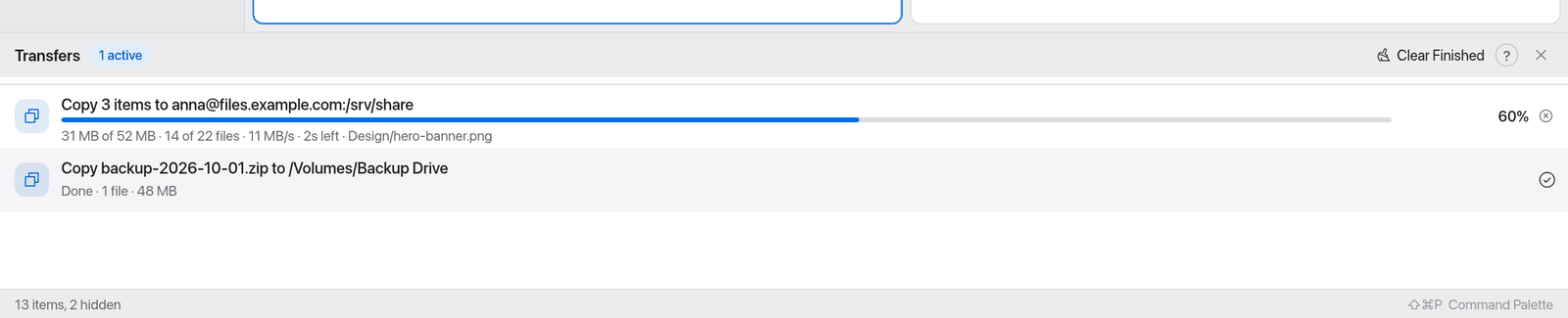
⌥⌘L (Show Transfers) or the Transfers button in the toolbar shows every running job: copy, move, delete, extract and compress.
- Each job shows its progress, speed and time left.
- Pause halts a job, Resume lets it continue (see below).
- Stop cancels a job. Half-copied files are removed.
- Clear Finished tidies up the list.
- If something went wrong, the job shows "N issues". The "Finished with issues" notice points here too.
When you hide the panel, the status bar shows a small pill with a progress ring at the bottom right, so you always see how far a job is – also for files dropped from other apps or copied into cloud folders:
- one job: "Copying 3 items… 42%", "Moving "Holiday.mov"… 80%",
- several: "2 transfers · 37%",
- paused or waiting: "… · paused", "… · waiting", "… · waiting for connection",
- afterwards Done (or Stopped) for a few seconds,
- if something went wrong, the red pill ("Transfer failed", "Done with errors") stays until you click it.
Click the pill to open the transfers; its tooltip lists each running job with its progress and time left.
When you copy into a cloud folder (Google Drive, iCloud Drive, OneDrive, Dropbox), the transfer is done once the files are on your Mac – the provider's app uploads them afterwards. The status bar shows that too, e.g. "Google Drive is uploading 2 items" or, in red, "Google Drive: 1 upload error" (see Cloud storage).
Pause and resume transfers
Every copy, move and delete job can be paused and later resumed at the same point – even in the middle of a large file.
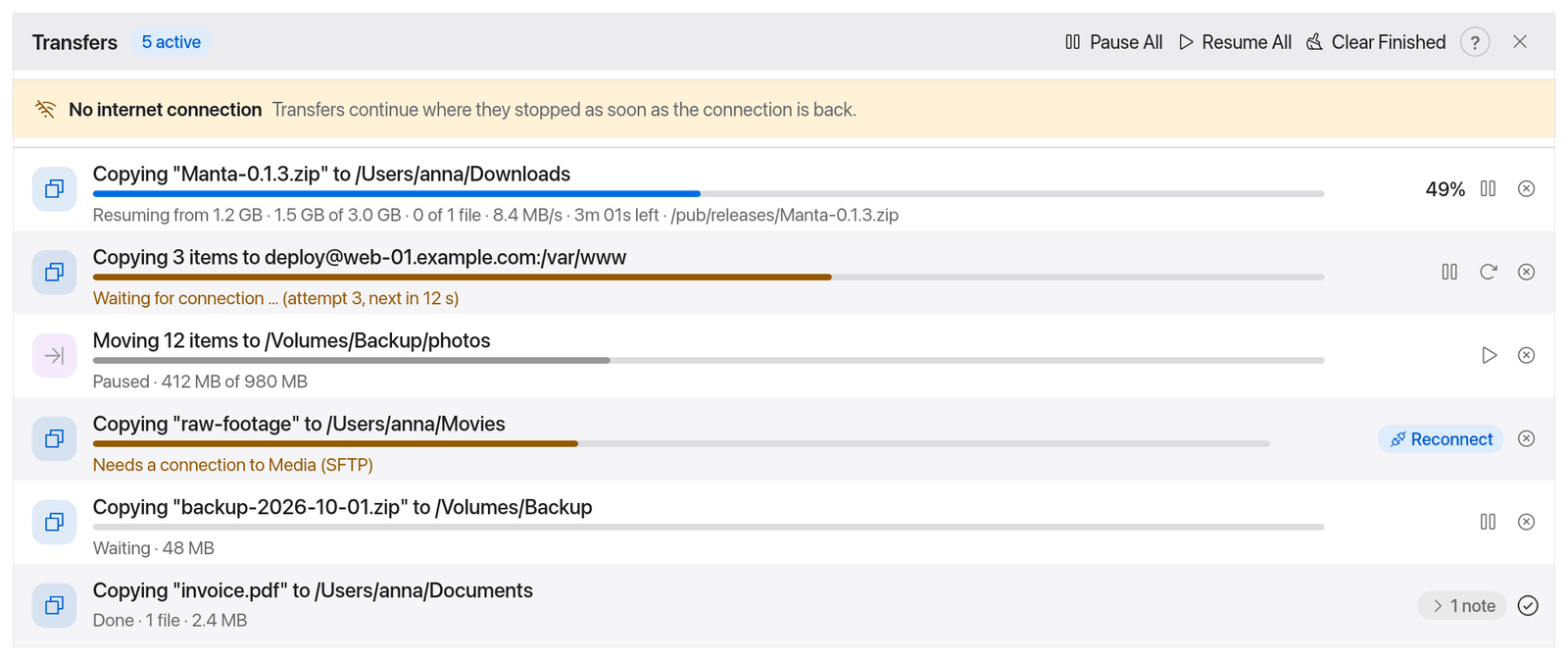
- One job: click the pause icon in its row (Pause). The row then shows "Paused · 1.2 GB of 3.0 GB", for example. The play icon (Resume) lets it continue.
- All at once: at the top of Transfers you find Pause All and Resume All whenever there is something to pause or resume.
A resumed job skips finished files and continues the file in progress where it stopped ("Resuming from 1.2 GB").
Compressing can't be paused.
When the connection drops
If the network drops or the server is briefly gone, Manta doesn't give up on the job. It waits and tries again by itself:
- The row shows "Waiting for connection … (attempt 3, next in 8 s)". The pauses get longer (1, 2, 4 … seconds, at most 1 minute); Manta keeps trying.
- As soon as your Mac is online again, the job continues right away – where it stopped.
- If you don't want to wait, click Try Again Now (arrow icon).
- When your Mac has no network at all, Transfers shows the banner No internet connection – "Transfers continue where they stopped as soon as the connection is back."
A waiting job can be paused or stopped like any other.
Partial files (.manta-part)
While a file is copied, Manta first writes it to a hidden partial file next to the target: film.mov becomes .film.mov.manta-part. Only when the file is complete does it get its real name. So the target never holds half a file under the real name.
- You only see partial files when hidden files are shown (⇧⌘.).
- Don't delete a partial file while the job is paused or waiting – otherwise that file starts over.
- Stop and Discard (see below) clean them up for you.
- Uploads to S3 and Google Drive need no partial file: the server keeps the unfinished file invisible until it's complete.
After quitting or a crash
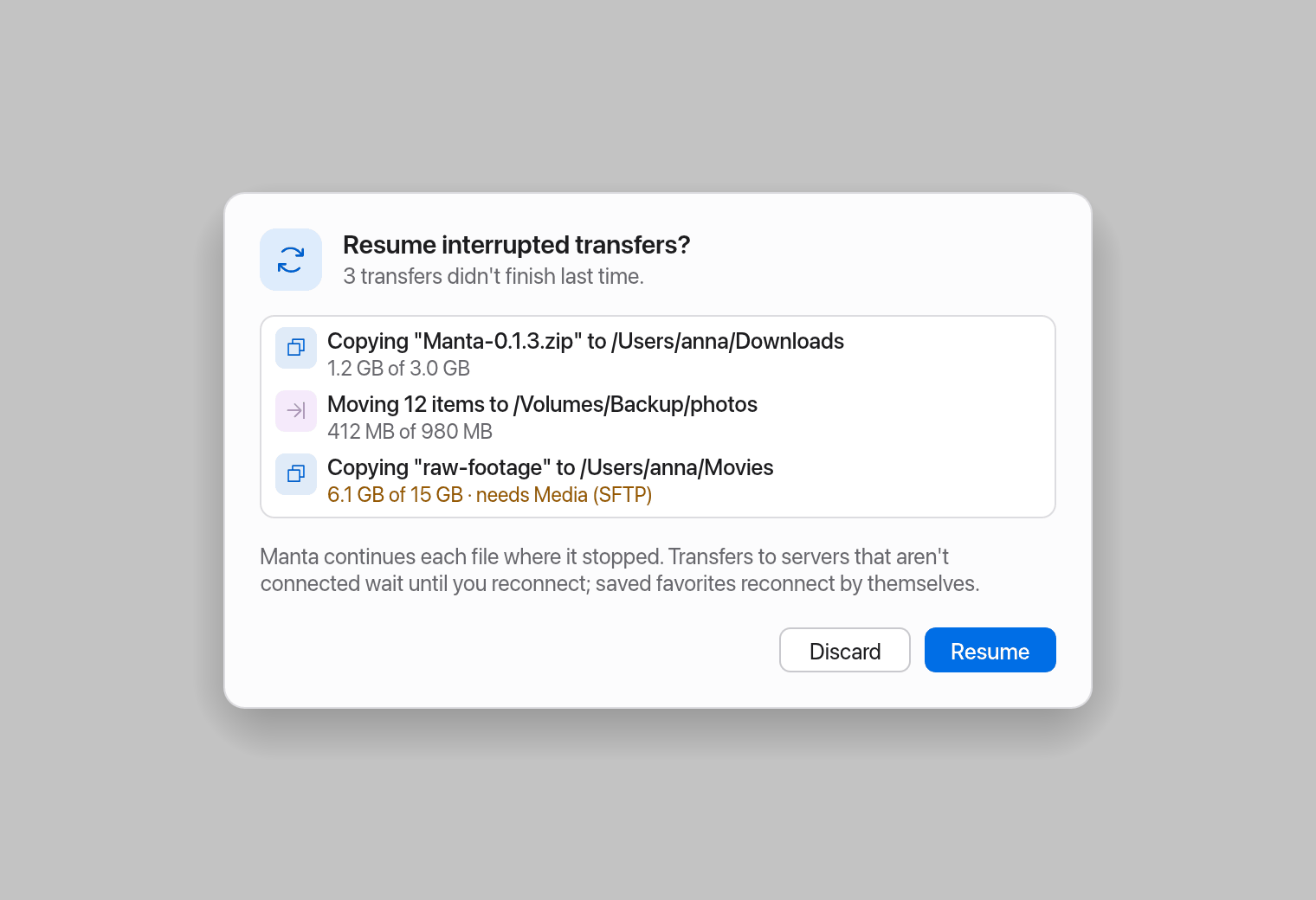
Manta remembers unfinished transfers even when you quit the app, it crashes or the Mac restarts. At the next launch it asks:
Resume interrupted transfers? – for example "2 transfers didn't finish last time." Below it lists the jobs with their progress and, if needed, which server is missing ("needs files.example.com (SFTP)").
- Resume (or ↩): the jobs continue where they stopped.
- Discard: the jobs are dropped and their partial files removed – as far as Manta can reach them. On a server that isn't connected a partial file stays behind; you can delete it yourself later.
- esc (close the window): decide later. Manta asks again at the next launch.
"Needs a connection"
When a resumed job needs a server you're not connected to yet, its row shows "Needs a connection to files.example.com (SFTP)" and the Reconnect button.
- Server favorites with a remembered password (or the ssh-agent) reconnect by themselves in the background; you don't have to do anything.
- Otherwise click Reconnect. Manta opens the connection dialog with the server details; enter the password. As soon as the connection is up, the job continues.
Manta never stores passwords or passphrases for this: the list of interrupted transfers (transfers.json) holds only servers, user names and paths.
"Copied again from the start" notes
Sometimes Manta can't safely continue a file and copies it again. The job then shows "1 note"; click it to expand the notes:
| Note | What happened |
|---|---|
| "the source changed since the interruption; copied again from the start" | The original file now has a different size or modification date. Continuing would mix old and new. |
| "this server can't continue partial files; copied again from the start" | The target doesn't allow appending to an unfinished file. |
| "the partial file was larger than the source; copied again from the start" | The partial file doesn't match the source. |
| "the upload session expired; uploaded again from the start" | S3 or Google Drive dropped the unfinished upload in the meantime. |
Limits
- Compressing can't be paused and doesn't survive a restart.
- Jobs from archives (extracting) can be paused but aren't resumed after quitting.
- Without the right password a job on a server waits until you connect.
Drag and drop
Between panes
- Select items and drag them into another pane.
- Let go. Manta asks: in the dialog you choose Copy or Move, the destination and what happens on name conflicts. Copy is preselected – also within the same volume of your Mac, where Finder would move. That way nothing disappears from its folder by accident. ↩ confirms the preselection.
- Hold ⌘ when you let go to preselect Move. ⌥ preselects Copy explicitly (and wins over ⌘).
A badge at the pointer shows what is preselected ("Copy 3 items here · hold ⌘ to move", with ⌘: "Move 3 items here · hold ⌥ to copy"). Dragging out of an archive extracts. Between panes the items go into the folder the pane shows.
If you don't want to be asked every time, choose "Always copy" or "Always move" under When you drop files in Settings. The job then starts without a dialog; ⌘ still moves and ⌥ still copies for that one drop. Dropping onto the Trash and Favorites is not affected.
From Manta to other apps
You can drag files from Manta into other apps: onto the Desktop, into a Finder window, into Mail or a browser upload.
- Local files are copied – also when the destination is on the same volume. Hold ⌘ to move them.
- Files on servers, in containers or archives are downloaded to the destination when you let go. That can take a while for big files.
Drag the items past the edge of the Manta window; from there macOS takes over. A message tells you when a download from a server starts and when it is done or failed. If the other app moved the files, Manta updates the folder they came from.
From other apps into Manta
Drop files from Finder, the Desktop or another app onto a pane:
- Onto an empty spot of the pane: they go into the folder the pane shows.
- Onto a folder (in every view, in Columns also onto a column): they go into that folder. It is highlighted while you hover.
- The same rules as between panes apply: Manta asks with Copy preselected (with ⌘: Move), unless you chose "Always copy" or "Always move".
The job shows up under Transfers, where you can pause it. Mail attachments and photos from Photos can't be dropped onto Manta yet.
Into Favorites
Drag a folder onto the Favorites section of the sidebar to keep it there. See Favorites & Sidebar.
Onto the Trash
Drag items onto Trash in the sidebar: local items go to the Trash without asking, items on servers are deleted permanently after asking. See Trash.
Rename
- Select one item.
- Press F2 (Rename…) or choose Rename… in the context menu.
- Type the new name and press ↩.
Click to rename, like in Finder: click an item that is already selected once more and wait a moment. In the List view the name becomes editable right in the row (the name without its extension is selected); ↩ or a click elsewhere renames, Esc cancels. In the other views the Rename… dialog opens. A double-click still opens the item.
Manta checks the name right away: it must not be empty, contain "/" or already exist in the folder.
Rename many items at once: select several and press F2, or press ⇧⌘R (Batch Rename…). The plugin offers rules, a live preview and Undo. See Batch Rename.
New folder
- Press ⇧⌘N (New Folder…).
- Type a name ("untitled folder" is suggested) and click Create.
New file
- Press ⌥⌘N (New File…), or choose New File… in the File menu or in the context menu of a pane.
- Type a name ("untitled.txt" is suggested) and click Create. Manta creates an empty file and selects it.
Inside a folder: right-click a folder and the items read New Folder in “…” and New File in “…” – the folder or file is then made inside that folder, and the pane stays where it is. ⇧⌘N and ⌥⌘N keep creating in the folder shown.
Delete
Manta deletes like Finder:
| Where | ⌘⌫ (Move to Trash) | ⌥⌘⌫ (Delete Immediately…) |
|---|---|---|
| Your Mac (also external drives and cloud folders) | Moves the items to the Trash, without asking. Finder's Put Back restores them. | Deletes permanently after asking. |
| Servers (SFTP, FTP, FTPS), S3, containers | There is no Trash: deletes permanently after asking. | Deletes permanently after asking. |
| Archives | Read-only: nothing can be deleted. | Read-only. |
To move items to the Trash:
- Select them.
- Press ⌘⌫ or the forward-delete key ⌦, or choose Move to Trash in the context menu or the toolbar – or drag them onto Trash in the sidebar.
A message confirms it ("Moved 3 items to the Trash"). To get items back, open the Trash in Finder, select them and choose Put Back. Manta has no Undo of its own for this.
To delete permanently:
- Select the items.
- Press ⌥⌘⌫, or choose Delete Immediately… in the command palette.
- Manta asks: "Delete “name”?" or "Delete 3 items?", with the note that the items don't go to the Trash and that you can't undo it.
- Click Delete.
On a server, in an S3 bucket or in a container there is no Trash. ⌘⌫, the context menu (Delete Immediately… there) and the toolbar button always ask first, and the dialog says in red that this location has no Trash and that deleting there is permanent. Folders are deleted with everything inside.
To open the Trash itself, click Trash in the sidebar. In it, ⌘⌫ (there: Delete Immediately…) deletes for good after asking, and ⇧⌘⌫ (Empty Trash…) empties it. See Trash.
Caution
In cloud folders (iCloud Drive, Google Drive, OneDrive, Dropbox) an item you move to the Trash also disappears from the cloud as soon as your Mac syncs. Put Back usually brings it back; some providers also keep a trash on their website. See Cloud Storage.
Tags
Manta reads and sets the same tags as Finder (they live with the file, so Finder, Spotlight and other apps see them). Tagged items show coloured dots after their name in every view – in the list and the columns after the name, in Icons and Gallery before it. Tags work for items on this Mac, including iCloud Drive and other cloud folders; servers and archives have none.
Add or remove a tag:
- Select the items and open the context menu.
- Choose Tags. The seven colours are at the top: a click adds the tag to every selected item, or removes it if all of them have it (a check mark means all have it, a dash means some do). Your other tags are listed below them.
- To create a new tag, type its name into New Tag… and press ↩.
The standard tags carry the names Finder uses on your Mac (for example "Red" on an English Mac, "Rot" on a German one).
Find tagged items: The Tags section of the sidebar lists your tags as Finder shows them (if Manta can't read Finder's list, the tags it has seen on files). A click shows everything with that tag, found by Spotlight, in the active pane. In the filter field, tag:Red shows the tagged items of the current folder (see Filter files).
Get Info
⌘I (Get Info, also in the context menu and the File menu) opens an Info window for the selection, like Finder: one window per item (asking again brings it to the front), one summary window for several items. Up to six Info windows can be open; the oldest closes for a new one. They are ordinary windows: you can keep working in the main window.
An Info window shows:
- the name – edit it and press ↩ to rename the item,
- Kind, Size (folders and multiple items are counted in the background), Where, Created, Modified and Last opened (Spotlight's date),
- Tags – remove one with its ×, add one with Add Tag,
- Locked (the item can't be changed, renamed or moved to the Trash) and Hidden,
- Comments – the Spotlight comment set in Finder (Manta shows it but can't change it: macOS offers no way to do that apart from scripting Finder),
- Open with – the default app, and Open With to open the file once with another app. macOS has no public way for other apps to change the app for a single file, so there is no "Change All…"; use Finder for that,
- Sharing & Permissions – read, write and execute for owner, group and everyone, plus the octal value (such as
644). On this Mac and on SFTP servers you can change them right there (chmod); elsewhere they are shown read-only.
Items on servers, in containers and in archives show what the server reports (size, date, permissions).
Read-only places
In archives, stopped containers and containers without a shell you can't change anything. A Read-only (or Stopped) chip in the path bar shows this. Copying out with F5 or by dragging always works.