
Chapter 7
Favorites & Sidebar
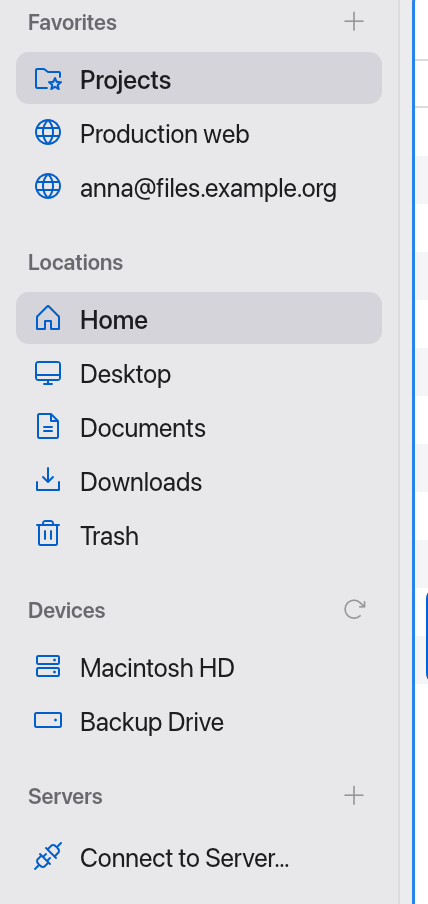
The sidebar on the left takes you to your most important places in one click: favorites, standard folders, drives, connected servers, containers and cloud storage. A click opens the place in the active pane.
On this page
The sections
| Section | Contents |
|---|---|
| Favorites | Folders and server connections you've kept. |
| Locations | Home, Applications, Desktop, Documents, Downloads and, at the bottom, the Trash (see below). |
| Cloud | iCloud Drive and the folders of the cloud apps (Google Drive for desktop, OneDrive, Dropbox, Box, …), see Cloud Storage. The section only appears when Manta finds at least one cloud storage. |
| Devices | Macintosh HD and every mounted volume (USB drives, disks, network shares, disk images). |
| Servers | Servers you're connected to. Without a connection it shows Connect to Server…. |
| Containers | Running and stopped Docker containers and Kubernetes pods (only if Docker is installed or a Kubernetes context is set). |
The circular-arrow button next to Cloud and Devices looks for cloud folders and volumes again. Manta also notices new cloud apps by itself.
Hover over a place to see its full path in a tooltip.
Add a folder to Favorites
There are three ways:
- Keyboard: open the folder in the active pane and press ⌃⌘T (Add Folder to Favorites).
- Mouse: click the + next to the Favorites heading ("Add Current Folder"), or choose Add Folder to Favorites in the context menu of an empty spot in the pane.
- Drag: drag one or more folders from a pane onto the Favorites section (see below).
Folders inside archives can't be favorites ("Folders inside archives can't be added to Favorites").
Drag folders onto Favorites
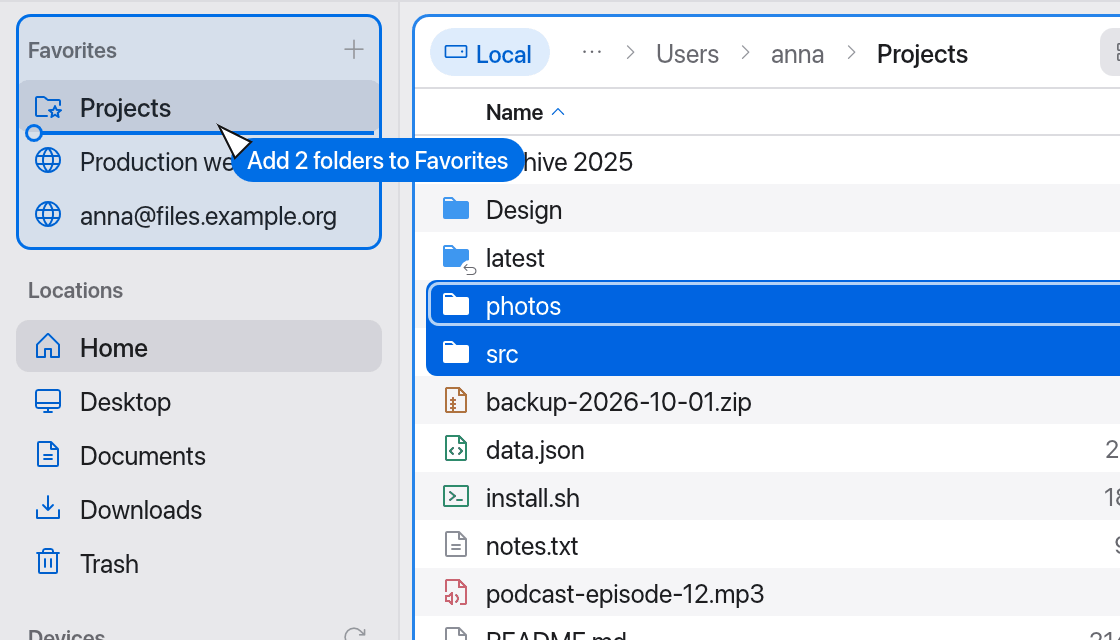
- Select one or more folders in a pane – in any view, local or on a server.
- Drag them onto the Favorites section. The section is highlighted, a line shows where the folders will go, and the pointer says "Add 2 folders to Favorites", for example.
- Let go. Manta reports "Added “Projects” to Favorites" or "Added 2 folders to Favorites".
Good to know:
- Folders only: if you drag only files, the pointer says "Only folders can be favorites" and nothing happens. With a mixed selection Manta takes just the folders.
- No duplicates: if a folder is already a favorite, the existing entry flashes briefly and Manta says "“name” is already in Favorites". Only the place counts, not the favorite's name.
- Server folders: dragging a folder from a server creates a server favorite with that folder as its start folder, such as "files.example.com – www". No new password is stored with it; if the Keychain already has one for this server account (from another favorite), the new favorite uses it too. Otherwise Manta asks when you open it (unless you sign in with the ssh-agent or a key file without a passphrase).
Reorder and remove favorites
- Reorder: drag a favorite up or down in the list. The dragged row fades and a line shows the new position. The order is saved right away.
- Remove: right-click the favorite → Remove from Favorites, or drag the favorite onto the Trash in the sidebar. The folder itself stays, of course.
Trash
The Trash is the last row under Locations, as in Finder. Its icon shows whether it is empty or full (a filled bin = something is in it); the tooltip gives the number of items.
- Open: click Trash. It opens in the active pane like any folder. Delete Immediately… (or ⌘⌫) deletes single items in it for good – Manta asks first.
- Empty: right-click Trash → Empty Trash…, or press ⇧⌘⌫, or choose Empty Trash… in the command palette. Manta asks (“Are you sure you want to permanently erase the items in the Trash?”) and shows the number of items and their size. You can't undo this. Items that can't be deleted (locked ones, for example) are skipped and reported.
- Drag onto it: drag items from a pane onto Trash. The row is highlighted and the pointer says e.g. “Move 3 items to the Trash”. Local items go to the Trash without asking (like ⌘⌫). Items on a server, in S3 or in a container can't go to a Trash: Manta asks whether to delete them permanently. Items in an archive can't be deleted – the pointer shows it. You can also drag files from other apps (Finder, for example) onto the Trash.
- Put Back: only in Finder (right-click → Open in Finder, then Put Back). Finder keeps the original location in its own data, which Manta can't read.
Full Disk Access
macOS protects the Trash: to show what is in it, Manta needs Full Disk Access. Without it the pane says “Manta needs Full Disk Access to show the Trash” and offers two buttons:
- Open Full Disk Access opens System Settings › Privacy & Security › Full Disk Access. Turn on Manta there and open the Trash again (⌘R). Sometimes Manta has to be restarted for this.
- Open in Finder shows the Trash in Finder – even when Manta is your default file manager.
Without Full Disk Access, dragging onto the Trash and ⌘⌫ still work, and the row still shows whether the Trash is empty or full. Empty Trash… is then done by Finder (macOS asks once whether Manta may control Finder); Finder also empties the Trash of other volumes.
Servers as favorites
A server connection becomes a favorite when you turn on Add to Favorites in the Connect to Server dialog. You can give it a name of its own ("Name in the sidebar (optional)") and a start folder.
Right-click a server favorite:
- Open – connects and opens the start folder.
- Edit Connection… – opens the connection dialog with the saved details.
- Remove from Favorites.
Pressing ⌃⌘T in a folder on a server creates a server favorite with that folder as its start folder. The password isn't copied.
See Connections.
Drives
Newly connected drives appear under Devices. If one doesn't show up, click the arrow icon next to Devices (Rescan Volumes).
Manta has no eject button for drives: eject them in Finder (or with the eject icon next to the drive in Finder's sidebar). The eject icon in Manta's sidebar appears only next to connected servers; it disconnects them.
Connected servers
Every open connection is listed under Servers with a green dot. A click opens it in the active pane. The eject icon that appears on hover closes the connection (Disconnect).
Containers
The Containers section lists your Docker containers, grouped by Compose project as in Docker Desktop. Running containers have a coloured dot; stopped ones are dimmed and collapsed under "Stopped (N)". For the current Kubernetes context there is a namespace picker with pods and their containers.
Start, restart, stop: right-click a Docker container. A stopped container offers Start, a running one Restart and Stop. Manta runs docker start, docker restart or docker stop; meanwhile the row says “Starting…” (etc.), and a message confirms the result. If a container stops while it is open in a pane, the pane offers Start Container instead of Try Again, and lists the folder again once it runs.
The list refreshes in the background every 5 seconds. The arrow icon (Refresh Containers) reads it again right away. See Connections.
Where favorites are stored
In ~/Library/Application Support/Manta/favorites.json. Passwords aren't in it: with Remember password they go to the macOS Keychain, see Connections.