
Chapter 8
Connections
Manta opens folders on servers (SFTP, FTP, FTPS, WebDAV, SMB), in S3 storage and in Docker and Kubernetes containers like local folders. You copy, move and rename there just as on your Mac.
On this page
Connect to a server
- Press ⌘K (Connect to Server…), click Connect in the toolbar, or click the + next to Servers in the sidebar.
- Choose the Protocol at the top: SFTP, FTP, FTPS, WebDAV, SMB, S3 or Container.
- Fill in the fields (see below).
- Optional: click Test Connection. Manta reports, for example, "Signed in. Home folder: /home/anna".
- Click Connect.
The server opens in the active pane (the dialog tells you which). The connection appears under Servers in the sidebar.
Tip
You can type everything into the Server field at once: user@host:port. Manta splits it into the fields.
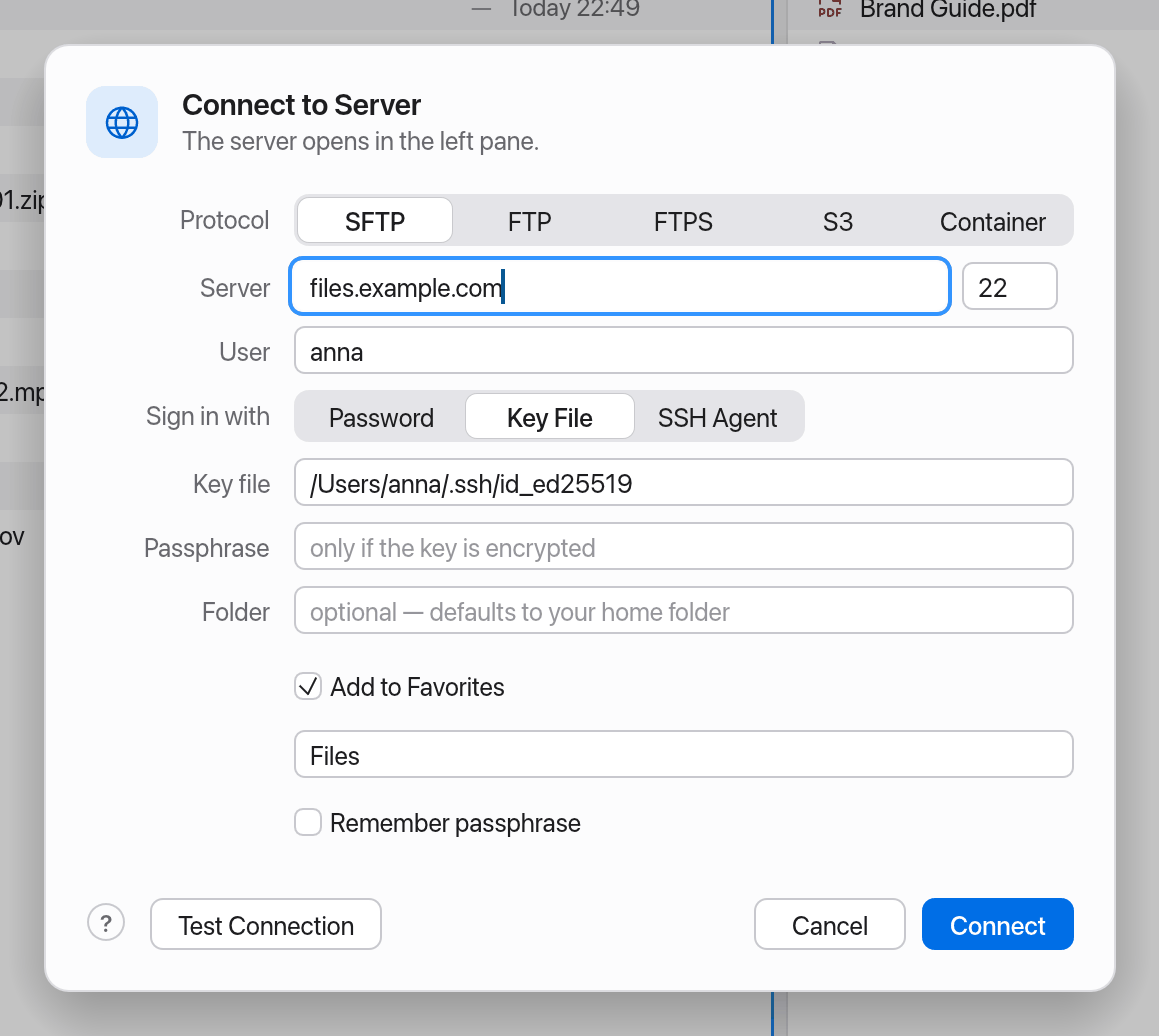
SFTP
SFTP is the secure standard for Linux servers and many hosting plans.
| Field | Meaning |
|---|---|
| Server, Port | The server's address; port 22 unless you change it. |
| User | Your user name on the server. |
| Sign in with | Password, Key File (with an optional Passphrase, "only if the key is encrypted") or SSH Agent ("Uses the keys loaded in your running ssh-agent."). |
| Folder | Optional – defaults to your home folder on the server. |
Checking the server key
Warning
Manta checks the server's key against your ~/.ssh/known_hosts file – the same one ssh uses in Terminal.
- Known server, matching key: Manta connects without asking.
- Unknown server (not in
known_hosts): Manta shows the Unknown server dialog with the server, key type and fingerprint (SHA256:…, asssh-keygen -lfprints it). Compare the fingerprint with the one your administrator or hosting provider gives you. Connect and Remember adds the key toknown_hosts(host, or[host]:portfor a port other than 22) and connects; Cancel doesn't connect. - Changed key: Manta does not connect and shows a red warning (possible man-in-the-middle attack). There is deliberately no "connect anyway" button. This also happens when a server is reinstalled – ask the administrator for the correct fingerprint. If it matches, remove the old entry in Terminal with the command from the dialog (such as
ssh-keygen -R host, Copy Command) and connect again.
Transfers that reconnect in the background after a restart never ask: with an unknown key they wait for Reconnect, with a changed key they fail.
FTP and FTPS
FTP sends everything unencrypted, your password included. Use it only on your local network or for public servers. Anonymous signs in without a password, if the server allows it.
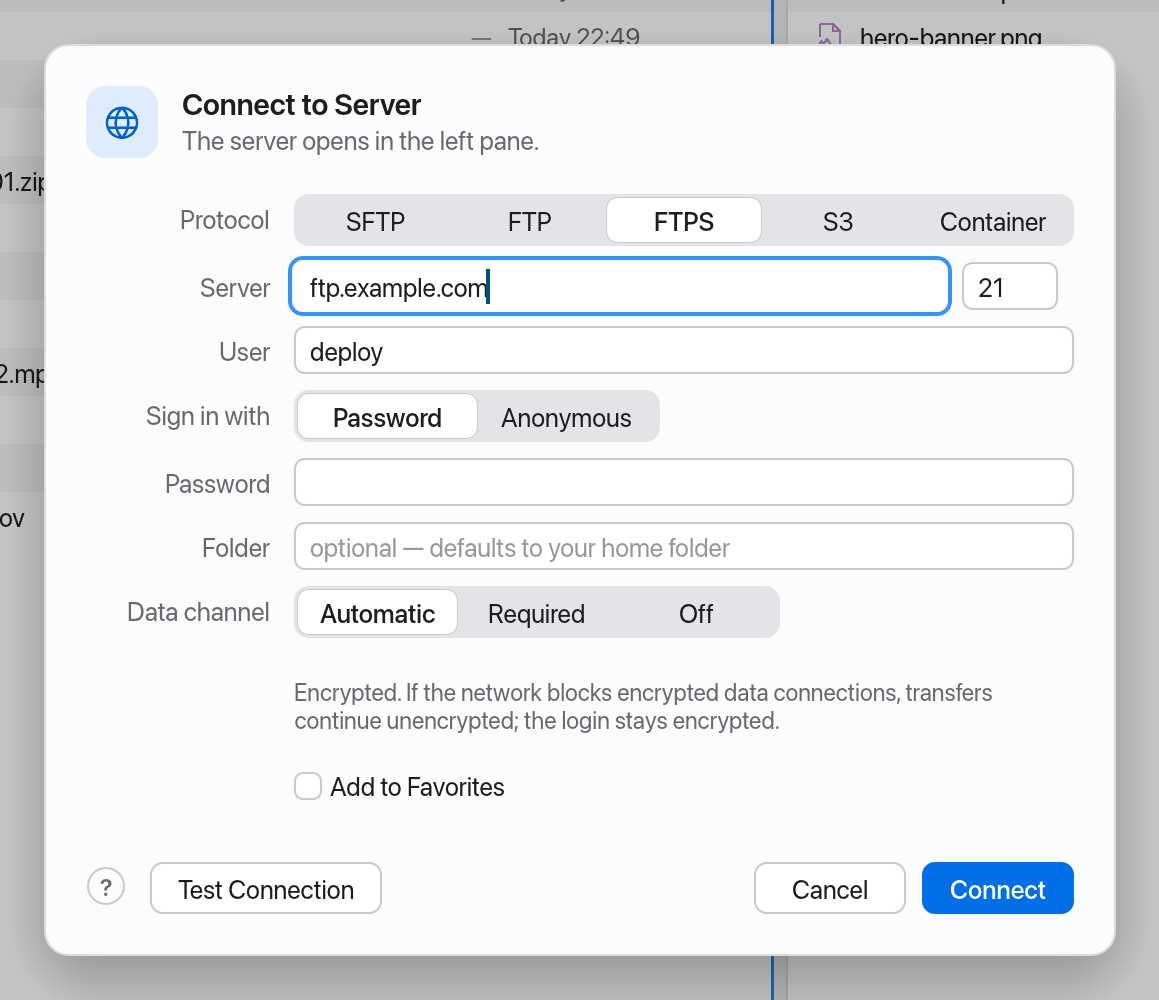
FTPS is FTP with encryption (explicit TLS, usually on port 21). Manta doesn't support implicit FTPS on port 990.
The FTPS data channel
FTP uses two connections: one for signing in and commands, and a second one (the "data channel") for folder listings and files. Some company firewalls block encrypted data connections. That's why you can choose a Data channel:
| Setting | Behaviour |
|---|---|
| Automatic (default) | Encrypted. If the network blocks encrypted data connections, transfers continue unencrypted; the login stays encrypted. |
| Required | Always encrypted. Fails if the network blocks encrypted data connections. |
| Off | Listings and files travel unencrypted; the login stays encrypted. |
When Automatic falls back to an unencrypted data channel, you can tell:
- The location chip in the path bar shows a warning shield.
- A one-time notice says "Data connection unencrypted (network blocks TLS) – login stays encrypted".
Warning
In the fallback, file contents and file names travel unencrypted; only the user name and password stay protected. For confidential data, set the data channel to Required and use another network – or SFTP.
The setting is saved with the favorite. See also Troubleshooting: FTP data channel.
S3 and S3-compatible storage
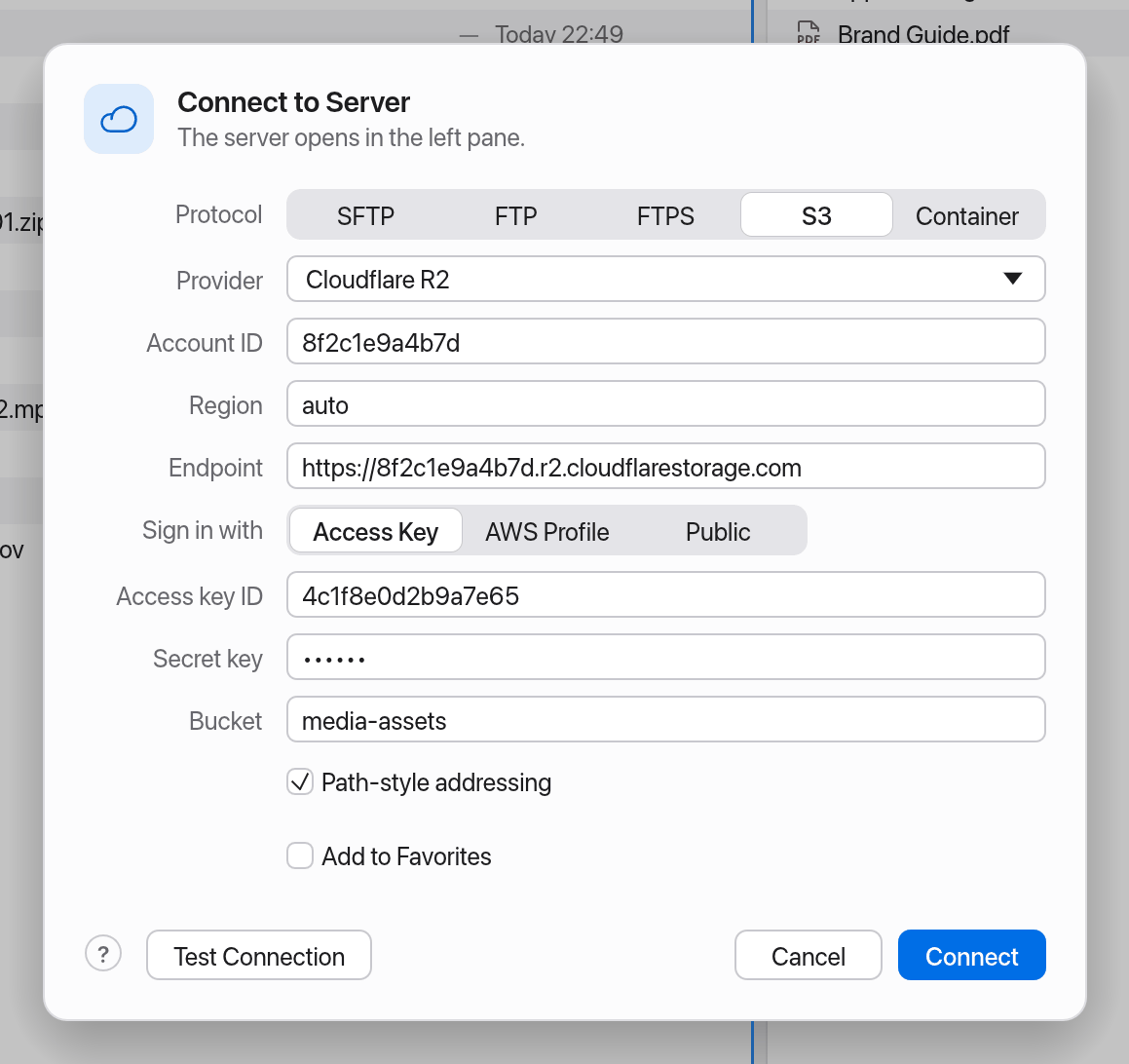
S3 connects to Amazon S3 and compatible services. Buckets and prefixes appear as folders.
| Field | Meaning |
|---|---|
| Provider | Amazon S3, Cloudflare R2, MinIO, Backblaze B2, Wasabi, DigitalOcean Spaces, Hetzner Object Storage or Other S3-compatible. The preset fills in endpoint and region. |
| Account ID | Cloudflare R2 only (Cloudflare dashboard › R2 › Account ID). |
| Region, Endpoint | The endpoint usually follows the region. If a bucket is in another region, Manta corrects it itself. |
| Sign in with | AWS Profile (keys from ~/.aws/credentials), Access Key (access key ID and secret key) or Public (for public buckets). |
| Bucket | Optional – otherwise you see all buckets. |
| Path-style addressing | Needed by MinIO and most self-hosted servers. |
Good to know:
- Renaming and moving inside a bucket is "copy and delete" behind the scenes. Objects over 5 GB can't be renamed.
- Modification dates and permissions can't be set in S3.
- Deleting the last file of a "folder" makes the folder vanish if it has no folder marker of its own.
- AWS profiles using SSO,
credential_processor assume-role don't work, only static keys. - If your Mac's clock is more than 15 minutes off, S3 rejects the requests ("Your Mac's clock is off").
WebDAV
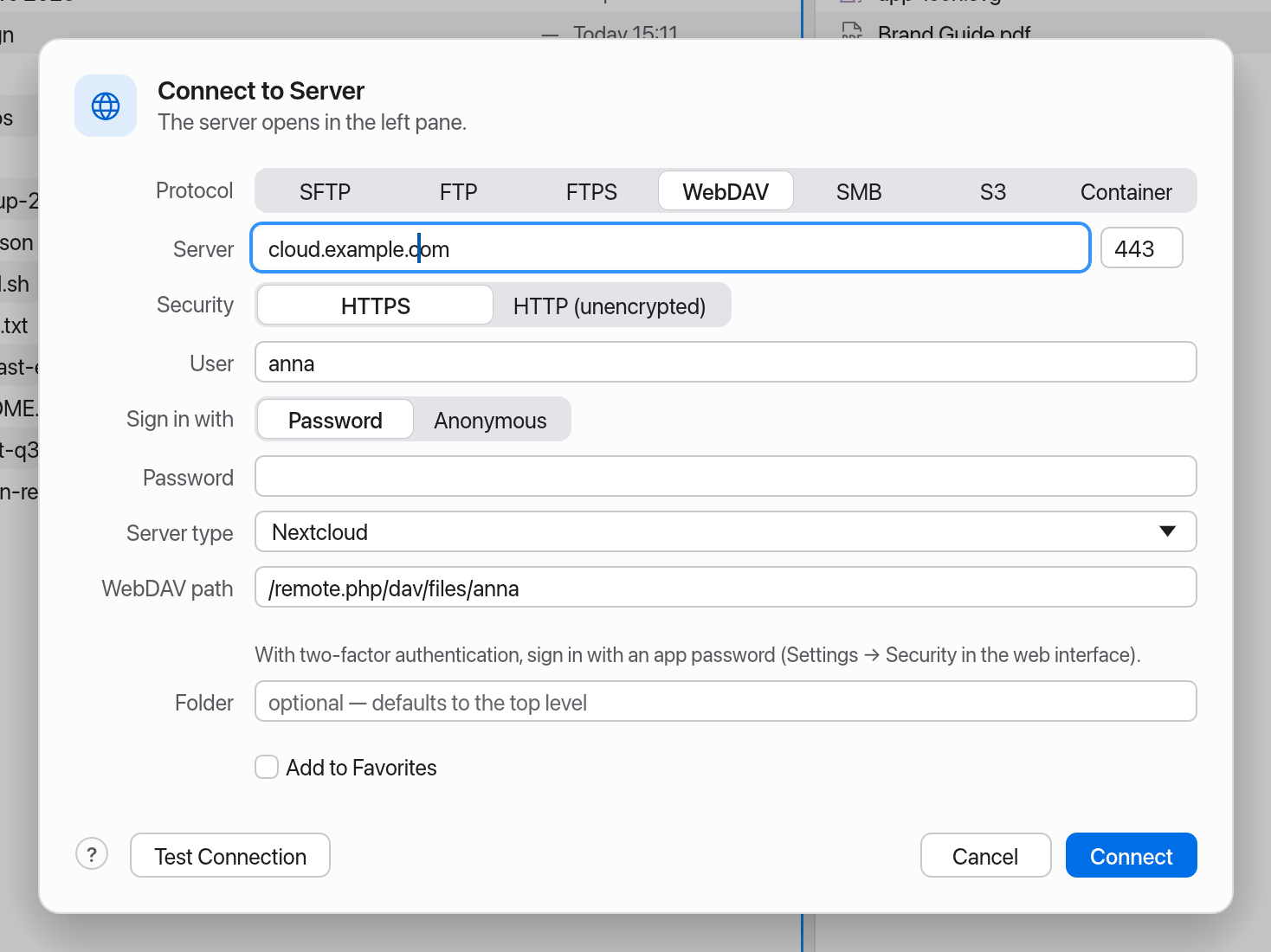
WebDAV connects to Nextcloud, ownCloud, NAS systems (Synology, QNAP), Apache or nginx servers and other WebDAV services.
| Field | Meaning |
|---|---|
| Server, Port | The server's address. You can paste a whole URL such as https://cloud.example.com/remote.php/dav/files/anna; Manta fills in the fields. |
| Security | HTTPS (port 443) or HTTP (unencrypted) (port 80). |
| User, Sign in with | Password or Anonymous. Manta handles Basic and Digest authentication. |
| Server type | WebDAV server, Nextcloud or ownCloud. Nextcloud and ownCloud fill in the WebDAV path /remote.php/dav/files/<user name>. |
| WebDAV path | Where the WebDAV folder starts on the server, such as /dav. Empty: the server root. |
| Folder | Optional – the folder to open inside it. |
Good to know:
- Certificates are checked by macOS, as in Safari. A self-signed certificate works once you trust it in Keychain Access.
- Interrupted downloads continue where they stopped. Interrupted uploads start the file again (WebDAV can't append to a file).
- Copying within the same server uses the server's own copy (no download and upload).
- Modification dates can be set where the server allows it (Nextcloud, ownCloud); otherwise copies get the time of the upload.
Tip
With two-factor authentication on Nextcloud or ownCloud, sign in with an app password (Settings → Security in the web interface), not your normal password.
Warning
With HTTP (unencrypted), the password and all files travel unencrypted. Use HTTP only in a network you trust.
SMB
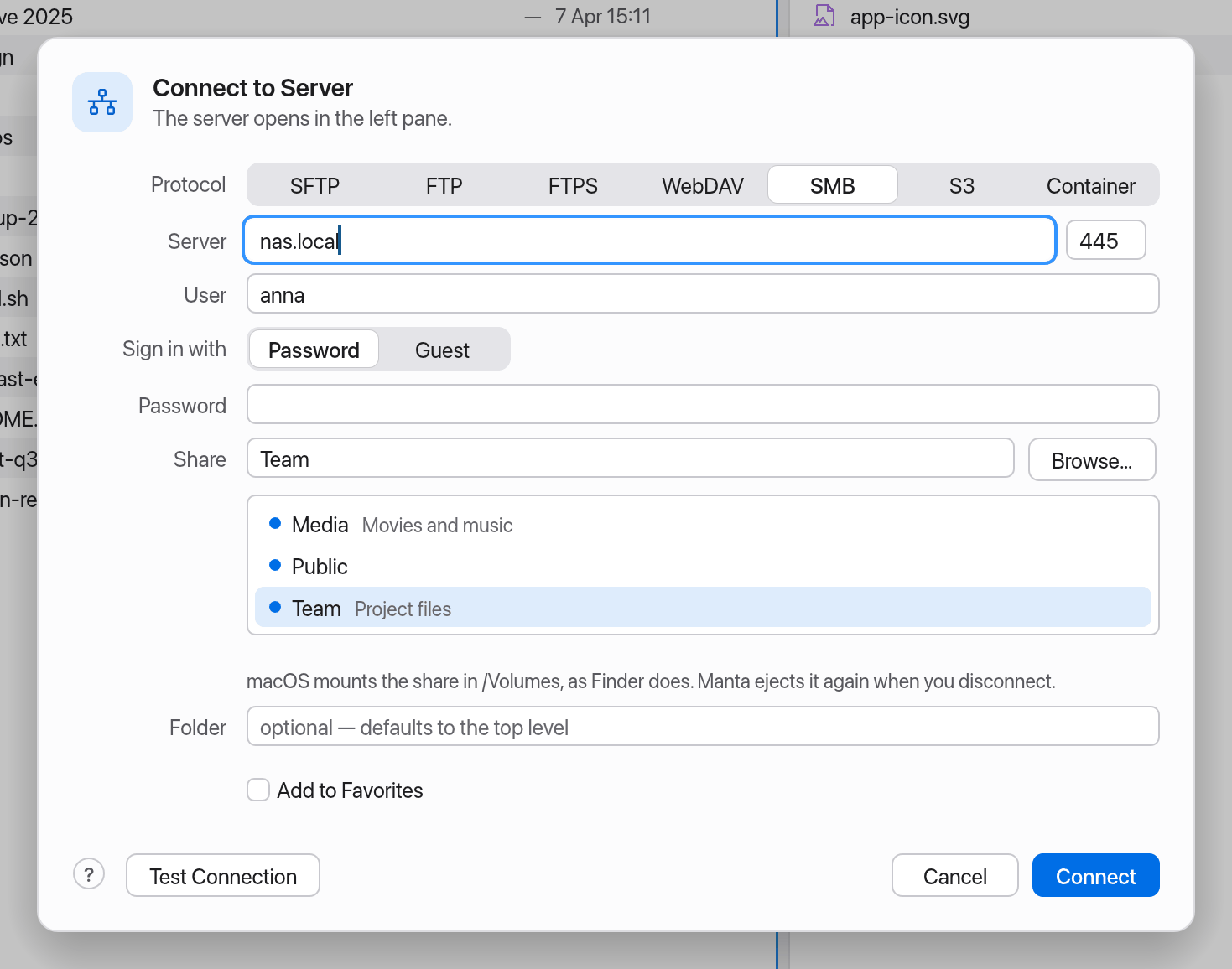
SMB opens shares of Windows PCs, NAS systems and other Macs. macOS itself connects (the same way as Finder's Connect to Server) and mounts the share in /Volumes; Manta then shows it like a local folder.
| Field | Meaning |
|---|---|
| Server | Name or address of the server, such as nas.local. smb://server/share/folder fills in all fields. |
| User, Sign in with | Password, or Guest (no password – or your Kerberos ticket or the password saved in your Keychain). |
| Share | The share to open. Browse… lists the server's shares; click one to choose it. |
| Folder | Optional – a folder inside the share. |
Good to know:
- A share that is already mounted (by Finder, for example) is used as it is and stays mounted when you disconnect. A share Manta mounted is ejected again when you disconnect or quit Manta.
- The location chip says, for example, "SMB · nas.local/Team".
- Interrupted copies continue where they stopped. If the share disappears (network change, sleep), Manta mounts it again before it retries.
- The list of shares comes from
smbutil, without a password (guest, Kerberos or the Keychain). If the server wants a password for the list, just type the share name yourself.
Network volumes in the sidebar
Shares you connected in Finder (SMB, AFP, NFS, WebDAV) appear under Devices with a network icon. Hover over one and click the eject icon (Eject) to unmount it. Click the refresh arrow next to Devices after you mounted something new.
Docker and Kubernetes
Manta opens the files inside containers like a folder. It uses the docker and kubectl commands, which must be installed on your Mac.
From the sidebar
The quickest way: click a container in the Containers section of the sidebar. It opens in its working directory.
From the dialog
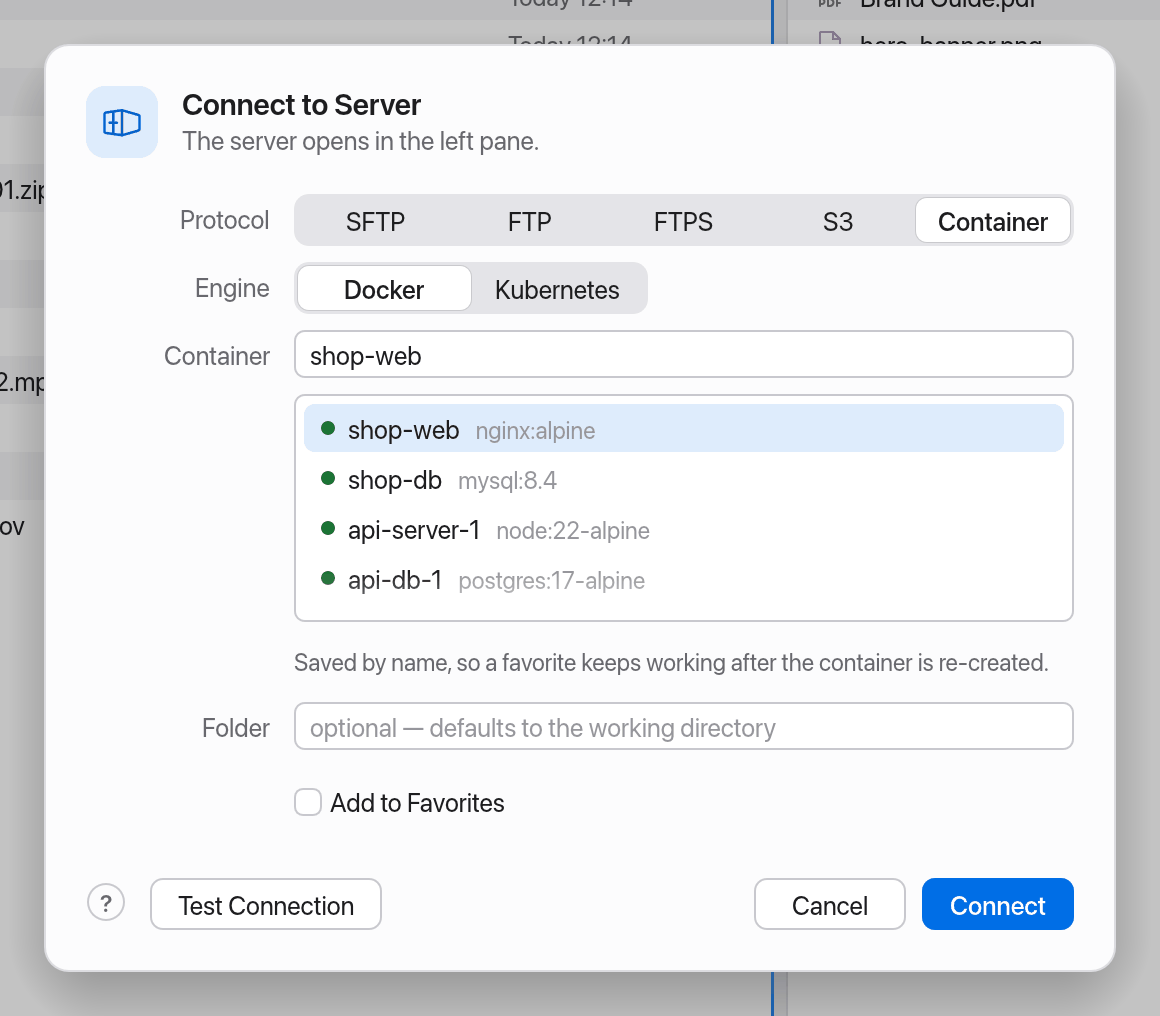
- Press ⌘K and choose Container.
- Choose the Engine: Docker or Kubernetes.
- Docker: pick the container from the list or type its name or ID. Kubernetes: choose the Context, Namespace, Pod and, if needed, the container.
- Click Connect.
Favorites store the container by name, so a favorite keeps working after the container is re-created.
Stopped containers and images without a shell
- Stopped containers open read-only (Stopped chip). You can copy files out; start the container to make changes (right-click it in the sidebar → Start).
- Containers without a shell (distroless or scratch images) are read-only too.
- Manta reads a folder of a stopped container as a whole; if that's more than 512 MB it says "too large". Start the container then.
A shell in the container
Right-click → Open Shell in Container (also in the command palette) opens a shell inside the container in the terminal below the pane, right in the folder you're looking at. See Terminal.
Note
Manta only changes files you act on yourself. It starts, restarts or stops a container only when you choose that in the sidebar, and never removes containers.
Connections as favorites
- Turn on Add to Favorites in the connection dialog.
- Optionally enter a name for the sidebar.
- Optional: Remember password (or Remember passphrase, Remember secret key).
Note
Remembered passwords, passphrases and S3 secret keys are stored in the macOS Keychain (login keychain, item "com.manta-filemanager.manta.server", account such as sftp://user@host:22), not in favorites.json. The file only notes that there is an item. Manta reads the password when you connect; macOS may ask once whether Manta may use the Keychain.
Older versions stored remembered passwords unencrypted in favorites.json. At the first launch Manta moves them to the Keychain and rewrites the file without them. If that fails (Keychain locked or access denied), the file stays unchanged and Manta tries again at the next launch.
Removing a favorite also deletes its Keychain item (unless another favorite for the same server account still uses it). When you edit a favorite, the password field says "saved in Keychain"; leave it empty to keep the saved password.
To change a favorite, right-click → Edit Connection… (the "Edit Connection" dialog).
Disconnect
Hover over the connection under Servers in the sidebar and click the eject icon (Disconnect). Panes that showed the server say "Disconnected". For an SMB share, disconnecting also ejects the share if Manta mounted it.
When it doesn't work
Manta turns technical errors into plain messages with a hint. The most common ones:
| Message | What you can do |
|---|---|
| "Couldn't find “host”" | Check the server address for typos. |
| "host refused the connection on port …" | Are port and protocol right? Is the server running? |
| "host didn't respond" | Check your network, VPN and firewall. |
| "The server didn't accept these credentials" | Check the user name and password, or try another sign-in method. |
| "No usable key in ssh-agent" | Add a key with ssh-add. |
| "A secure connection couldn't be set up" | The server can't do FTPS on this port, or its certificate isn't trusted. |
| "Docker isn't running" | Start Docker Desktop. |
| "kubectl isn't installed" | brew install kubectl |
More help: Troubleshooting.
Limitations
- No implicit FTPS (port 990).
- Kubernetes: no port forwarding, no ephemeral debug containers; pods need
sh. - Writing into containers goes through
cat; new files belong to the userexecruns as. - You don't connect Google Drive & co. here but through your Mac's cloud folders, see Cloud Storage. Manta comes without a Google sign-in of its own; only if you enter your own OAuth client in Settings does "Google Drive" appear here too, see Google Drive for experts.
- WebDAV: no locking (
LOCK); uploads that were interrupted start again. - SMB needs macOS's own SMB support; Manta has no SMB client of its own. Non-default SMB ports may not work for the list of shares.