
Chapter 6
Quick Look & Preview
Press Space to look at a file without opening it. For files on your Mac Manta uses Apple's Quick Look, like Finder; for files on servers and in archives there is a built-in preview.
On this page
Look at files quickly
- Select a file.
- Press Space (or ⌘Y, as in Finder).
- Use ↑ and ↓ to go to the previous or next file; the panel follows.
- Space or esc closes the preview.
With several files selected, the ‹ and › arrows in Quick Look page through the selection.
The keyboard stays in Manta: you can keep moving through the list with the arrow keys while the Quick Look panel is open.
Quick Look (macOS)
Quick Look is Apple's preview panel. It shows everything Finder shows: PDFs, images, videos, Office documents, text files and more. It works for local files and folders.
Built-in preview
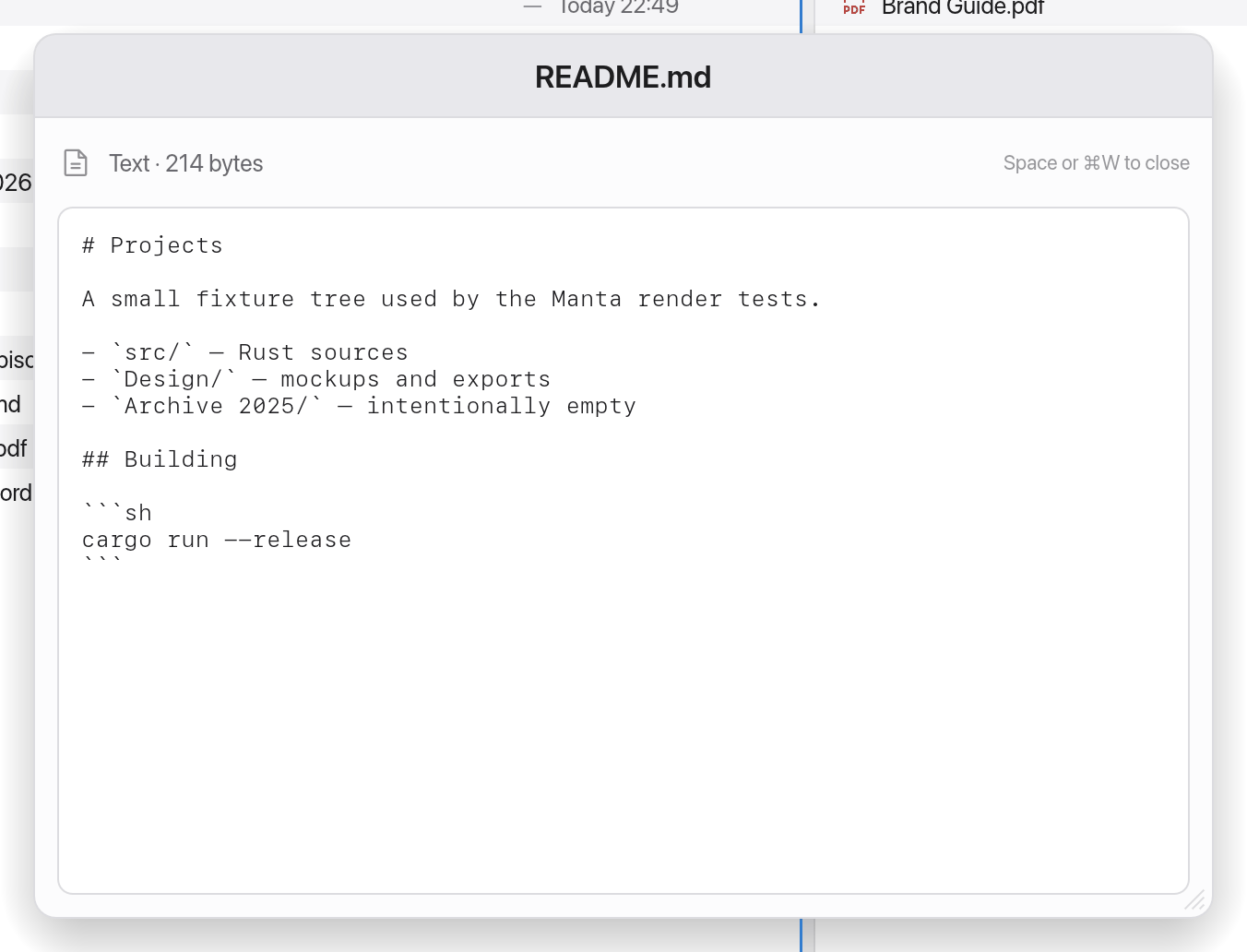
Files on servers (SFTP, FTP, S3, containers) and in archives open in Manta's own preview window, because Apple's Quick Look only knows local files.
- The built-in preview shows text files and images.
- For large text files it shows the beginning ("Showing the first … of the file.").
- For other file types (PDFs or videos, for example) it says what the file is and suggests opening it with ↩. Manta then downloads it and opens it with the default app.
- It doesn't show folders; press ↩ to open one. (Apple's Quick Look shows local folders.)
- To close it: Space or ⌘W (it's a window of its own with the usual window buttons).
Change what Space does
In Settings → General → Preview → Space opens choose:
- Quick Look (macOS) – the default.
- Built-in preview – for local files too.
Files on servers and in archives always use the built-in preview.
More previews from plugins
- Markdown Preview (⌥⌘M): shows
.mdfiles nicely typeset in a sidebar – see Markdown Preview. - Image Tools: show an image's size, colour profile and EXIF data – see Image Tools.
Limitations
- Quick Look is only for local files. Manta doesn't (yet) download server files to show them in Quick Look.
- The built-in preview shows only text and images.