
Chapter 11
Terminal
Below each pane you can show a terminal that follows the pane's folder – and the other way round. It runs where the pane is: on your Mac, on an SFTP server or in a container.
On this page
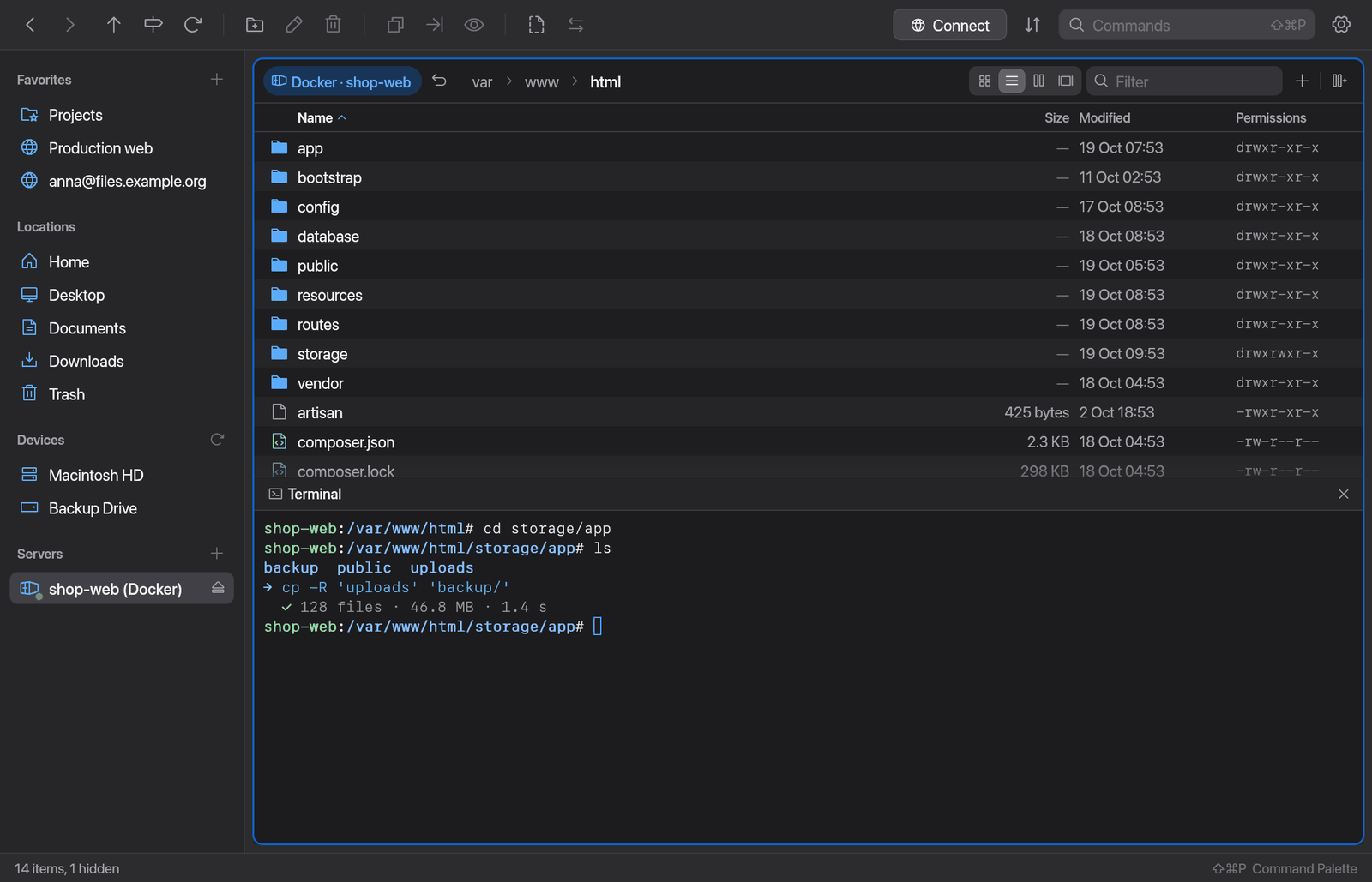
Show the terminal
- Press ⌃` (Toggle Terminal).
- Or choose Toggle Terminal in the command palette.
The terminal appears below the active pane. Drag its top edge to change its height.
More commands in the command palette:
- New Terminal Session – starts a fresh shell.
- Clear Terminal – clears the display.
If you end the shell (with exit, for example), the terminal shows "[Process exited — press Enter to restart]".
Pane and terminal follow each other
From pane to terminal: when you change folders in the pane, the shell cds there – as soon as it's idle, that is, when no command is running. Until then a note says "Will cd to “folder” when idle". Anything you've half typed is kept.
From terminal to pane: type cd ~/Projects in the terminal and the pane above shows that folder. Turn this off with Pane follows terminal cd (see Settings).
Your prompt and shell configuration stay as they are.
Terminal in containers and on servers
The terminal runs where the pane is:
| The pane shows … | Terminal |
|---|---|
| a local folder (cloud folders too) | your normal shell on the Mac |
| a Docker container | a shell inside the container (docker exec) |
| a Kubernetes pod | a shell inside the pod (kubectl exec) |
| an SFTP server | ssh to the server, with your SSH config and ssh-agent |
| S3, FTP, an archive | no terminal ("No terminal for this location") |
- Manta installs nothing in the container or on the server for this.
- For SFTP connections with a password, you type the password in the terminal. A key file that isn't in your SSH config or agent asks in the terminal too.
- Each pane keeps up to four shells (local, containers, servers). When you go back, the earlier shell is there again with its history.
- If a container is stopped, the terminal says "Container “name” is stopped". Start it and click the note.
Right-click → Open Shell in Container starts a shell in the container folder you're looking at.
File actions in the terminal
When you copy, move, delete or rename something in Manta, the terminal shows the matching shell command – such as cp -R …, scp …, docker cp … or aws s3 cp … – followed by the result ("done", "failed: …"). Moving to the Trash shows up as mv … ~/.Trash/, a permanent delete as rm -r ….
Note
This is only a display. Manta does the work itself; nothing is run in the shell. You can copy the commands, though, for your own scripts for example.
On remote shells (containers, SSH) Manta shows these commands as a card on the terminal instead of writing them into the shell.
To turn it off: Show file actions in terminal in the settings.
Settings
Open Settings (⌘,) → Plugins → Terminal → Settings.
| Setting | Meaning |
|---|---|
| Shell | Which shell starts (/bin/zsh, for example). |
| Font size | Size of the terminal font. |
| Scrollback | How many lines you can scroll back. |
| Use Option as Meta key | Option+key sends ESC+key (for Emacs-style shortcuts) instead of typing special characters. |
| Pane follows terminal cd | A cd in the terminal changes the pane's folder. |
| Show file actions in terminal | Shows file actions as shell commands (see above). |
Tip
On many non-US keyboards you need Option for @, {, [ and |. Leave Use Option as Meta key off unless you use Emacs-style shortcuts.
Keyboard in the terminal
While the terminal has focus, these shortcuts belong to the terminal instead of Manta: ⌘C, ⌘V, ⌘A, ⌘K, ⌘←, ⌘→ and ⌘⌫. Other Manta shortcuts such as ⇧⌘P keep working. Click into the file list to give the keyboard back to Manta.
Limitations
- busybox
sh(Alpine) and bash 3 can't keep half-typed input when the terminal follows the pane (bash 4 or later and zsh can). - In containers with a shell other than bash or POSIX
sh, the terminal follows only one way. - No terminal for S3, FTP and archives.