
Chapter 14
Built-in Plugins
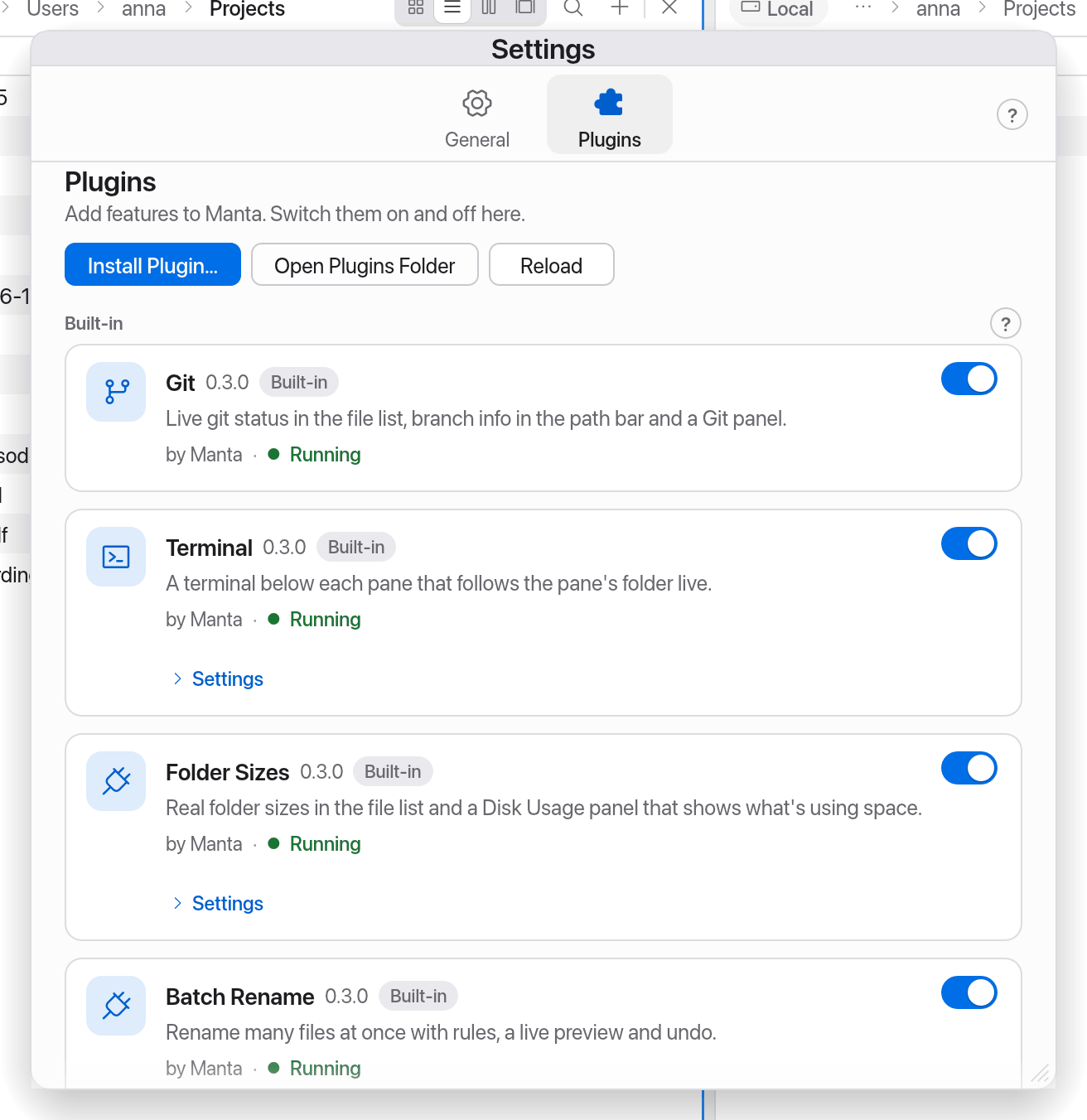
Many of Manta's features live in built-in plugins. They're on from the start, and you can turn each one off in Settings → Plugins. Git and Terminal have chapters of their own: Git, Terminal.
On this page
Turn plugins on and off
- Open Settings with ⌘, and choose Plugins.
- The built-in plugins are under Built-in. Click Turn Off or Turn On.
- If a plugin has options, open them with Settings on its card.
To add plugins from others, open Discover at the top of the Plugins page, double-click a .mantaplugin file, drop it on the Plugins page, or use Install Plugin… – from a .mantaplugin file or a folder. Plugins from others run in a macOS sandbox and can only do what their permissions allow; built-in plugins are part of Manta and aren't sandboxed. More: Your Own Plugins and Security.
Many plugins show their content in a sidebar on the right or a panel below the pane. Open them with shortcuts, path-bar chips or the command palette ("Show “…” Panel").
Folder Sizes
Folder Sizes shows real sizes for folders in the Size column too – measured in the background and cached. Sizes are kept across restarts: Manta shows them at once and re-measures in the background in case something changed. When something changes inside a sub-folder, also by another app, Manta re-measures it shortly afterwards by itself.
- While Manta is still counting, it shows for example "≥ 1.2 GB" with a small spinner.
- Hover over a size to see the number of files and the size on disk.
- You can sort by folder size, and it counts towards the size of the selection.
The size is the sum of the file sizes (as for files). Manta doesn't follow symbolic links, counts hard links once and stays on the folder's volume.
Only on demand: if you switch Settings → Plugins → Folder Sizes to Only on demand, folders show "—" until you right-click them and choose Calculate Size.
Disk Usage
⌥⌘U (Show Disk Usage) shows what uses space in the active folder:
- a treemap: click to zoom in, double-click to open,
- a list of the Largest Items.
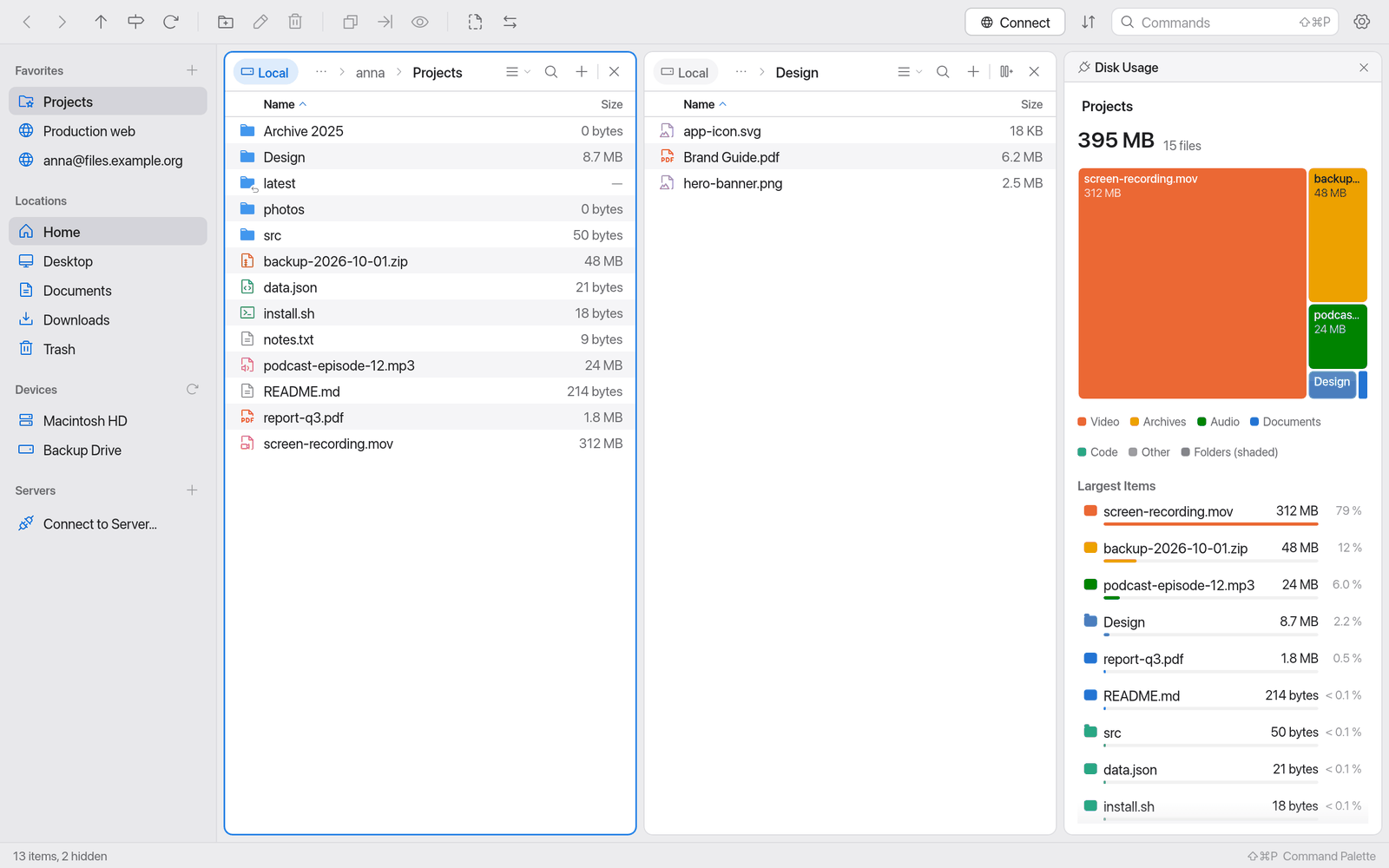
Folder sizes and Disk Usage are for local folders only.
Batch Rename
Rename many files at once – with rules, a live preview and undo.
- Select the files. With nothing selected, it applies to all files in the folder.
- Press ⇧⌘R (Batch Rename…) or F2 with several items selected.
- Add rules with Add Rule. They apply from top to bottom.
- Check the Preview: original name → new name, with the changes highlighted character by character.
- Click Rename (or press ↩).
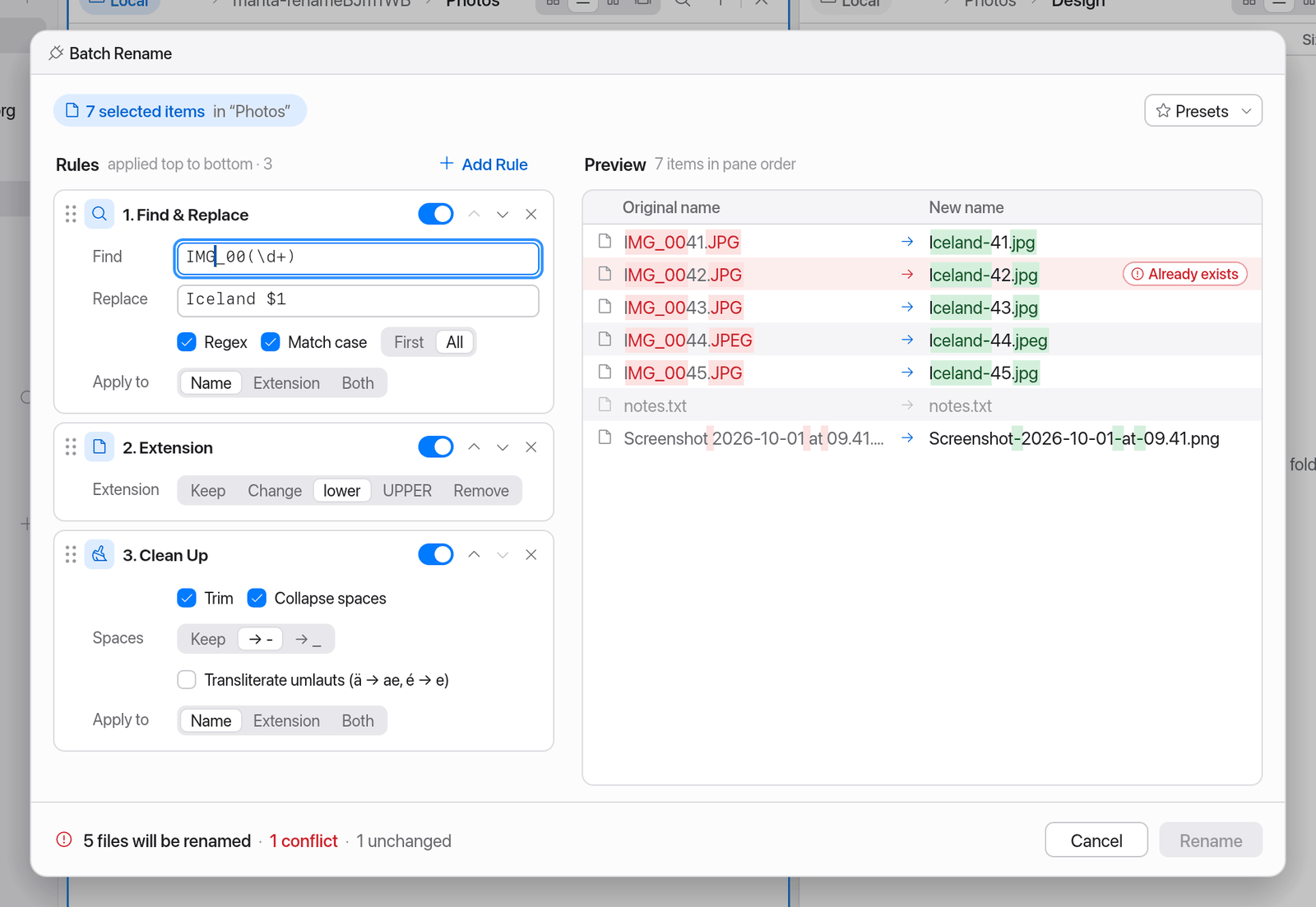
The rules:
| Rule | What it does |
|---|---|
| Find & Replace | Text or regular expression, with $1 groups; match case; first or all occurrences. |
| Insert Text | At the start, end or a position. |
| Remove Characters | The first, last or a range of characters. |
| Change Case | lower, UPPER, Title, Sentence. |
| Numbering | 1, 2, 3 … with start, step, digits (padding), as prefix, suffix or as the name. |
| Date | Modified date or today, in a format of your choice. |
| Extension | Change, lower/upper case or remove the file extension. |
| Clean Up | Trim whitespace, collapse spaces, transliterate umlauts (ä → ae, é → e). |
Each rule can apply to Name, Extension or Both, be turned off and on, and be moved.
Safety:
- The preview shows conflicts (duplicate names, existing names, empty or invalid names) right away. Rename only works once they're all resolved.
- Nothing is ever overwritten. Swapping names (a ↔ b) and case-only changes work.
- Afterwards a notice offers Undo. It's also in the command palette: Undo Batch Rename.
Presets: under Presets you save a rule set under a name and load it again later.
Batch Rename works on your Mac and on servers.
Quick Actions
Quick Actions are your own commands for the selected files: resize images, zip, open in VS Code, checksums and anything else a shell command can do.
Run a Quick Action
- Right-click files → Quick Actions submenu. It only lists actions that fit the selection ("Resize Images to 50%" only for images, for example).
- Command palette (⇧⌘P): type the action's name.
- Panel: Show Quick Actions Panel in the palette shows the applicable actions and, under Last runs, status, duration and output.
At most two background actions run at a time. If one takes longer, a notice with Cancel appears; at the end you get a result notice. Terminal actions run visibly in the Terminal below the pane.
Actions that come with Manta
Resize Images to 50% · Convert to JPEG · Convert to PNG · Compress to ZIP · Extract Archive · Open in VS Code · Open in Terminal.app · Copy Path · Reveal in Finder · Make Executable · Count Lines · Calculate SHA-256 · Copy to Other Pane (rsync)
Your own actions in actions.json
The actions live in actions.json in the plugin's data folder (~/Library/Application Support/Manta/plugin-data/manta.quickactions/).
- Choose Edit Quick Actions… in the command palette. The file opens in your text editor.
- Change or add actions and save the file.
- Manta reloads it within a second and reports problems ("Quick Actions: …"). By hand: Reload Quick Actions.
An example:
{
  "actions": [
    {
      "id": "optimize",
      "title": "Optimize PNG",
      "title_de": "PNG optimieren",
      "applies_to": ["png"],
      "command": "optipng {file}",
      "message": "Optimized {count} image{s}",
      "message_de": "{count} Bild(er) optimiert",
      "refresh": true
    }
  ]
}
The most important fields:
| Field | Meaning |
|---|---|
id | Unique id (letters, digits, ., -, _). |
title, title_de | Name in the menu; title_de is used when Manta runs in German. |
command | Shell command, run with /bin/sh -c in the folder of the selection. |
applies_to | "any", "files", "folders" and/or extensions such as "jpg". |
min, max | How many items must be selected. |
mode | "background" (default), "terminal" (visible in the terminal) or "silent". |
output | "none", "toast" (output as a notice) or "panel". |
confirm | Question before running, e.g. "Delete {count} file{s}?". |
refresh | Read the pane again afterwards. |
shortcut | A shortcut of its own, e.g. "⌃⌥Z". |
Placeholders in the command: {file} (the command then runs once per item), {files} (all at once), {name}, {stem}, {ext}, {dir}, {dest} (the folder in the other pane) and {count}. Manta does the quoting – write {file}, not '{file}'.
The full reference is in docs/quick-actions.md.
Tip
To get the current default actions after an update, rename actions.json. Manta creates the file again.
Quick Actions work in local folders only.
Project Info
Project Info detects the project you're in and makes its scripts runnable with one click.
It detects: Laravel (artisan), Composer, Node (npm, pnpm, yarn, bun), Docker Compose, Rust (Cargo), Python, Make, just and Task.
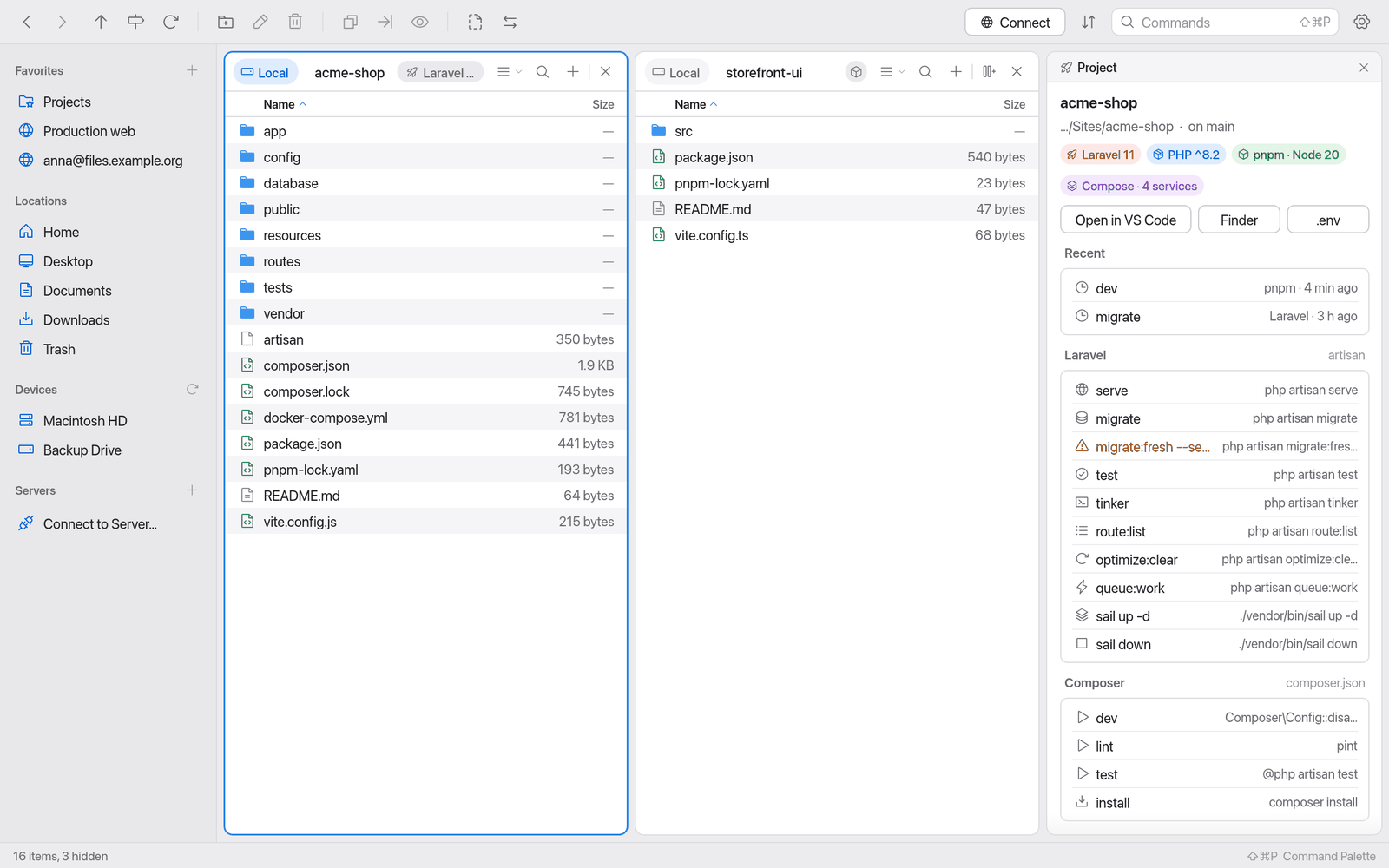
- Path-bar chip: for example "Laravel · 28 scripts". Click to show or hide the Project panel.
- Project panel: name, root, Git branch and versions ("PHP ^8.2", for example), the buttons Open in VS Code, Finder, .env and Go to Root, your recent scripts and every script grouped by tool.
- Clicking a script runs it in the Terminal below the pane, in the project root – as if you had typed it.
- Command palette: Run Project Script…, Show Project Panel, Re-run Last Script (⌥⌘R).
- Right-click
package.json,composer.json,Makefileand the like: Show Scripts.
Note
Scripts that can drop data (such as migrate:fresh, docker compose down -v, rm -rf, or names containing "clean", "reset", "deploy", "publish") ask before they run. They're marked with a warning sign.
Project Info needs the Terminal plugin and works in local folders only. Details: docs/project-info.md.
Markdown Preview
Markdown Preview shows the selected .md, .markdown or .mdx file nicely typeset in a sidebar on the right. With nothing selected it shows the folder's README.
- Show and hide: ⌥⌘M (Toggle Markdown Preview).
- Supports GitHub-flavoured Markdown: tables, task lists, alerts, footnotes, highlighted code with a Copy button, local images.
- Contents shows a table of contents; links to other
.mdfiles open them, Back goes back. - Open in Editor and Reveal in Pane.
- Live: when you change the file, the preview updates and keeps its scroll position.
For your privacy the preview doesn't load images from the web (their server would learn that you opened the file). To turn them on: Settings → Plugins → Markdown Preview → Load images from the web (http/https).
Files over 2 MB are shown in part only on request (Show First 2 MB). No HTML (except images and line breaks), no SVG images, no maths.
Image Tools
Image Tools show details about images and edit many images at once.
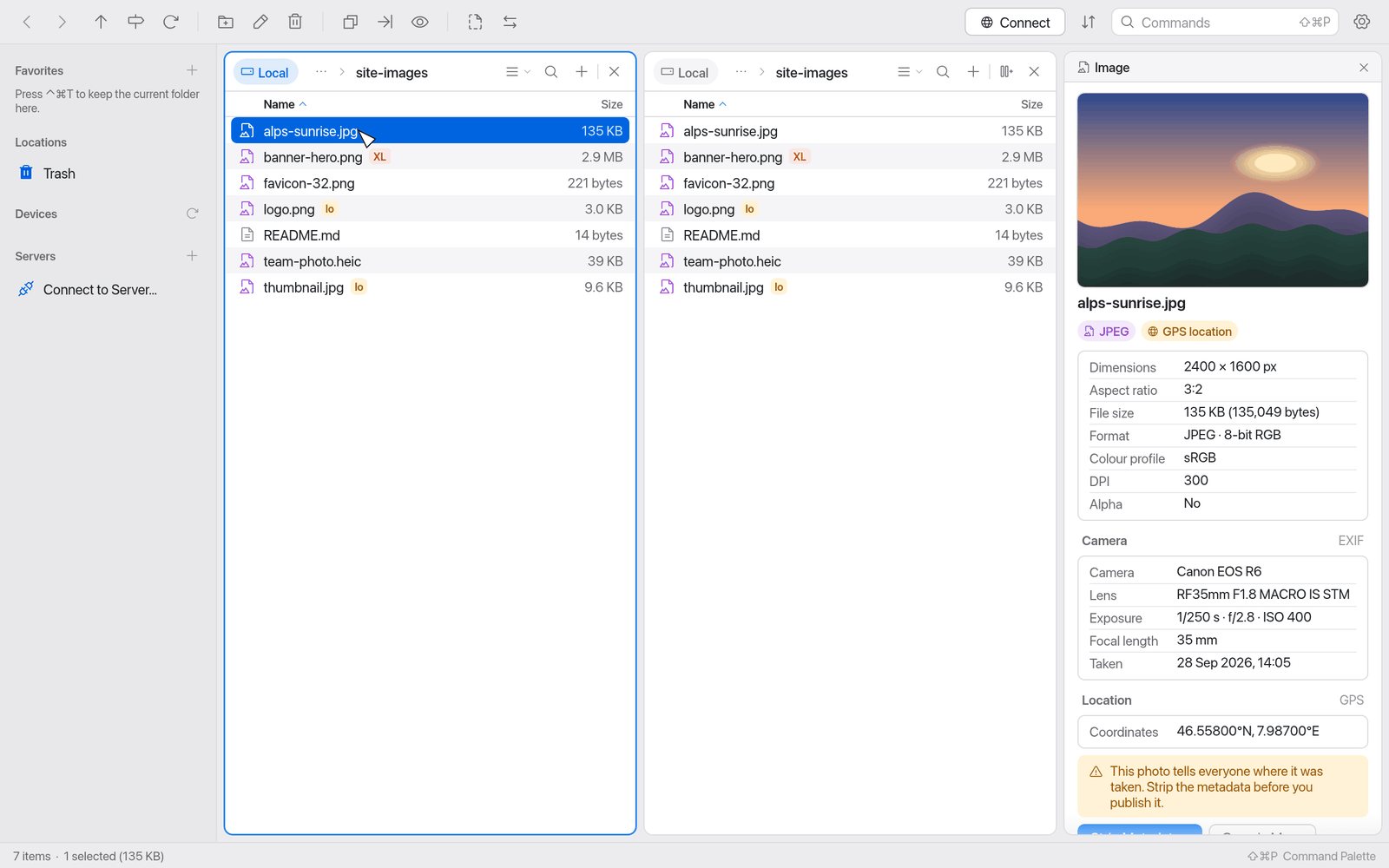
Badges in the list:
- lo – low resolution: longest edge under 800 px.
- XL – large for the web: over 2 MB.
- The tooltip shows, for example, "1920×1080 · sRGB · 340 KB".
Image panel (Show Image Panel in the palette): preview, dimensions, aspect ratio, file size, colour profile, DPI, alpha, animation and EXIF data (camera, lens, exposure, date taken). If a photo has a GPS location, the panel warns you and offers Open in Maps.
Right-click → Image Tools:
| Command | What it does |
|---|---|
| Resize… | 50%, 1920/1280/800/400 px or a custom size; keeps the aspect ratio. |
| Convert to… | JPEG, PNG, HEIC, TIFF; WebP with cwebp. |
| Rotate 90° Left/Right, Rotate 180°, Flip Horizontal/Vertical | |
| Strip Metadata… | Removes EXIF (GPS included), XMP, IPTC and comments – losslessly for JPEG, PNG and WebP. HEIC and TIFF need exiftool. |
| Optimize for Web… | Longest edge at most 2560 px, sRGB, JPEG quality 82 (PNG kept for transparency). |
| Make @2x/@1x Set… | The original as @2x and a half-size @1x version. |
| Copy as Data URI | For a single image, to embed in HTML/CSS. |
Under Save as you choose Next to the original, In a subfolder or Replace originals (the originals go to the Trash). Manta never overwrites existing files without asking; taken names get -2, -3 …
Image Tools use macOS's sips. For WebP install cwebp (brew install webp), for HEIC/TIFF metadata exiftool (brew install exiftool). They work in local folders only.
Duplicates
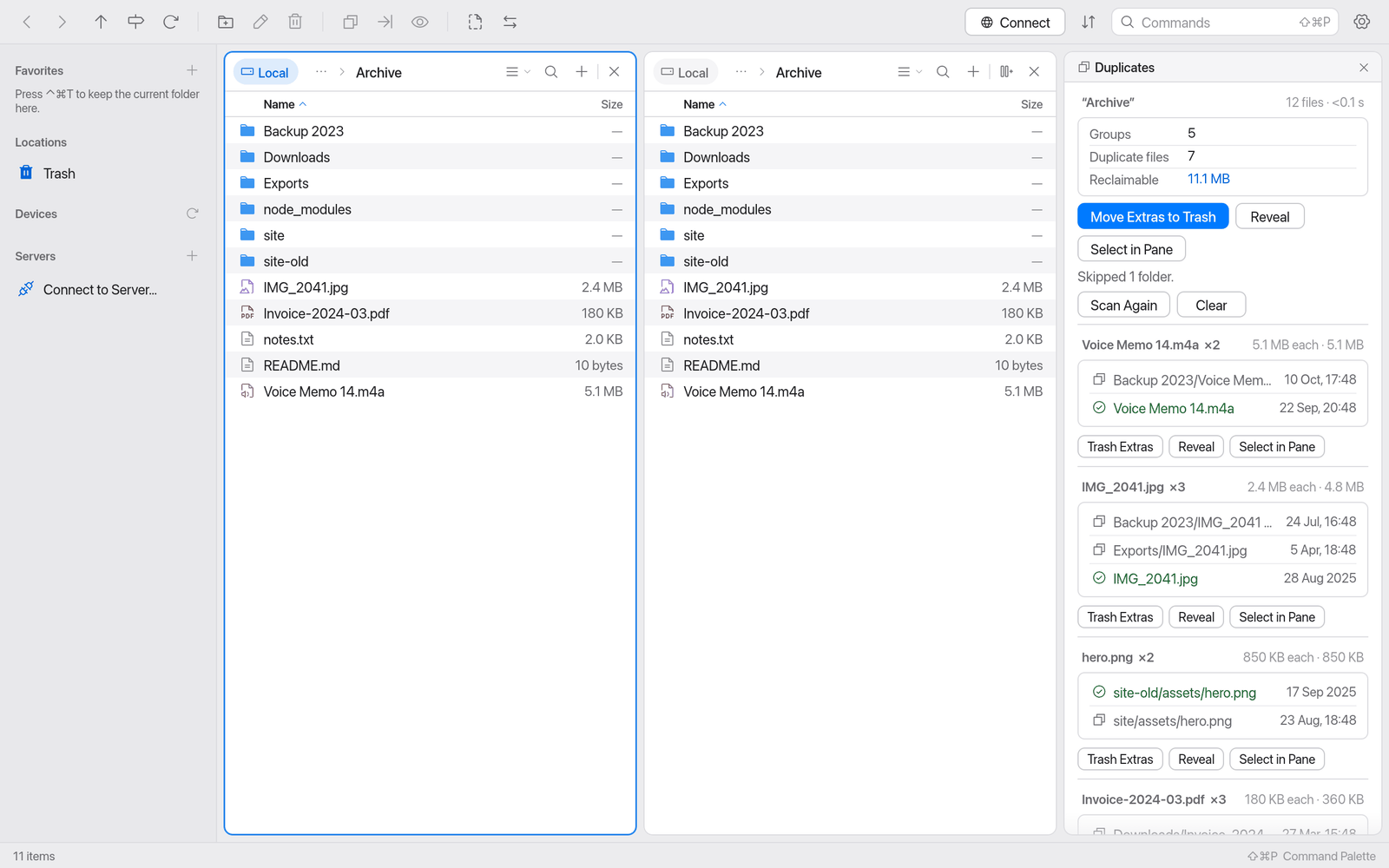
Duplicates finds identical files in a folder and its subfolders and moves the extra copies to the Trash.
- Open the folder and choose Find Duplicates in This Folder in the command palette – or right-click a folder → Find Duplicates Here.
- Manta scans the folder in the background (you can cancel) and compares size, then a quick hash, then SHA-256.
- The Duplicates panel shows the groups, the number of duplicate files and how much space you'd reclaim. Groups with the biggest savings come first.
- In each group one copy is kept ("Kept"). Which one is set by the Keep Rule: Oldest, Newest, Shortest Path or In Folder …. Click another copy to keep that one instead.
- Trash Extras (per group) or Move Extras to Trash (all) – after a confirmation with count and size.
Good to know:
- Duplicates always uses the macOS Trash, never a permanent delete. You can put everything back.
- Files that changed since the scan are left alone.
node_modules,vendor,.git, packages (such as.app), symbolic links and second hard links are skipped.- Reveal and Select in Pane help you check.
- Options: in the panel, in Settings → Plugins → Duplicates (Skip packages, Include hidden files) and in
settings.json(exclusions, minimum size, a custom trash command).
Duplicates works in local folders only.
System Load
System Load shows on the right of the status bar how hard your Mac is working: “CPU 12% GPU 3% RAM 12.4 / 16 GB”, each with a small meter. The values are read every 2 seconds in the background – without administrator rights and without a helper program. While the window is minimized or covered, measuring pauses.
- Above 85% load or with elevated memory pressure, value and meter turn amber; with critical memory pressure, red.
- The tooltip shows details in Activity Monitor’s terms: the cores (performance and efficiency cores), the busiest core, the GPU cores, App Memory, Wired Memory, Compressed, Swap Used and Memory Pressure.
- RAM is Activity Monitor’s “Memory Used” (app memory + wired + compressed), without caches.
- A click opens Activity Monitor.
- In narrow windows the command palette hint goes first, then the GPU; after that CPU and RAM show only their icon and meter.
Switch it off in Settings → Plugins → System Load; there you can also turn off Show GPU load. On Macs without GPU statistics the GPU is left out by itself.
Bundled plugins
Settings → Plugins → Available lists plugins that come with Manta but aren't installed (the "Hello Python" example, for instance). Install copies them into your plugins folder; they start switched off. See Your Own Plugins.